The purpose of this document is to help campuses identify and resolve warnings and error messages that occur throughout the benefits process.
The deduction code displayed below was not found in the deduction table. (Message ID: 000005)
Campus Action:
Confirm that the deduction code is included in the benefits program and properly defined with the correct effective date. If any changes are needed, submit a Optimize Case to request the modification, and once the Optimize Case is resolved, rerun the report.
CHRS App Dev Action:
In response to a Optimize Case, review the current effective date for the deduction code, confirm the correct effective date, and coordinate with CHRS Operations to update it.
The pay group displayed below was found but is currently inactive. (Message ID: 000011)
Campus Action:
- Review the employee’s Paygroup in Job Data.
- Check the Paygroup Table to confirm whether the paygroup is valid.
- If invalid, update the employee’s paygroup to ACD, MST, POS, or STU as appropriate.
- Rerun the BenAdmin process.
The pay group displayed below was not found in the pay group table. (Message ID: 000014)
Campus Action:
- Review the employee’s Paygroup in Job Data.
- Check the Paygroup Table to confirm whether the paygroup is valid.
- If invalid, update the employee’s paygroup to ACD, MST, POS, or STU as appropriate.
- Rerun the BenAdmin process.
The pay calendar entry displayed below was not found in the pay calendar table. (Message ID: 000015)
Campus Action:
Review the Balance ID and Pay Calendar for the selected range. If updates are required, coordinate with the appropriate team members to implement the changes, then rerun BenAdmin.
Job Aid - Create Balance IDs
Job Aid - Create Pay Run ID
Job Aid -Create Pay Calendars
The company displayed below was not found in the company table (Message ID: 000023)
Campus Action:
Open a Optimize Case, as this issue may be caused by the value used by the campus in HR 9.0 not matching the standard value in CHRS.
The company displayed below was found but is currently inactive. (Message ID: 000024)
Campus Action:
Open a Optimize Case, as this issue may be caused by the value used by the campus in HR 9.0 not matching the standard value in CHRS.
The benefit plan displayed below was not found in the appropriate benefit table. (Message ID: 000027)
Campus Action:
Open a Optimize Case, as this issue is related to configuration.
CHRS App Dev Action:
In response to the Optimize Case, first check the Benefit Plan Table to confirm that the benefit plan has been set up. If it exists, review the associate’s Benefit Program Table to ensure the plan is available as an option. Make corrections where necessary, and coordinate with the campus to rerun the BenAdmin process.
An age-graded rate was not found for the employee's category. (Message ID: 000030)
Campus Action:
Open a Optimize Case, as this issue is related to configuration.
CHRS App Dev Action:
In response to the Optimize Case, review the Age Graded Rate Table setup for the specified benefit and table ID. Then confirm that the associate’s age and sex align with the applicable criteria. Make corrections where necessary, and coordinate with the campus to rerun the BenAdmin process.
The Coverage Group for the Life/ADD plan was not found. (Message ID: 000039)
Campus Action:
Open a Optimize Case, as this issue is related to configuration.
CHRS App Dev Action:
In response to the Optimize Case, review the Life and AD/D Plan Table for the benefit plan specified to ensure the proper Coverage Group Code is present. Make corrections where necessary, and coordinate with the campus to rerun the BenAdmin process.
The form displayed below was not found in the Form Table. (Message ID: 000056)
Campus Action:
Open a Optimize Case, as this issue is related to configuration.
CHRS App Dev Action:
In response to the Optimize Case, review the Form Table for the form ID specified. Make corrections where necessary, and coordinate with the campus to rerun the BenAdmin process.
There is no birth date provided for this employee. The employee participates in the life insurance plan identified below. That plan uses an age-graded rate table to determine costs and requires a birth date. (Message ID: 000070)
Campus Action:
The employee record is missing a birthdate. Review the Modify a Person page, update the information accordingly, and rerun the BenAdmin process.
The Benefit Program defined for this employee was not found. (Message ID: 000087)
Campus Action:
Open a Optimize Case, as this issue is related to configuration.
CHRS App Dev Action:
In response to the Optimize Case, review the Ben Prog Partic record for the employee and then review for the specified program. Make corrections where necessary, and coordinate with the campus to rerun the BenAdmin process.
The Benefit Program defined for this employee was inactive for the current check date. (Message ID: 000088)
Campus Action:
Open a Optimize Case, as this issue is related to configuration.
CHRS App Dev Action:
In response to the Optimize Case, review the Benefit / Deduction Program Table status for the program specified. Make corrections where necessary, and coordinate with the campus to rerun the BenAdmin process.
The Benefit Plan / Deduction Code is not found for the Benefit Program defined for this employee. (Message ID: 000089)
Campus Action:
This issue often occurs when an employee transfers between benefit programs and is terminated from a benefit that does not exist in the new program (e.g., AY to AC1). Open a Optimize Case, as the issue may be related to configuration.
CHRS App Dev Action:
In response to the Optimize Case, review the Benefit / Deduction Program Table status for the program specified. Make corrections where necessary, and coordinate with the campus to rerun the BenAdmin process.
The Calculation Rules table was not found for the Benefit defined. (Message ID: 000090)
Campus Action:
Open a Optimize Case, as this issue is related to configuration.
CHRS App Dev Action:
In response to the Optimize Case, review the Benefit / Deduction Program Table for the specified calc rules ID. Make corrections where necessary, and coordinate with the campus to rerun the BenAdmin process.
The Service Rate Table named below was not found in the database. (Message ID: 000099)
Campus Action:
Open a Optimize Case, as this issue is related to configuration.
CHRS App Dev Action:
In response to the Optimize Case, review the Benefit / Deduction Program Table for the specified service rate ID. Make corrections where necessary, and coordinate with the campus to rerun the BenAdmin process.
The service value for this employee was not found in the ranges defined for this Service Rate Table or the Service Step Table. The first value is the Plan Type, next is the table name, and finally, the table type. (Message ID: 000100)
Campus Action:
Open a Optimize Case, as this issue is related to configuration.
CHRS App Dev Action:
In response to the Optimize Case, review the Service Rate Table or Service Step Table with which the Plan Type is associated. Make corrections where necessary, and coordinate with the campus to rerun the BenAdmin process.
During Program Assignment, it was determined that this employee is eligible for more than one program. The Eligibility Rules Tables need to be modified to make Program eligibility unique. One error message will be generated for each eligible program. (MSGData1: Benefit-Program) (Message ID: 000128)
Campus Action:
Employees can only be eligible for one benefit program per Empl record. Review Job Data to verify whether something was keyed incorrectly that could explain why the system is unable to assign a benefit program. If no issue is found, either apply an override or submit a Optimize Case, as it may be a configuration issue.
During Program Assignment, it was determined that this employee is not eligible for any Benefit Program. The system attempted to terminate current participation, but no currentPS_Ben_Prog_Partic record was found (default Hire record is missing). (Message ID: 000129)
Campus Action:
Employees can only be eligible for one benefit program per Empl record. Review Job Data to verify whether something was keyed incorrectly that could explain why the system is unable to assign a benefit program. If no issue is found, either apply an override or submit a Optimize Case, as it may be a configuration issue.
The indicated salary-rate was not found on the Salary_Rate_Tbl. (MSGData1: Plan-Type; MSGData2: Benefit-Plan;MSGData3: Table-Id) (Message ID: 000132)
Campus Action:
Open a Optimize Case, as this issue is related to configuration.
CHRS App Dev Action:
In response to the Optimize Case, review the Salary Rate Table to ensure proper set up of rate information. Make corrections where necessary, and coordinate with the campus to rerun the BenAdmin process.
The indicated flat-rate was not found on the Flat_Rate_Tbl. (MSGData1: Plan-Type; MSGData2: Benefit-Plan;MSGData3: Table-Id) (Message ID: 000133)
Campus Action:
Open a Optimize Case, as this issue is related to configuration.
CHRS App Dev Action:
In response to the Optimize Case, review the Flat Rate Table to ensure proper set up of rate information. Make corrections where necessary, and coordinate with the campus to rerun the BenAdmin process.
Duplicate Enrollment Replaced. Informational Only: The system encountered a new enrollment action for which a Benefit Enrollment record already exists with the same Effective Date. The system deleted the current Benefit Enrollment record (and all associated dependent/beneficiary and investment records where applicable) and replaced it with the new enrollment.(MSGData1: Plan-Type; MSGData2:EffDt) (Message ID: 000149)
Informational Only – no action required.
The Event Rule for this Plan Type requires that an election be made (theElection-Required indicator onBas_Event_Rules is Yes) but no Option-Cd has been specified on Bas_Partic_Plan. (MSGData1: PlanType) (Message ID: 000150)
Campus Action:
This plan type requires an election to be made; however, for CSU it is not required. Open a Optimize Case, as this is a configuration issue.
CHRS App Dev Action:
In response to the Optimize Case, review the Benefit/Deduction Program Table to identify the Event Rules ID associated with the indicated plan type. For CSU, an election is not required, so the Elect Required flag must be set to ‘Off.’ Make any necessary corrections, and coordinate with the campus to rerun the BenAdmin process.
The Option-Cd elected on Bas_Partic_Plan does not exist as an eligible 'O' or 'W' entry on Bas_Partic_Optn. (MSGData1: Plan-Type; MSGData2: Option-Cd) (Message ID: 000151)
Campus Action:
Open a Optimize Case, as this issue is related to configuration.
CHRS App Dev Action:
In response to the Optimize Case, review the Benefit/Deduction Program Table for the specified plan type and option. Coordinate with the campus to confirm whether the employees data is correct. If it is correct, have the campus re-enter the EmplID in the Election Entry pages, correct the option code error, and rerun the BenAdmin process. If the data on the Benefit/Deduction Program Table is incorrect, make the necessary corrections and then coordinate with the campus to rerun the BenAdmin process.
The Option-Cd elected on Bas_Partic_Plan requires proof of insurability (the Proof-Required-Indicator on Bas_Partic_Optn is Yes) but the Proof-Received-Indicator is still No. (MSGData1: Plan-Type; MSGData2: Option-Cd) Bas_Partic_Plan requires proof of insurability (the Proof-Required-Indicator on Bas_Partic_Optn is Yes) but the Proof-Received-Indicator is still No. (Message ID: 000152)
Campus Action:
Open a Optimize Case, as this issue is related to configuration.
CHRS App Dev Action:
In response to the Optimize Case, review the Benefit/Deduction Program Table to identify the Event Rules ID associated with the specified plan type. Then review the Event Rules Table using that Event Rules ID. Make any necessary corrections, and coordinate with the campus to rerun the BenAdmin process.
A Life_ADD_Tbl record was not found for the indicated 2x Plan Type being processed on Bas_Partic_Plan. (MSGData1: Plan-Type; MSGData2: Benefit-Plan; MSGData3: Event-Dt) (Message ID: 000153)
Campus Action:
Open a Optimize Case, as this issue is related to configuration.
CHRS App Dev Action:
In response to the Optimize Case, review the Life and AD/D Table to ensure proper set up of the benefit plan indicated. Make any necessary corrections, and coordinate with the campus to rerun the BenAdmin process.
Event / Record Mismatch. The PS_Job record which triggered a previous event can no longer be found (the record may have been deleted). Because of this, the Event cannot be processed any further. (MSGData1: Event Date) (Message ID: 000154)
Campus Action:
Review the employee’s Job Record to match the Empl Rcd #, Effective Date, and/or Effective Date Sequence # indicated. If the corresponding data does not exist, the employee cannot be processed in this Event Maintenance cycle due to the deletion of Job data. If the event was already finalized, it may need to be voided. If a match is found in Job Data, open a Optimize Case, as this issue is related to configuration.
CHRS App Dev Action:
In response to the Optimize Case, review the processed event in detail to determine whether any action is required. Coordinate with the campus to make any necessary corrections and rerun the BenAdmin process, if appropriate.
No Schedule could be found to process a new event. A Schedule-Id must exist that matches the employee’s Company and BAS-Group-ID. (MSGData1: Company; MSGData2: BAS-Group-Id) (Message ID: 000155)
Campus Action:
Open a Optimize Case, as this issue is related to configuration.
CHRS App Dev Action:
In response to the Optimize Case, review the Schedule Table to confirm that the indicated schedule is set up correctly. If no schedule exists, add one to the table with the appropriate BAS Group ID for Event Maintenance processing, and then restart the COBOL process with the Reprocess radio button set to ‘None.’
The Option-Cd elected on Bas_Partic_Plan requires that a flat coverage amount be supplied (the Life-Bas_Partic_Plan requires that a flat coverage amount be supplied (the Life-ADD-Covrg code is '1') but the FlatAmount on Bas_Partic_Plan is zero. ADD-Covrg code is '1') but the FlatAmount on Bas_Partic_Plan is zero. (This message will only occur when the Life-ADD-Covrg type on Life_ADD_Tbl is '3' -Specify on Employee Record). (MSGData1: Plan-Type; MSGData2:Option-Cd) (Message ID: 000156)
Campus Action:
Open a Optimize Case, as this issue is related to configuration.
CHRS App Dev Action:
In response to the Optimize Case, review the Life and AD/D Table to confirm that the data established is correct for the benefit plan in question. If the data is correct, coordinate with the campus to re-enter the EmplID in the Election Entry pages and input the flat amount of insurance. If the Life and AD/D Table contains errors, correct them as appropriate. Once any necessary corrections are made, coordinate with the campus to rerun the BenAdmin process.
The Option-Cd elected on Bas_Partic_Plan requires that a salary coverage factor be supplied (the LifeADD-Covrg code is '2') but the FactorXsalary on Bas_Partic_Plan is zero. (This message will only occur when the Life-ADD-Covrg type on Life_ADD_Tbl is '3' -Specify on Employee Record).(This message will only occur when the Life-ADD-Covrg type on Life_ADD_Tbl is '3' -Specify on Employee Record). (MSGData1: Plan-Type; MSGData2: Option-Cd) (Message ID: 000157)
Campus Action:
Open a Optimize Case, as this issue is related to configuration.
CHRS App Dev Action:
In response to the Optimize Case, review the Life and AD/D Table to confirm that the data established is correct for the benefit plan in question. If the data is correct, coordinate with the campus to re-enter the EmplID in the Election Entry pages and input the flat amount of insurance. If the Life and AD/D Table contains errors, correct them as appropriate. Once any necessary corrections are made, coordinate with the campus to rerun the BenAdmin process.
The Option-Cd elected on Bas_Partic_Plan requires that a Benefits Base (either the Annual or BenefitsBase salary) be indicated for use in the calculation of Factor-Times-Salary life coverage amounts (the Life-ADD-Covrg code is '2') but the Benefits-Base flag on Bas_Partic_Plan is blank. (This message will only occur when the Life-ADD-Covrg code on Life_ADD_Tbl is '3' - Specify on Employee Record) (MSGData1: Plan-Type; MSGData2: Option-Cd) (Message ID: 000158)
Campus Action:
Open a Optimize Case, as this issue is related to configuration.
CHRS App Dev Action:
In response to the Optimize Case, review the Life and AD/D Table to confirm that the data established is correct for the benefit plan in question. If the data is correct, coordinate with the campus to re-enter the EmplID in the Election Entry pages and input the flat amount of insurance. If the Life and AD/D Table contains errors, correct them as appropriate. Once any necessary corrections are made, coordinate with the campus to rerun the BenAdmin process.
The Option-Cd elected on Bas_Partic_Plan requires that a coverage calculation method be specified, but the Life-ADD-Covrg code on Bas_Partic_Plan is neither '1'(Flat Amount) nor '2'(Factor Xsalary). (This message will only occur when the LifeADD-Covrg code on Life_ADD_Tbl is '3' - Specify on Employee Record) (MSGData1: Plan-Type; MSGData2 Option-Cd) (Message ID: 000159)
Campus Action:
Open a Optimize Case, as this issue is related to configuration.
CHRS App Dev Action:
In response to the Optimize Case, review the Life and AD/D Table to confirm that the data established is correct for the benefit plan in question. If the data is correct, coordinate with the campus to re-enter the EmplID in the Election Entry pages and input the flat amount of insurance. If the Life and AD/D Table contains errors, correct them as appropriate. Once any necessary corrections are made, coordinate with the campus to rerun the BenAdmin process.
The Option-Cd elected on Bas_Partic_Plan is not defined as "Specify on Employee Record" (the LifeADD-Covrg code on Life_ADD_Tbl is not '3'), but one of the fields Flat-Amount or Factor-Xsalary on Bas_Partic_Plan is not equal to zero. These two fields can only be used when the Life Plan is "Specify on Employee Record". (MSGData1: Plan-Type; MSGData2: Option-Cd) (Message ID: 000160)
Campus Action:
Open a Optimize Case, as this issue is related to configuration.
CHRS App Dev Action:
In response to the Optimize Case, review the Life and AD/D Table to confirm that the data established is correct for the benefit plan in question. If the data is correct, coordinate with the campus to re-enter the EmplID in the Election Entry pages and input the flat amount of insurance. If the Life and AD/D Table contains errors, correct them as appropriate. Once any necessary corrections are made, coordinate with the campus to rerun the BenAdmin process.
A Savings_Plan_Tbl record was not found for the indicated 4x Plan Type being processed on Bas_Partic_Plan. (MSGData1: Plan-Type; MSGData2: Benefit-Plan; MSGData3: Event-Dt) (Message ID: 000161)
Campus Action:
Not applicable for CSU, as savings plans are not maintained. Open a Optimize Case, as this issue is related to configuration.
CHRS App Dev Action:
In response to the Optimize Case, review the Savings Plan Table to ensure it is not set up for the benefit plan indicate. Make any necessary corrections, and coordinate with the campus to rerun the BenAdmin process.
For the Option-Cd indicated on Bas_Partic_Plan, the employee has elected before-tax contributions on a "Percent of Gross" basis (the SavingsCovrg field equals '2') but the Flat-DedAmt field on Bas_Partic_Plan is not equal to zero. (MSGData1: Plan-Type; MSGData2: Option-Cd) (Message ID: 000162)
Campus Action:
Not applicable for CSU, as savings plans are not maintained. Open a Optimize Case, as this issue is related to configuration.
CHRS App Dev Action:
In response to the Optimize Case, review the Savings Plan Table to ensure it is not set up for the benefit plan indicate. Make any necessary corrections, and coordinate with the campus to rerun the BenAdmin process.
The employee's before-tax Savings Plan contribution rate (the Pct-Gross field on Bas_Partic_Plan) is greater than the maximum allowed percentage contribution on the Savings_Pln_Tbl (Empl-Pct-Btax field). (MSGData1: Plan-Type; MSGData2: Option-Cd) (Message ID: 000163)
Campus Action:
Not applicable for CSU, as savings plans are not maintained. Open a Optimize Case, as this issue is related to configuration.
CHRS App Dev Action:
In response to the Optimize Case, review the Savings Plan Table to ensure it is not set up for the benefit plan indicate. Make any necessary corrections, and coordinate with the campus to rerun the BenAdmin process.
For the Option-Cd indicated on Bas_Partic_Plan, the employee has elected before-tax contributions on a "Flat-Amount" basis (the Savings-Covrg field equals '1') but the Pct-Gross field on Bas_Partic_Plan is not equal to zero. (Empl-Pct-Btax field). (MSGData1: Plan-Option-Cd) (Message ID: 000164)
Campus Action:
Not applicable for CSU, as savings plans are not maintained. Open a Optimize Case, as this issue is related to configuration.
CHRS App Dev Action:
In response to the Optimize Case, review the Savings Plan Table to ensure it is not set up for the benefit plan indicate. Make any necessary corrections, and coordinate with the campus to rerun the BenAdmin process.
For the Option-Cd indicated on Bas_Partic_Plan, the employee has elected after-tax contributions on a "Percent of Gross" basis (the SavingsCovrg-Atax field equals '2') but the FlatDed-Amt-Atax field on Bas_Partic_Plan is not equal to zero. (MSGData1: Plan-Type; MSGData2: Option-Cd) (Message ID: 000165)
Campus Action:
Not applicable for CSU, as savings plans are not maintained. Open a Optimize Case, as this issue is related to configuration.
CHRS App Dev Action:
In response to the Optimize Case, review the Savings Plan Table to ensure it is not set up for the benefit plan indicate. Make any necessary corrections, and coordinate with the campus to rerun the BenAdmin process.
The employee's after-tax Savings Plan contribution rate (the Pct-Gross-Atax field on Bas_Partic_Plan) is greater than the maximum allowed percentage contribution on the Savings_Pln_Tbl(Empl-Pct-Atax field). (MSGData1: Plan-Type; MSGData2: Option-Cd) (Message ID: 000166)
Campus Action:
Not applicable for CSU, as savings plans are not maintained. Open a Optimize Case, as this issue is related to configuration.
CHRS App Dev Action:
In response to the Optimize Case, review the Savings Plan Table to ensure it is not set up for the benefit plan indicate. Make any necessary corrections, and coordinate with the campus to rerun the BenAdmin process.
For the Option-Cd indicated on Bas_Partic_Plan, the employee has elected after-tax contributions on a "FlatAmount" basis (the Savings-Covrg-Atax field equals '1') but the Pct-Gross-Atax field on Bas_Partic_Plan is not equal to zero. (MSGData1: Plan-Type;MSGData2: Option-Cd) (Message ID: 000167)
Campus Action:
Not applicable for CSU, as savings plans are not maintained. Open a Optimize Case, as this issue is related to configuration.
CHRS App Dev Action:
In response to the Optimize Case, review the Savings Plan Table to ensure it is not set up for the benefit plan indicate. Make any necessary corrections, and coordinate with the campus to rerun the BenAdmin process.
The employee has elected a Savings Plan option, but no contribution rate has been specified (the combined sum of Pct-Gross, Pct-Gross-Atax, Flat-DedAmt and Flat-Ded-Amt-Atax fields on Bas_Partic_Plan equals zero).(MSGData1: Plan-Type; MSGData2:Option-Cd) (Message ID: 000168)
Campus Action:
Not applicable for CSU, as savings plans are not maintained. Open a Optimize Case, as this issue is related to configuration.
CHRS App Dev Action:
In response to the Optimize Case, review the Savings Plan Table to ensure it is not set up for the benefit plan indicate. Make any necessary corrections, and coordinate with the campus to rerun the BenAdmin process.
The employee has elected a Savings Plan option, but the total contribution rate (sum of Pct-Gross and Pct-Gross-Atax fields on Bas_Partic_Plan) is greater than the maximum allowed combined percentage contribution on the Savings_Pln_Tbl (Empl-Limit-Pct field).(MSGData1: Plan-Type; MSGData2:Option-Cd) (Message ID: 000169)
Campus Action:
Not applicable for CSU, as savings plans are not maintained. Open a Optimize Case, as this issue is related to configuration.
CHRS App Dev Action:
In response to the Optimize Case, review the Savings Plan Table to ensure it is not set up for the benefit plan indicate. Make any necessary corrections, and coordinate with the campus to rerun the BenAdmin process.
The total of percentage allocation of all Savings Plan investment options is invalid (the Investment-Pct fields for each Investment-Opt elected on Bas_Partic_Invt are greater than zero but are not equal to 100%. (MSGData1: Plan-Type; MSGData2: Option-Cd) (Message ID: 000171)
Campus Action:
Not applicable for CSU, as savings plans are not maintained. Open a Optimize Case, as this issue is related to configuration.
CHRS App Dev Action:
In response to the Optimize Case, review the Savings Plan Table to ensure it is not set up for the benefit plan indicate. Make any necessary corrections, and coordinate with the campus to rerun the BenAdmin process.
The indicated Investment-Opt elected on Bas_Partic_Invt was not found as an active, eligible option in the Savings_Inv_Tbl. (MSGData1: Plan-Type; MSGData2: Option-Cd;MSGData3: Investment-Opt) (Message ID: 000172)
Campus Action:
Not applicable for CSU, as savings plans are not maintained. Open a Optimize Case, as this issue is related to configuration.
CHRS App Dev Action:
In response to the Optimize Case, review the Savings Plan Table to ensure it is not set up for the benefit plan indicate. Make any necessary corrections, and coordinate with the campus to rerun the BenAdmin process.
The employee elected an FSA Plan option, but the Empl-Contributn-Amt or Annual-Pledge fields on Bas_Partic_Plan are less than or equal to zero. (MSGData1: Plan-Type; MSGData2: Option-Cd) (Message ID: 000173)
Campus Action:
The employee elected HICRA/DICRA but did not provide a contribution amount. Return to ODEM, move the employee to Re-Enter status, and enter the applicable monthly contribution amount along with the Annual Pledge amount. Then reprocess the event to clear the election error.
The employee elected an FSA Plan option, but the Annual_Pledge amount specified on Bas_Partic_Plan is less than the minimum allowed on Ben_Defn_Plan (Min-Annual-Contrib). (MSGData1: Plan-Type; MSGData2: Option-Cd) (Message ID: 000174)
Campus Action:
The employee elected HICRA/DICRA but did not provide a contribution amount. Return to ODEM, move the employee to Re-Enter status, and enter the applicable monthly contribution amount along with the Annual Pledge amount. Then reprocess the event to clear the election error.
The employee elected an FSA Plan option, but the Annual_Pledge amount specified on Bas_Partic_Plan is more than the maximum allowed on Ben_Defn_Plan (Max-Annual-Contrib). (MSGData1: Plan-Type; MSGData2: Option-Cd) (Message ID: 000175)
Campus Action:
The employee elected HICRA/DICRA but did not provide a contribution amount. Return to ODEM, move the employee to Re-Enter status, and enter the applicable monthly contribution amount along with the Annual Pledge amount. Then reprocess the event to clear the election error.
The employee has covered a dependent or assigned a beneficiary on the Bas_Partic_Dpnd table whose Dependent-Benef Id could not be found in the base Dependent_Benef table. (MSGData1: Plan-Type; MSGData2: Option-Cd; MSGData3: Dependent- Benef) (Message ID: 000184)
Campus Action:
Review the employee’s dependents, as one or more may have been deleted. An investigation is needed to determine whether the dependent should be reinstated in the system or excluded from enrollment. During conversion, if the dependent’s name matches a suffix or middle name, CHRS does not recognize it. In such cases, the dependent must be manually added, and the event reprocessed
The employee has specified on Bas_Partic_Dpnd the Id of a beneficiary (type 'B') to be covered under a Plan Type that only allows dependents (types 'D' or 'O'). Only "dependents" may be covered under Plan Types 1X, 24 and 25. (MSGData1: Plan-Type; MSGData2: Option-Cd; MSGData3: Dependent- Benef) (Message ID: 000185)
Campus Action:
In CHRS, beneficiaries are not tracked—only dependents are. In HR 9.0, a dependent can also be designated as a beneficiary, but in CHRS the system is not configured to accept those three dependent types on a plan, so they are converted as beneficiaries.
To correct this, update the Dependent ID under Election Entry by selecting Dependent/Beneficiary and changing the designation from Beneficiary to Dependent or remove completely.
The employee has specified on Bas_Partic_Dpnd the Id of a dependent (type 'D') to be an assignee under a Plan Type that only allows beneficiaries (types 'B' or 'O'). Only "beneficiaries" may be covered under Plan Types 20, 21, 22, 4X and 8X. (MSGData1: Plan-Type; MSGData2: Option-Cd; MSGData3: Dependent-Benef) (Message ID: 000186)
Campus Action:
In CHRS, beneficiaries are not tracked—only dependents are. In HR 9.0, a dependent can also be designated as a beneficiary, but in CHRS the system is not configured to accept those three dependent types on a plan, so they are converted as beneficiaries.
To correct this, update the Dependent ID under Election Entry by selecting Dependent/Beneficiary and changing the designation from Beneficiary to Dependent or remove completely.
The employee has elected a Dependent Coverage Plan Type (eg., 24 or 25). While specifying the dependents to be covered on Bas_Partic_Dpnd, beneficiary percentages were entered. This is not valid for these Plan Types. (MSGData1: Plan-Type; MSGData2: Option-Cd) (Message ID: 000187)
Campus Action:
In CHRS, beneficiaries are not tracked—only dependents are. In HR 9.0, a dependent can also be designated as a beneficiary, but in CHRS the system is not configured to accept those three dependent types on a plan, so they are converted as beneficiaries.
To correct this, update the Dependent ID under Election Entry by selecting Dependent/Beneficiary and changing the designation from Beneficiary to Dependent or remove completely.
The employee has assigned benefits under a Plan using percentage allocations, but the percentages do not total 100% for both primary and contingent beneficiaries. (MSGData1: Plan-Type; MSGData2: Option-Cd) (Message ID: 000188)
Campus Action:
In CHRS, the system is not configured to manage beneficiaries. Please submit a Optimize Case for assistance.
The employee has assigned benefits under a Plan using flat-amount allocations but has failed to designate an "excess" beneficiary. An excess beneficiary must be specified to handle the possibility that the coverage amount exceeds the specified flat allocations. (MSGData1: Plan-Type; MSGData2: Option-Cd) (Message ID: 000192)
Campus Action:
In CHRS, the system is not configured to manage beneficiaries. Please submit a Optimize Case for assistance.
The sum of the Health Care FSA and Dependent Care FSA Annual-Pledge fields on Bas_Partic_Plan is greater than allowable combined maximum as defined on Ben_Defn_Pgm (the FSAMax-Annl-Pldg field). (MSGData1: Plan-Type; MSGData2: Option-Cd) (Message ID: 000193)
Campus Action:
The amount the employee has pledged exceeds the allocated limit. Please review the entered amounts and update them to stay within the allowable limits.
Example: For the year 2026, the combined limit for HCRA and DCRA is $10,000 — with individual limits of $3,300 for HCRA and $7,500 for DCRA. If you enter $3,400 for HCRA and $7,500 for DCRA, you’ll exceed the combined limit and must reduce one of the amounts accordingly.
Based on the Event date being processed, the Pay-Begin-Date for the next pay period cannot be determined from PS_Pay_Calendar. Establish the missing periods in the pay calendar. (MSGData1: Company; MSGData2: Pay- Group; MSGData3: Event-Dt) (Message ID: 000195)
Campus Action:
The error indicates that a Pay Calendar is missing for the month and year being entered. Before a Pay Calendar can be created, the Balance ID for that year must first be established. The campus should work with its payroll team to review and confirm that both the Balance ID and Pay Calendar are set up for the full year. If both are confirmed to be in place, a Optimize Case should be opened for further investigation.
Current Pay Period Not Found. Based on the Event date being processed, the Pay-Begin-Date for the current pay period cannot be determined from PS_Pay_Calendar. Establish the missing periods in the pay calendar. (MSGData1: Company; MSGData2: Pay- Group; MSGData3: Event-Dt) (Message ID: 000196)
Campus Action:
The error indicates that a Pay Calendar is missing for the month and year being entered. Before a Pay Calendar can be created, the Balance ID for that year must first be established. The campus should work with its payroll team to review and confirm that both the Balance ID and Pay Calendar are set up for the full year. If both are confirmed to be in place, a Optimize Case should be opened for further investigation.
Based on the Event date being processed, the Pay-Begin-Date for the next full pay period cannot be determined from PS_Pay_Calendar. Establish the missing periods in the pay calendar. (MSGData1: Company; MSGData2: Pay-Group; MSGData3: Event-Dt) (Message ID: 000197)
Campus Action:
The error indicates that a Pay Calendar is missing for the month and year being entered. Before a Pay Calendar can be created, the Balance ID for that year must first be established. The campus should work with its payroll team to review and confirm that both the Balance ID and Pay Calendar are set up for the full year. If both are confirmed to be in place, a Optimize Case should be opened for further investigation.
Event Rules ID Not Found. While processing an event for this employee which involves a transfer between Benefit Programs, the system could not find an applicable Event Rule on PS_Ben_Defn_Plan to use to terminate the employee’s current elections. (MSGData1: Plan-Type; MSGData2: Benefit-Program; MSGData3: Event-Dt) (Message ID: 000198)
Campus Action:
Open a Optimize Case, as this issue is related to configuration.
CHRS App Dev Action:
In response to the Optimize Case, review the data for the affected Plan Type. For Plan Types not included in the new benefit program, the process refers back to the previous program to determine how to process the Plan Type. If the Plan Type is not included in the previous program either, the system cannot determine how to handle it. If a Plan Type is being discontinued or transitioned to another Plan Type, it should remain in the program and event rule, but its eligibility should be configured to “None.” The Plan Type should not be inactivated or deleted—only the eligibility settings should be modified. Once any necessary corrections are made, coordinate with the campus to rerun the BenAdmin process.
A Bas_Partic_Cost record required for computing the indicated option's price or credit amount cannot be found. (MSGData1: Plan-Type; MSGData2: Option-Id) (Message ID: 000199)
Campus Action:
Open a Optimize Case, as this issue is related to configuration.
CHRS App Dev Action:
In response to the Optimize Case, review the Benefit/Deduction Program Table – Cost page for the specified Plan Type and Option ID, as well as the associated COBOL batch process. Once any necessary corrections have been made, coordinate with the campus to rerun the Ben Admin process.
The employee has elected a Plan Type that requires covered dependents, but no dependents (Dependent-Benef types 'D' or 'O') have been specified on Bas_Partic_Dpnd. Dependents must be specified under Plan Types 1X, 24 and 25. (MSGData1: Plan-Type; MSGData2: Option-Cd) (Message ID: 000200)
Campus Action:
Review the number of dependents indicated against the number entered, and make adjustments as needed by either correcting the count or entering any missing dependents.
The employee has elected a Plan Type that requires assignment of beneficiaries, but no beneficiaries (Dependent-Benef types 'B' or 'O') have been specified on Bas_Partic_Dpnd. Beneficiaries must be specified under Plan Types 20, 21, 22, 4X and 8X. (MSGData1: Plan-Type; MSGData2: Option-Cd) (Message ID: 000201)
Campus Action:
In CHRS, the system is not configured to manage beneficiaries. Please submit a Optimize Case for assistance.
The employee has elected a Savings Plan that requires the selection of investment options, but no investment entries exist on Bas_Partic_Invt. (MSGData1: Plan-Type; MSGData2: Option-Cd) (Message ID: 000202)
Campus Action:
Not applicable for CSU, as savings plans are not maintained. Open a Optimize Case, as this issue is related to configuration.
CHRS App Dev Action:
In response to the Optimize Case, review the Savings Plan Table to ensure it is not set up for the benefit plan indicate. Make any necessary corrections, and coordinate with the campus to rerun the BenAdmin process.
Dependent enrolled in a health plan is deceased as of the event date. (Message ID: 000220)
Campus Action:
In CHRS, the system is not configured to manage a dependent’s date of death. Review the dependent records and make adjustments by removing the dependent effective the following period.
A dependent who is an ex-spouse with a marital status date less than or equal to the event date may not be enrolled in a health plan. (Message ID: 000221)
Campus Action:
In CHRS, the system is not configured to allow ex-spouses to be included in a benefits plan. Review the dependents for any ex-spouses and remove them as needed.
Non-student is overage. A dependent that is not a student is over the age limit specified at the benefit program level as of the event date. (Message ID: 000222)
Campus Action:
In CHRS, the system is not configured to track dependents based on student status and can only track them based on age. Review the dependents for any selected student indicators and remove them as needed.
A dependent that is a student as of the event date is over the age limit specified at the benefit program level. (Message ID: 000223)
Campus Action:
In CHRS, the system is not configured to track dependents based on student status and can only track them based on age. Review the dependents for any selected student indicators and remove them as needed.
The benefit program does not allow coverage for married dependents. (Message ID: 000224)
Campus Action:
In CHRS, an employee may cover a dependent who is listed as Single up to age 26; however, a dependent who is Married is not eligible for coverage, regardless of age. Review the dependent information and update it by removing the ineligible dependent.
The number of dependents is less than the minimum defined for the elected coverage code. (Message ID: 000225)
Campus Action:
Review the employee’s coverage level and compare the number of dependents required to the number currently entered. Update either the coverage level or the dependent information as needed to ensure they match.
The number of dependents enrolled exceeds the maximum allowed for the coverage code. (Message ID: 000226)
Campus Action:
Review the employee’s coverage level and compare the number of dependents required to the number currently entered. Update either the coverage level or the dependent information as needed to ensure they match.
A dependent that is a spouse has been elected for coverage. The coverage code prohibits spouses from being enrolled. (Message ID: 000227)
Campus Action:
In CHRS, the system is not configured for this. Please submit a Optimize Case for assistance.
A dependent with the relationship of spouse must be enrolled for the coverage elected. (Message ID: 000228)
Campus Action:
In CHRS, the system is not configured for this. Please submit a Optimize Case for assistance.
The FSA Annual Pledge elected cannot be less than the total amount of claims that have been approved for payment to date. Increase the Annual Pledge until it equals or exceeds the Approved amount, as shown on the FSA Year-to-Date. Activity page. (MSGData1: Plan-Type; MSGData2: Option-Cd) (Message ID: 000232)
Campus Action:
In CHRS, the system is not configured for this. Please submit a Optimize Case for assistance.
The FSA Annual Pledge elected cannot be less than the total amount of FSA contributions that have been deducted to date. Increase the Annual Pledge until it equals or exceeds the Contributions amount, as shown on the FSA Year-to- Date Activity page. (MSGData1: Plan-Type; MSGData2: Option-Cd) (Message ID: 000233)
Campus Action:
The employee elected HICRA/DICRA but did not provide a contribution amount. Return to ODEM, move the employee to Re-Enter status, and enter the applicable monthly contribution amount along with the Annual Pledge amount. Then reprocess the event to clear the election error.
No Open On-Cycle Pay Periods (Message ID: 000234)
Campus Action:
This issue may occur if the Pay Run ID and Pay Calendar have not been configured, if the Pay Calendar is missing the Pay Run ID, or if there is no open calendar for the month. Please review the configuration with the appropriate campus before opening a Optimize Case.
The current FSA deduction calculation was determined to be negative, indicating that the Annual Pledge and the year-to-date Deduction Balance for this Plan Type are out of agreement. For consistency, a zero deduction amount has been returned since negative deductions are not supported. Please adjust as required either to the employee's benefit election or to his deduction balances. (MSGData1: PlanType and Benefit-Plan; MSGData2: Deduction-Code and Class; MSGData3: Calculated negative deduction) (Message ID: 000235)
Campus Action:
The employee elected HICRA/DICRA but did not provide an amount. Have the employee enter the applicable monthly contribution amount along with the Annual Pledge amount.
The employee elected an FSA Plan option, but the Annual-Pledge field on Bas_Partic_Plan is less than or equal to zero. This is a required entry and must be a positive dollar amount. (MSGData1: Plan-Type; MSGData2: Option-Cd) (Message ID: 000236)
Campus Action:
The employee elected HICRA/DICRA but did not provide an amount. Have the employee enter the applicable monthly contribution amount along with the Annual Pledge amount.
No covered dependents were found for this Plan. This is a Dependent Life plan type, which requires that each dependent covered by the policy be individually entered. Because no dependents were found, the Coverage Amount, and therefore the resulting Deduction, may have been calculated as $0. This may also impact imputed income calculations. (MSGData1: Plan-Type) (Message ID: 000288)
Campus Action:
In CHRS, the system is not configured for this. Please submit a Optimize Case for assistance.
The employee has an unfinalized event on a job row that is not the highest sequence number for that day. This can be caused by someone adding a new row for the day after event maintenance has already started processing the earlier row. Please review the employee's events and take appropriate action. (MSGData1: Job-EffDate;MSGData2: Job-EffSeq) (Message ID: 00292)
Suggested Resolution: This message is telling you that a new event has been initiated with an event date prior to a finalized future event. There may be some coordination issues to deal with so examination of the future event needs to take place and possibly reprocessing of the event.
The system has found a new sequence number on this date. The system has already processed an event for this date. Please review this employee’s events. The system will not take any automatic action against the earlier event. (MSGData1: Job-EffDate; MSGData2:Job-EffSeq) (Message ID: 000293)
Suggested Resolution: This message is telling you that a new event has been initiated with an event date prior to a finalized future event. There may be some coordination issues to deal with so examination of the future event needs to take place and possibly reprocessing of the event.
This event has become disconnected (the associated JOB record has been deleted or redated). This event has a status of Finalized-Enrolled. This means that the system may have made changes to the employee's benefit elections. Review the employee's benefits to see if the employee's benefits should be changed or redated. (MSGData1: Event-Date) (Message ID:000294)
Suggested Resolution:
- This message is telling you about an event in a Finalized-Enrolled status has been disconnected.
- The event was completed and an enrollment situation was performed meaning that before the job record was deleted, the event should have been voided.
- Be sure that there are no active elections for this disconnected event in Base Benefits.
Future Election Deleted. Informational only: The system encountered a new enrollment action for a plan type for which a future dated benefit enrollment record already exists. The existing enrollment record was inserted by an event which precedes the current event. The system deleted the future benefit enrollment record (and all associated dependent/beneficiary, investment and billing records where applicable). (Message ID: 000295)
Suggested Resolution:
- Happens when you add dependents to vision and the vision has already been assigned.
- System is overwriting the enrollment without dependents with the enrollment that includes dependents.
Multi Job Not Found. A job record does not exist as of the event date specified on the BAS_ACTIVITY record. (Message ID: 000325)
Suggested Resolution:
- A job record/row was deleted or There’s a mismatch in the Benefit Rcd Nbr/Empl Rcd in the Bas Activity table vs the Per Org Asgn table.
- The system deletes the schedule ID from the bas activity, so it no longer appears on the Review Bas Activity page.
Duplicate Manual Event. A BAS_PARTIC record exists for the same manual event on the BAS_ACTIVITY record. The BAS_ACTIVITY was not processed and was not deleted. (MSGData1: Empl Rcd No, MSGData2: Event Dt, MSGData3: Event Class) (Message ID: 000326)
Suggested Resolution:
- Employees appeared on the BAS03 report.
- Unable to resolve/reprocess, no schedule ID.
- Delete the offending rows from the BAS_MESSAGE table via SQL. An event already exists with the same emplid, benefit rcd nbr, event date and bas action.
- The system deletes the schedule ID from the bas activity, so it no longer appears on the Review Bas Activity page.
No Job Data for Event. The HR data required to process eligibility for the participant does not exist. (Message ID: 000327)
Suggested Resolution:
- The event has been disconnected because an effective dated job or address row that was originally used to determine eligibility for the event no longer exists.
- REQUIRED ACTION only if the process status of the event is Finalized-Enrolled (FE or Enrolled) is to change the process indicator on the event to VOID and run the batch cobol process to back out any rows that the event posted to base benefits.
- The process status changes to “Re-enter.” Disconnected events cannot be processed other than to void finalized-enrolled events.
Partic Eligibility has changed. The eligibility data has changed between benefit program assignment and option processing phases. Review the participant's HR data to determine if reprocessing is required. (Message ID: 000328)
Suggested Resolution: This is a student and does not have any qualifying appointments. Close the open event. Change flag(s) to processed.
Current Coverage Ineligible. The employee is not eligible for the coverage in the base benefits tables. This may be either an error in the data load to the base benefits tables or an error in the eligibility rules. (Message ID: 000330)
Suggested Resolution: Review for other errors before submitting a Optimize Case.
While processing eligibility for this event, none of the employee's jobs were evaluated, even though an eligibility rule contained job-level eligibility criteria. Check this employee's benefit system and "include for eligibility" flags to determine why no jobs were evaluated. This message will appear for each eligibility rule evaluated, containing job level eligibility criteria. (Message ID: 000351)
Suggested Resolution: Review for other errors before submitting a Optimize Case.
Minimum Number Covered Error. There are not enough dependents of this type of dependent and this coverage code. (Message ID: 000608)
Suggested Resolution:
- This happens when you enter party code 3 but only one dependent won't let you save until you fix it.
- There are an insufficient number of dependents enrolled for the coverage code.
- The event needs to have election entry corrected to reflect the correct coverage code for the # of covered dependents
Maximum Number Covered Error (Message ID: 000609)
Suggested Resolution:
- Too many dependents were enrolled for the coverage code.
- The event needs to have election entry corrected to reflect the correct coverage code for the # of covered dependents.
Future Dated Enrollment Exists. Informational only: The system encountered a new enrollment action for which a benefit enrollment record already exists with the future effective date. Correct accordingly. (Message ID: 000613)
Suggested Resolution: Enrollment dates need to be verified and corrected as needed.
Delta Dental Interface
Before opening a Optimize Case, please verify the following:
- Clear any Unique Constraint Errors.
- Confirm the Nightly Refresh Benefits Snapshot completed successfully.
- Review Snapshot details to ensure accuracy.
- Double-check your Run Control parameters.
- Verify you’ve selected the correct file type.
- Make sure all required fields—such as EDI Partner ID, Company, Plan Type, and Benefit Plan Selection—are entered correctly.
- Check for any Process Run errors and resolve them if possible.
PSR
Empty Outbound File
- Issue: No data is present in the generated outbound file.
- Resolution: Check the Run Control page for outbound file status, then review the CSU PSR Errors page. Resolve any CSU errors—the next outbound run will reattempt transmission.
Failed Authentication
- Issue: Interface cannot authenticate with the PSR system.
- Resolution: Verify FTP credentials and the CSU installation setup. If incorrect, coordinate with technical support or log a Optimize Case.
Level‑1 Errors & CalPERS Notifications
- Issue: A Level‑1 error occurs during processing.
- Resolution: The campus technical contact should receive notifications from CalPERS. They must act on these alerts and follow up with response file availability.
Missing Permitting Event Codes / Missing Info
- Issue: Transactions fail due to missing data or event codes.
- Resolution: Run baseline queries (CSU_BAS_HEALTH_PERM_MISSING and CSU_BAS_HEALTH_PERM_AUDIT1) to identify and resolve missing permitting event codes, zip codes, counties, or dates.
Missing CalPERS ID for Employees or Dependents
- Issue: The system flags missing CalPERS participant IDs.
- Resolution: Run queries (CSU_BAS_CALPERS_ID_MISSING and _MISSING_DEP) to identify records missing CalPERS IDs and update them accordingly.
Invalid or Missing SSNs for Employee or Dependent
- Issue: PSR interface rejects transactions with invalid or placeholder SSNs (e.g., starting with 999 or XXX).
- Resolution: Replace invalid SSNs with accurate data in CHRS to ensure successful benefit administration.
Dependents Over Age 26 Still Listed
- Issue: Dependents older than 26 have not been removed.
- Resolution: Ensure CHRS updates reflect removal of dependents exceeding the age threshold (now age 26).
Incorrect Permitting Event Codes for FlexCash or Medical Coverage
- Issue: The wrong Permitting Event Code is used when switching between FlexCash and CalPERS medical coverage.
- Resolution: Use code 505 to cancel CalPERS medical when enrolling in FlexCash, and code 101 when enrolling in CalPERS medical after cancelling FlexCash.
Out‑of‑State Zip Codes Not in Reference Table
- Issue: Out-of-state zip codes are unrecognized, causing PSR Xref errors.
- Resolution: Confirm that the CSU PSR Xref tables include both "Out of State" entries in County and Zip Xref lists. If needed, request updates via Optimize.
Submitted to CalPERS but has not been processed by CalPERS
- Issue: The PSR transaction has a status of Submitted to CalPERS but has not been processed by CalPERS due to a problem at CalPERS or an error in the transmission of the outbound file, the transaction can be re-submitted to CalPERS.
- Resolution: Use the Resubmit functionality only when a transaction is stuck in the Submitted to CalPERS status due to a processing issue and has not actually been transmitted to CalPERS. For example, you may need to use it if the outbound file transfer failed but the status was mistakenly updated to “Submitted to CalPERS.
SCO Interface
Before submitting a Optimize Case, please confirm the following:
- Review the CSUBAS05 process status and resolve any errors.
- Use the View Log/Trace feature to check:
- Interface error report
- Current and retroactive deduction reports for Vision, Life/AD&D, and LTD
- Process output file
Make sure any listed errors are resolved before moving forward.
- Run the interface in Preliminary Mode to verify that errors no longer occur.
- Confirm that file names use the correct prefixes (e.g., TRN, V/VR, B/BR, L/LR).
- Ensure all prerequisites are met:
- Employees are active, benefit-eligible, and either enrolled or have coverage canceled.
- For FERP eligibility: employee must have at least 0.5 FTE, the correct employment class (FERP), and an eligibility end date after the processing period.
BAS003.SQR - Invalid Elections Report
There is no need to set anything on the Event Status Update page to resolve the errors unless the AN error went to a FN error and you are reprocessing the BAS event back to an Assign Process Status in order to resolve.
Resolved issues on the report will not drop off the report until PSPBARUN (the delivered Ben Admin process) runs again for the applicable BAS Schedule ID.
Assign None (AN)
Suggested Resolution:Review the employee’s Job Data record(s) to verify that all Job Data values are correct. If you find incorrect Job Data values, have the incorrect values corrected and then go to the On Demand Event Maintenance page, enter the value of A in the field to the right of the Reprocess button, then click on the Reprocess button to re-prepare the election options. If this does not resolve the issue, you may need to submit a Optimize Case for CHRS App Dev to review.
Assign Errors (AE)
Suggested Resolution:Determine if incorrect Job Data values require correction. If there are no incorrect Job Data values for the employee, there may be a configuration issue that requires research and resolution. Once the incorrect Job Data value is corrected and/or the configuration issue is corrected:
- Not for an eBenefits Self Service transaction - Go to the On Demand Event Maintenance page, enter the value of A in the field to the right of the Reprocess button, then click on the Reprocess button to re-prepare the election options.
- For an eBenefits Self Service transaction - Go to the On Demand Event Maintenance page, enter the value of A in the field to the right of the Reprocess button, then click on the Reprocess button to re-prepare the election options. Verify that the BAS event is at a Process Status of Prepared. Then advise the employee that they can continue with their life event transaction. If the employee cannot access the corrected BAS event, ask the employee to Cancel their life event transaction in eBenefits and create a new life event transaction.
Prep Errors (PE)
Suggested Resolution: Determine if incorrect Job Data values require correction. If there are no incorrect Job Data values for the employee, there may be a configuration issue that requires research and resolution. Once the incorrect Job Data value is corrected and/or the configuration issue is corrected:
- Not for an eBenefits Self Service transaction - Go to the On Demand Event Maintenance page, enter the value of A in the field to the right of the Reprocess button, then click on the Reprocess button to re-prepare the election options.
- For an eBenefits Self Service transaction - Go to the On Demand Event Maintenance page, enter the value of A in the field to the right of the Reprocess button, then click on the Reprocess button to re-prepare the election options. Verify that the BAS event is at a Process Status of Prepared. Then advise the employee that they can continue with their life event transaction. If the employee cannot access the corrected BAS event, ask the employee to Cancel their life event transaction in eBenefits and create a new life event transaction.
Election Errors (EE)
Suggested Resolution: Determine what needs to be corrected for the related data entry:
- Not for an eBenefits Self Service transaction - Go to the On Demand Event Maintenance page, click on the Election Entry button and correct the election error. Verify that the correct permitting event codes are entered. Save the transaction.
- For an eBenefits Self Service transaction - Go to the On Demand Event Maintenance page, click on the Election Entry button and correct the election error. You’ll then need to enter the permitting event codes for the BAS event.
- Do not reprocess the eBenefits Self Service BAS event to a Process Status prior to Re-enter, i.e., do not reprocess to Assign Benefit Program or Prepare Options as you'll lose the employee's submission date (Election Received Date). Election Received Date is used for the eSignature date on forms, the Perm Event HBO Received Date, and is used by the nightly process CSU_BA_EVT_DT to change the event class event date for submission date processing.
BAS008.SQR - Report on Flagged Items
Audit the flags and re-process BAS events as needed.
- Use theReprocessing a CHRS BAS Eventcheat sheet every time you need to reprocess a BAS event in CHRS.
- Also use theeBenefits ESS OK to Reprocess Cheat Sheetevery time you are trying to clear a flag for an eBenefits ESS event, as you may not be able to reprocess the eBenefits ESS event. TheeBenefits ESS OK to Reprocess Cheat Sheetadvises when it is ok to reprocess an eBenefits ESS BAS event based on the BAS eventProcess Status. TheReprocessing a CHRS BAS Eventcheat sheet provides the next steps to take when the scenario dictates that you cannot reprocess a particular BAS event.
Address Eligibility Change flag is Checked
Meaning: This flag will be checked if there is a change in address that affects the job row. If there is a 9/1/2003 event created from a Job row, and there is an 8/15/2003 change of address entered, the Address Eligibility Changed flag will appear on the 9/1/2003 event in Event Status Update and on this report. The existing event may need to be reprocessed if the address change affects Benefits eligibility.
Suggested Resolution: Go to Modify a Person and see if the employee’s home state and/or home zip code changed, then go to Job Data and review the Job Data rows equal to and prior to the reprocess BAS event date to see if the employee’s work location changed that resulted in a zip code or state change.
- Did NOT include a zip code or state change - Uncheck the Address Eligibility Change flag on the Update Event Status page and then click on Save instead of reprocessing the specific BAS event.
- Did include a zip code or state change -Reprocess the BAS event to see if the employee’s benefit eligibility changed. The employee may need to or have the option to elect a new benefit plan for certain zip code eligibility changes. Before you reprocess any BAS event in CHRS, refer to the Reprocessing a CHRS BAS Event and the eBenefits ESS OK to Reprocess Cheat Sheet to see if it’s OK to reprocess that particular BAS event. The Reprocessing a CHRS BAS Event cheat sheet provides the next steps to take when the scenario dictates that you cannot reprocess a particular BAS event.
Job Eligibility Change flag is checked
Meaning: This flag will be checked if there is a correction to an existing Job row where one of the fields listed below is changed. The existing event may need to be reprocessed if the Job change affects Benefits eligibility.
Suggested Resolution: Go to Job Data and review the following fields on the Job Data rows equal to and prior to the reprocess BAS event date to see if changes occurred that would impact the employee’s benefits. Also check to see if BAS Group ID changed or needs to change for the employee’s Primary Benefit Job. The BAS Group ID value is critical for OE BAS events.
- Fields - Location, Empl_Class, Employee Type, FLSA Status, Salary Plan, Grade, Full/Part Time, Regular/Temporary, Service Months, Standard Hours, Union Code, Pay Group, Officer Code, FTE, Combined FTE, ACA, Eligibility Status, Elig Fld 1, Elig Fld 2, Elig Fld 3, Elig Fld 4, Elig Fld 5, Elig Fld 6, Elig Fld 7, Elig Fld 8, Elig Fld 9.
- Did NOT update a field - Uncheck the Job Eligibility Change flag on the Update Event Status page and then click on Save instead of reprocessing the specific BAS event.
- Did update a field - Reprocess the BAS event to see if the employee’s benefit eligibility changed. Before you reprocess any BAS event in CHRS, refer to the Reprocessing a CHRS BAS Event and the eBenefits ESS OK to Reprocess Cheat Sheet to see if it’s OK to reprocess that particular BAS event. The Reprocessing a CHRS BAS Event cheat sheet provides the next steps to take when the scenario dictates that you cannot reprocess a particular BAS event.
MultiJob Eligibility Change flag is checked
Meaning: This flag will be checked if Multiple Jobs functionality is being used and information affecting eligibility was changed, inserted, or deleted after the event had begun processing. The event may need to be reprocessed if the change made affects more than one of the employee’s jobs.
Suggested Resolution:Go to Job Data and review the following fields for all active jobs for the employee on Job Data rows equal to and prior to the reprocess BAS event date to see if changes occurred that would impact the employee’s benefits. Also check to see if BAS Group ID changed or needs to change for the employee’s Primary Benefit Job. The BAS Group ID value is critical for OE BAS events.
- Fields - Location, Empl_Class, Employee Type, FLSA Status, Salary Plan, Grade, Full/Part Time, Regular/Temporary, Service Months, Standard Hours, Union Code, Pay Group, Officer Code, FTE, Combined FTE, ACA, Eligibility Status, Elig Fld 1, Elig Fld 2, Elig Fld 3, Elig Fld 4, Elig Fld 5, Elig Fld 6, Elig Fld 7, Elig Fld 8, Elig Fld 9.
- Did NOT update a field - Uncheck the Job Eligibility Change flag on the Update Event Status page and then click on Save instead of reprocessing the specific BAS event.
- Did update a field - Reprocess the BAS event to see if the employee’s benefit eligibility changed. Before you reprocess any BAS event in CHRS, refer to the Reprocessing a CHRS BAS Event and the eBenefits ESS OK to Reprocess Cheat Sheet to see if it’s OK to reprocess that particular BAS event. The Reprocessing a CHRS BAS Event cheat sheet provides the next steps to take when the scenario dictates that you cannot reprocess a particular BAS event.
CSUBAS27.SQR – CSU Process Status Report
This report lists all open BAS events for a given BAS Schedule ID. It is a customized clone of BAS27.sqr, excluding events in Void, Closed, or Disconnected status. Below are the process status descriptions and steps needed to move events toward finalization.
Example of a Prep Error.
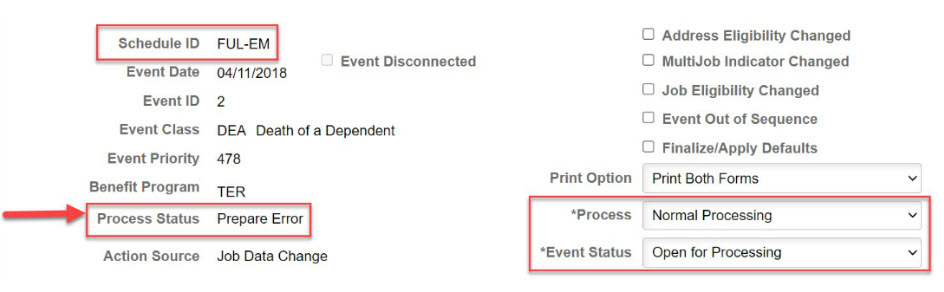
The Process Status shows Prepare Error.
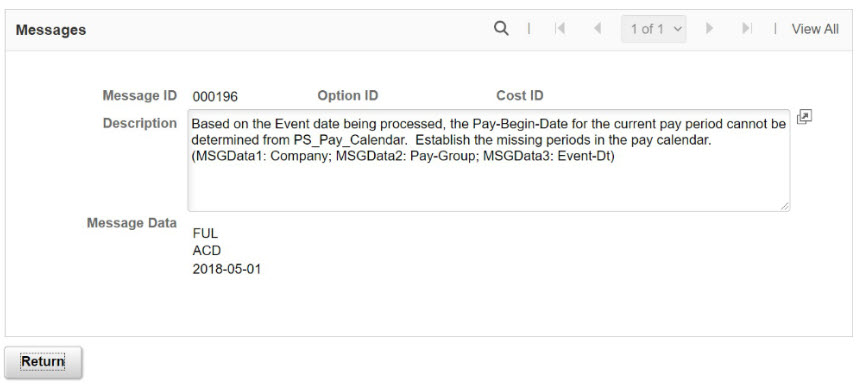
Program Assignment - Process Status
AS - Program Eligibility Assigned
Description: BAS event is assigned to a benefit program. – Process Successful.
Troubleshooting Steps: Events typically don’t remain in AS status long, as they usually advance to the next step. If an event is still in AS after CSUBAS processing, it indicates the employee has another BAS event in progress. The event will remain in AS until the open event is finalized.
Next Processing Steps: Once able, the event continues in Ben Admin processing to the prepare options step.
AN - Program Eligibility Assigned None
Description: BAS event is not assigned to a benefit program.
Troubleshooting Steps: You should not see events in a status of AN. Run the Eligible Participants Reportto evaluate employees who are eligible but not being assigned to a program.
Next Processing Steps: Events with an ANstatus will continue on through the process and end at a finalized – Assigned None(FA) status. All employees should receive a benefit program assignment.
AE - Program Eligibility Assigned Error
Description: BAS event is assigned to multiple programs.
Troubleshooting Steps: The employee is eligible for multiple Benefit Programs. Corrections may be needed in personal, employment, job, or program eligibility data. Review Job Data for cross–bargaining unit cases; if the employee qualifies for more than one program, an EmplID override is required.
Next Processing Steps: The system cannot process the BAS event through the next stage (Option Preparation) until you correct the errors. Each time you run Benefits Administration, the system will reevaluate events with an AEdesignation and (try to) move them along in the process.
Prepare Options - Process Status
PR - Prepared
Description: The system has determined eligible benefit plan options for the participant associated with the event.
Troubleshooting Steps: Event requires Election Entry or finalization.
Next Processing Steps: The batch process force-finalizes prepared events so default benefits can be written (e.g., HIR BAS auto-enrolls Life, Vision, and LTD if applicable). The system then sets the status to FE (Finalized – Enrolled). BAS events stay at PR until elections are entered or, for eBenefits ESS events, until they expire.
FA - Finalized - Benefit Program None
Description: BAS event has no program assignment and no current elections.
Troubleshooting Steps: All employees should have a Benefit Program assignment. Program eligibility must be reviewed, and PeopleBooks recommends running eligibility reports to identify any issues with this status.
Next Processing Steps: There is no further processing for this event, other than reprocessing the BAS event once the issue has been identified and resolved. The online page description for this process status is Program None.
FP - Finalized - Prepared None
Description: System has assigned participant event to a benefit program, but the associated participant is ineligible to elect any new options.
Troubleshooting Steps: Event did not change eligibility. Prepared none should indicate no change in benefits. No further action required.
Next Processing Steps: No further processing occurs for this BAS event. The online page description for this process status is Prepare None.
PE - Prepare Error
Description: The system encountered an error while preparing options for the participant tied to the event. Events receive a PE status during option eligibility checks or credit calculations.
Troubleshooting Steps: To correct, you should make corrections to the personal/employment/job information of the associated participant or to plan and option eligibility information.
Next Processing Steps: Each time you run Benefits Administration, the system will reevaluate events with a PE designation and (attempt to) move them along in the Benefits Administration process.
Entering Elections - Process Status
ET – Entered
Description: The employee or a benefits administrator has entered the participant's new elections into the system and they are ready for validation by the Benefits Administration process. Note: eBenefits ESS BAS events move to a RE-Re- enteredprocess status automatically during the nightly CSUBASprocessing to await review of supporting documentation by the campus Benefits Office.
Troubleshooting Steps: Event needs finalization.
Next Processing Steps: If no errors are found, elections post to benefit and payroll tables, and the status updates to FE (Finalized – Enrolled). If errors exist, event rules decide whether to load current elections or defaults, and the status updates to EE (Election Error).
EE - Election Error
Description: System encountered an error when processing the elections for the BAS event. No elections are posted to the Base Benefits tables. Errors are posted to the BAS Message table and are identified by participant and event. The previous process status was either ET(entered) or EE(election error).
Troubleshooting Steps: You need to correct the errors by reviewing and possibly reentering employee elections.
Next Processing Steps: No further processing occurs for this BAS event until it is resolved. On the next run, Benefits Administration will attempt to move the status to FE (Finalized – Enrolled).
Alternatively, you can “force finalize” the event (or all events in the Open Enrollment schedule), finalizing with errors. In this case, the system loads the participant’s default benefit option(s). If a dependent/beneficiary is in error, only the employee’s plan choice is loaded; the dependent/beneficiary will not be included.
End of Article