Overview
This job aid shows Benefits Administrators how to delete an employee’s expired activity guide.
- Download a list of open activity guides
- Obtain the Employee IDs
- Delete an Expired Activity Guide
- Appendix: Life Event Expiration
- Appendix: xx1 events
Background
- Self-service employees start life events by starting an activity guide that directs them through the process.
- The life event expires automatically if the employee fails to complete the event.
- After the event expires, a nightly process deletes the expired activity guide.
- If an employee wants to start a new life event before the activity guide is deleted, you can delete it personally.
Find associated BAS events
- Before you delete any activity guides, you must ensure that the associated BAS event status is Void.
- When an employee life event expires, the associated BAS event is voided automatically. To be sure of deleting only expired activity guides, you must first verify that the BAS event is voided. Deleting the activity guide will delete the open BAS event associated with the guide.
Step 1: Open the CSU Benefits Administrator tile.
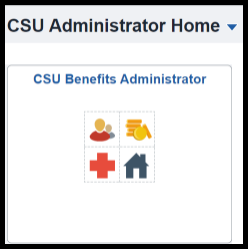
Step 2: Navigate to Review Employee Benefits > Employee Event Detail
Step 3: Enter search criteria and then click Search.
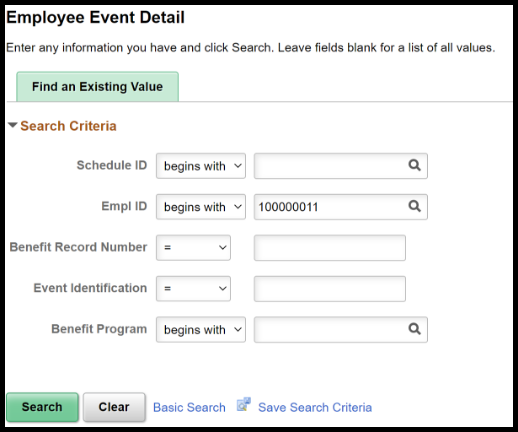
Step 4: Find the life event and verify that it is void.
- This example is a marriage event. The event is void, and it has not been touched in 60 days.
- Additionally:
- Some voided life events have a system-generated corresponding event “xx1”: NW1, AD1, BI1, PC1, MA1, DG1, DL1, EG1 AND EL1
- You must also confirm that the corresponding event is voided. If it is not voided, then you must void the event in On Demand Event Maintenance.
- For more information about xx1 events, see Appendix: xx1 events

Obtain the Employee IDs
- Activity guides are listed by User ID, not Employee ID.
- See: Query User IDs and Employee to obtain the employee’s User ID.
- Use the first two digits of the employee's User ID to determine the employee's campus. See: Company for campus codes.
Delete an Expired Activity Guide
Use this procedure to delete an expired activity guide.
Step 1: Open the CSU Benefits Administrator tile.
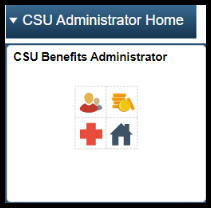
Step 2: Navigate to Manage Benefits Instances.
- Activity Guide Management > Manage Benefits Instances
Step 3: Click the User ID heading to sort the activity guides by User ID.
- Currently, the filters do not provide the expected results, so you must sort the rows by the User ID column
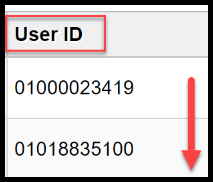
Step 4: Locate the User ID associated with the employee.
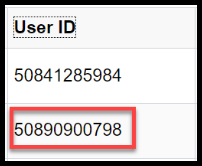
Step 5: Select the expired activity guide.
- Verify the User ID of the guide that you need to delete.

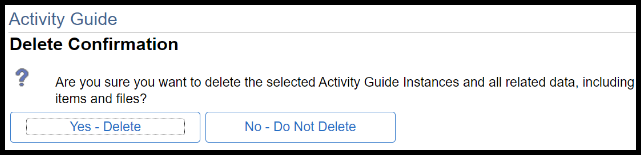
Step 6: Click Delete.

Step 7: Click Yes – Delete.
- You have deleted the activity guide.
- The employee can now start another life event.
Appendix: Life Event Expiration
| Event Class | Description | Expiration (days) |
| MAR | Marriage/Registered Domestic Partnership | 60 |
| BIR | Birth of child | 60 |
| ADP | Adoption of child | 60 |
| DIV | Divorce/Termination of Domestic Partnership | 60 |
| PCR | Parent-Child Relationship | 60 |
| LTE | Late Enrollment | 30 |
| ELC | Employee - Loss of External Coverage | 60 |
| EGC | Employee - Gain of External Coverage | 60 |
| DLC | Dependent - Loss of External Coverage | 60 |
| DGC | Dependent - Gain of External Coverage | 60 |
| DRP | Drop All Dependents | 1 |
Appendix: xx1 events
- These “xx1” events are sometimes created when there is also a HCRA/DCRA or flex cash enrollment/change.
- The following table shows the originating BAS event with its corresponding XX1 BAS event.
| Original BAS Event XX1 BAS Event | |
| NEW | NW1 |
| ADP | AD1 |
| BIR | BI1 |
| PCR | PC1 |
| DIV | DI1 |
| MAR | MA1 |
| ELC | EL1 |
| EGC | EG1 |
| DLC | DC1 |
- These new ‘xx1’ Event classes are created by the nightly GRP 95 Submission date process for FLEX and HCRA/DCRA enrollments only if the submission date is after the 3rd of the month or meets other criteria where the coverage effective date for Plan Types 1Z, 1Y, 60 and/or 61 differs from Plan Types 10, 11 and/or 14 for full Benefits ESS campuses using the following new BAS events: ADP, BIR, DIV, DGC, DLC, EGC, ELC, DRP, CNC, MAR, PCR, LTE and NEW.
- XX1 BAS events are:
- Only generated for campuses that are using full Benefits Employee Self Service.
- Created for MED FLEX, DEN FLEX and HCRA/DCRA enrollments - if defined for the submission scenario in the CSU Submission Date Setup table.
End of Article