Overview
Background
Each fiscal year, campuses must recreate their Department Budget Table entries in CHRS.
The CSU Department Budget Table Copy Prior Fiscal Year process simplifies the annual rollover in CHRS, reducing manual effort while improving accuracy and efficiency.
Key Features:
- Campus-Specific: Only allows processing for the campus's Business Unit.
- Inactive Rows: Option to include inactive rows; otherwise, only active rows are copied.
- Existing Records: Preserves existing entries without deleting or overwriting them.
Output Report: Displays run control parameters, number of records processed, and errors preventing record creation.
Procedure
- Navigate to Department Budget Rollover
Go to Menu > Set Up HCM > CSU Product Related Setup > CSU LCD Setup > CSU Department Budget Rollover.
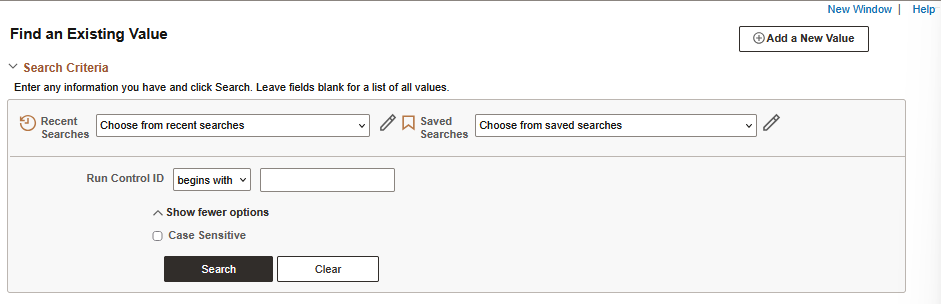
- Enter or create Run Control ID
- Enter your Run Control ID.
- If you do not have a Run Control ID, click Add a New Value.
- The run control you create must be unique to you.
- Begin with your campus number, followed by your ID number or initials (example: 90100002545 or 90MD).
- Complete rollover parameters
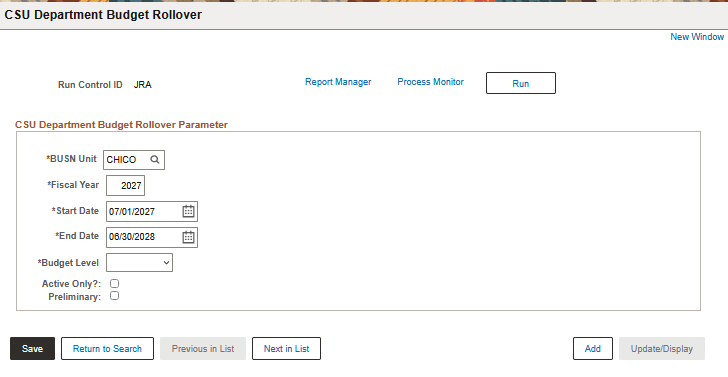
Enter the following fields:
- BUSN Unit: Campus business unit
- Fiscal Year: The upcoming fiscal year
- Start Date: Beginning of the fiscal year (example: 7/1/2026). The End Date auto-populates after entering the Start Date.
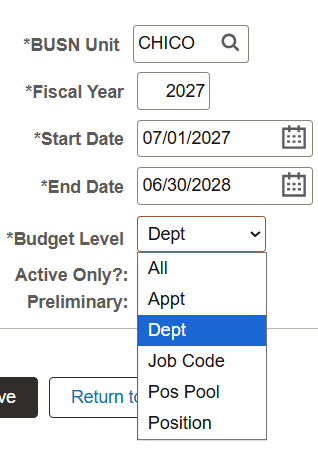
- Select the Budget Level to rollover:
- All: Rolls forward all DBT entries at all levels
- Appt: Rolls forward DBT entries at the appointment level. You may specify EmplID and Empl Rcd or leave blank to roll all entries at that level.
- Dept: Rolls forward DBT entries at the department level. You may specify DeptID or leave blank to roll all entries at that level.
- Job Code: Rolls forward DBT entries at the job code level. You may specify job code or leave blank to roll all entries at that level.
- Pos Pool: Rolls forward DBT entries at the position pool level. You may specify DeptID and Position Pool or leave blank to roll all entries at that level.
Position: Rolls forward DBT entries at the position level. You may specify position or leave blank to roll all entries at that level.
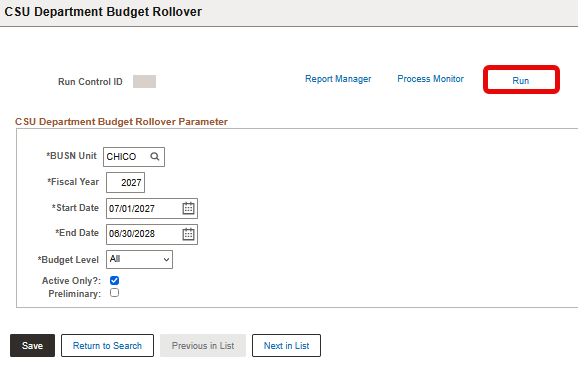
- Check Active Only? to roll over only active rows.
- Check Preliminary to do a preliminary run. If checked, you must uncheck and rerun to fully process the rollover.
- Run the rollover process
Once all fields are filled as desired, select the Run button to start the process.
- Confirm Process Scheduler Request
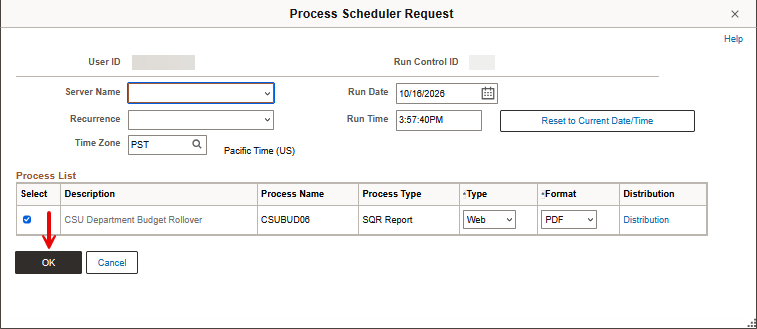
Click OK on the Process Scheduler Request window.
- Open Process Monitor
Click Process Monitor.
- Check process status and details
- Confirm the process ran to success.
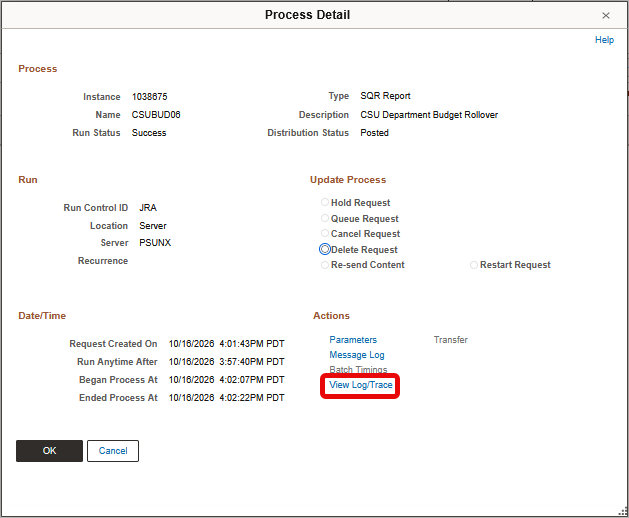
Once successful, select the Details link.

- View Log/Trace
Select the View Log/Trace link from the Process Details.
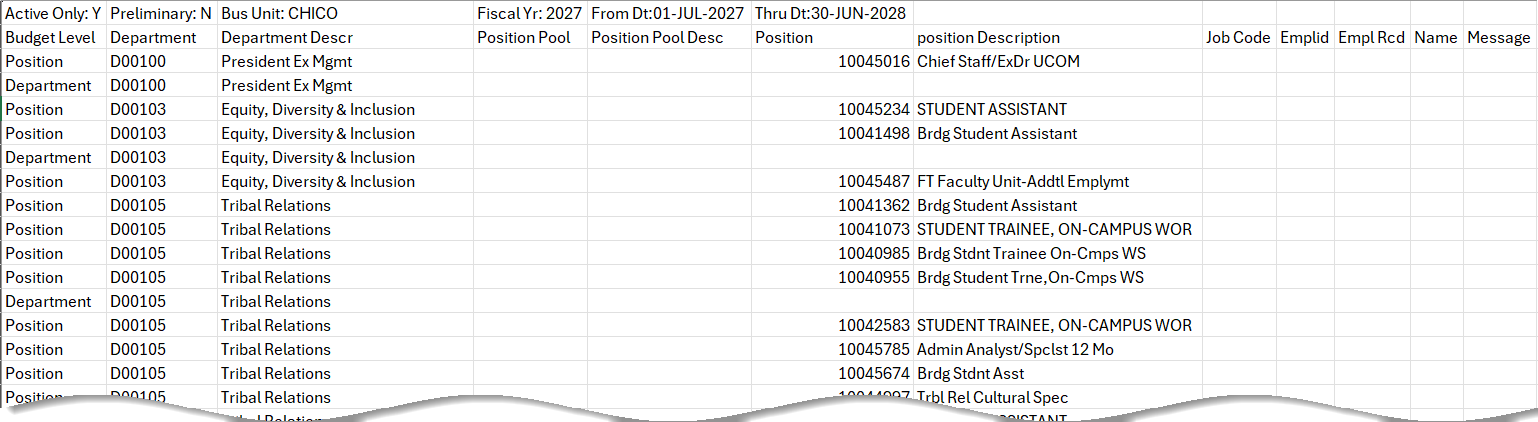
- Review and save the CSV file
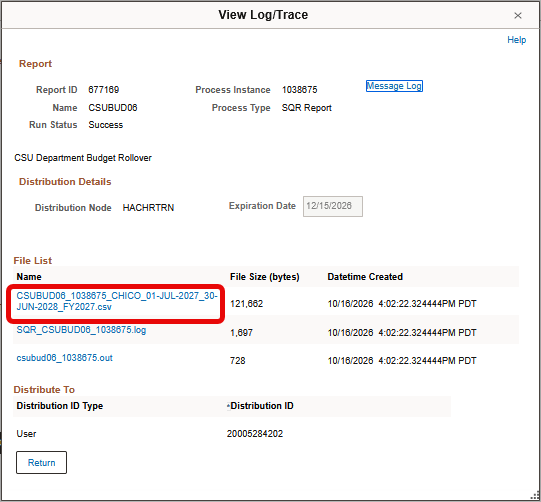
Review the CSV file output. It is recommended to save this file for future troubleshooting.
End of Article