Overview
Background
CHRS provides different types of adjustments. Use this procedure when:
- You need to move a specific LCD line-item entry that hit a particular combo code for a pay period (more targeted than “whole paycheck”).
- You are redirecting the expenditure from one combo code to another combo code(s), usually tied to a specific reference/journal identifier.
Adjust Combo Code
Step 1: Open the Navbar button.

Step 2: Navigate to Menu > Payroll for North America > CSU Labor Cost Distribution > CSU Expenditure Adjustments > CSU Expense Adjust Combo Code
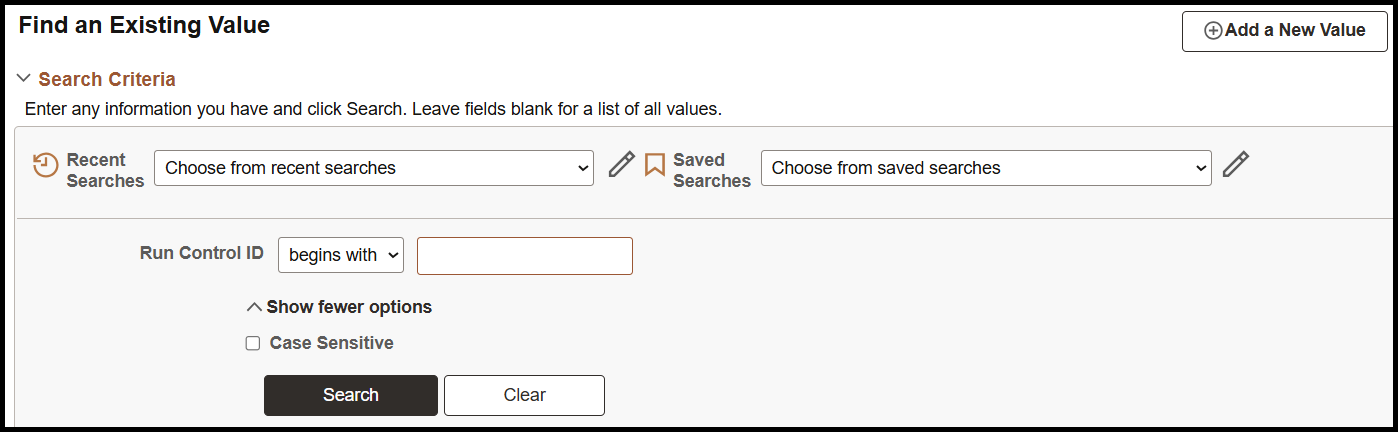
Step 3: Enter your run control ID and then click Search. If you do not have a Run Control ID, click Add a New Value to create one.
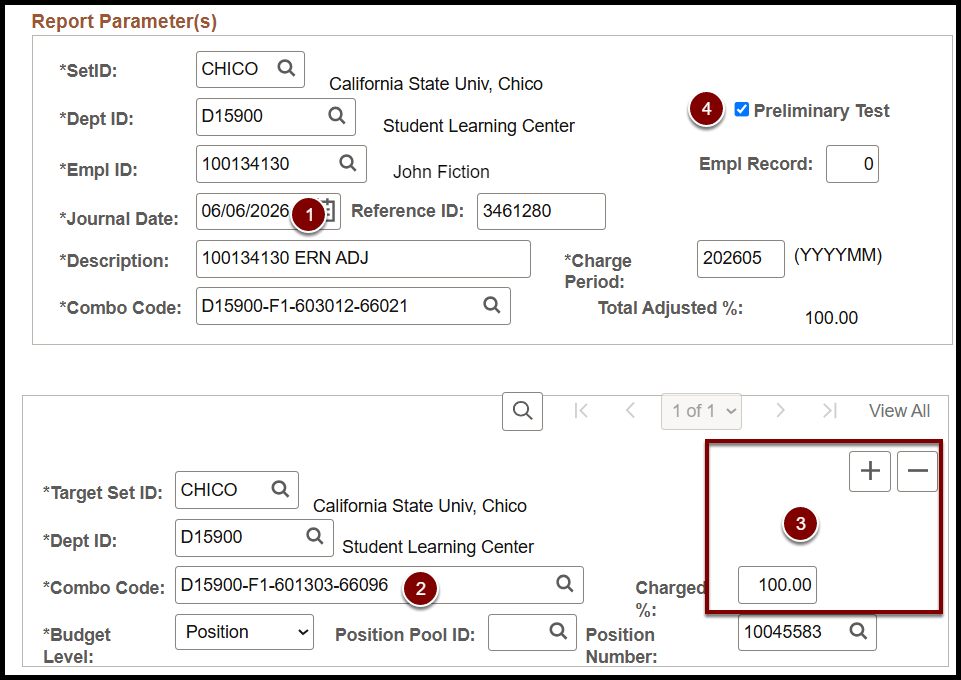
Step 4: Enter the report parameters:
Fields to identify the transaction:
- SetID
- Dept ID
- Empl ID
- Empl Record
- Journal Date
- Reference ID
- Description
- Charge period
- Combo Code
Fields you can adjust:
- Target Set ID
- Dept ID
- Combo Code
- Charged %
- Budget Level
- Position Pool ID
- Position Number
Step 5: Click Save.

Step 6: Click Run.

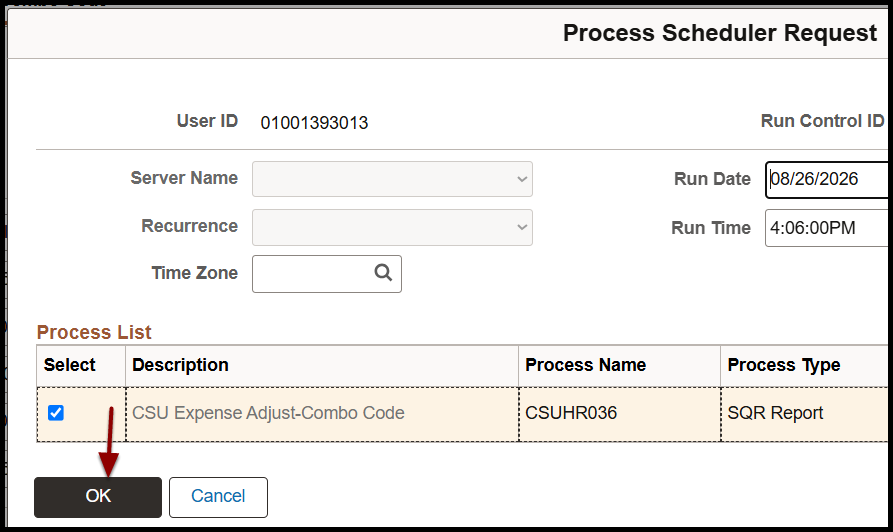
Step 7: Click OK on the Process Scheduler Request.
Step 8: Open Process Monitor.
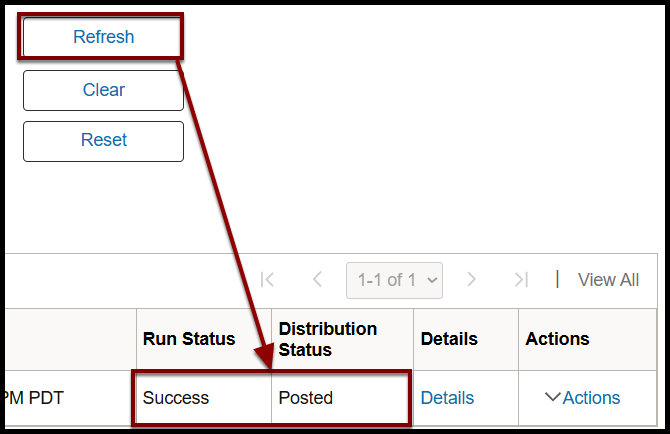
Step 9: Click Refresh until the Run Status is a Success and the Distribution Status is Posted.
Step 10: Click Details.
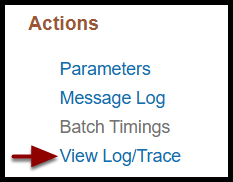
Step 11: Click View Log/Trace.
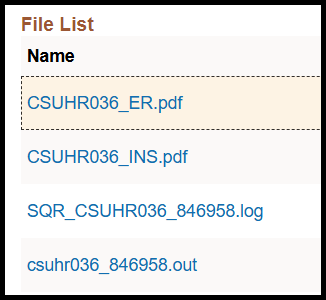
Step 12: Open each output file to review.
End of Article