Overview
Background
The output of this process should be the same value that has been established by the campus as the default for FIRMS financial reporting. This value will be used during FIRMS program derivation by Rule #1. Data that has been collected, calculated, derived, and stored in the history tables will be extracted and written into flat files in a file format that emulates the legacy data structures.
Run the CSU ESP Interface job
Step 1: Open the Navbar button.

Step 2: Navigate to Menu > Payroll for North America > CSU Labor Cost Distribution > CSU ESP Processes > CSU ESP Interface
Step 3: Enter your Run Control ID. If you do not have one, add a new value.
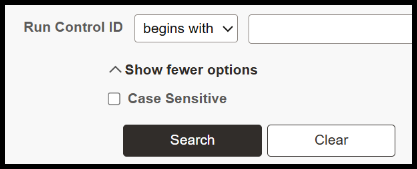
Step 4: Complete all fields:
- HR Business Unit
- Company
- Payroll Tape Period
- Campus Code
- Agency Code
- Default Program Code
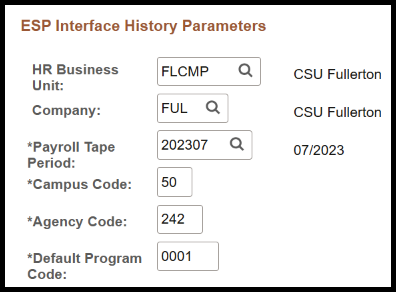
Step 5: Click Run.

Step 6: On the Process Scheduler Request, do the following:
- Select ESP Interface.
- Click OK.
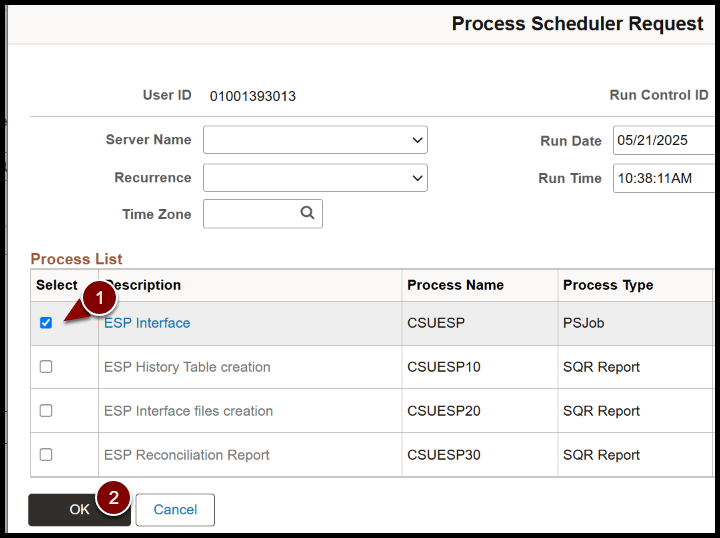
Step 7: Open Process Monitor.
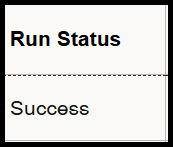
Step 8: Confirm Run Status is a Success.
CSU LCD to ESP process
The Employee Salary Projection (ESP) process in the CSU LCD stream runs after LCD data has been collected, derived, and stored. It extracts the LCD history data and writes it to flat files in a legacy format for downstream ESP reporting and interface needs.
Upload and notification
- Name each ESP file according to the required convention. Use the previous month’s file to confirm the sequence and format.
- Upload the files to the Chancellor’s Office through MoveIt.
- After the upload, remove the automatically appended
.TXTextension. - Notify the Chancellor’s Office.
End of article