Overview
Definitions
SSI: Service Salary Increase
GSI: General Salary Increase
Prob-to-Perm: Probation to permanent employment
Background
PIMS data files are loaded centrally (CSUHR03A). All campuses PIMS data will be contained in a single file. The data file is loaded to staging tables if another file is not in progress. If another file is in progress rows are written to a history table so that campuses can request previously loaded files at a future date. This feature allows campuses to work their data files independently of the file load schedule.
If the staging tables have been cleared by a campus, the central load (CSUHR03A) will load the staging tables for that campus. If a campus has not cleared their staging tables prior to the centralized load, or if they have prior data files that need to be worked first, the central load will not load the staging tables but will write history rows for that campus. When the Campus has cleared the staging tables, they will run (CSUHR03B) to pull the history rows from the initial load into the staging tables where validations will be done.
The system forces data files to be loaded in the order they were centrally uploaded. The campus can manually request staging table loads any time after the centralized data file has been uploaded using CSUHR03B.
Example
Weekly files are typically Prob to Perm and you will receive an email from [email protected] that lists each campus and the number of transactions that campus will have. These files load automatically clear through Job Data: You are only verifying what loaded and what created exceptions that you will need to manually key.
If we have SSI/GSI’s there will typically be a CO Tech Letter accompanying these files and communication will happen at the Sub-Committee calls leading up to file delivery.
Process Flow
The following diagram shows the process flow for the campus user.
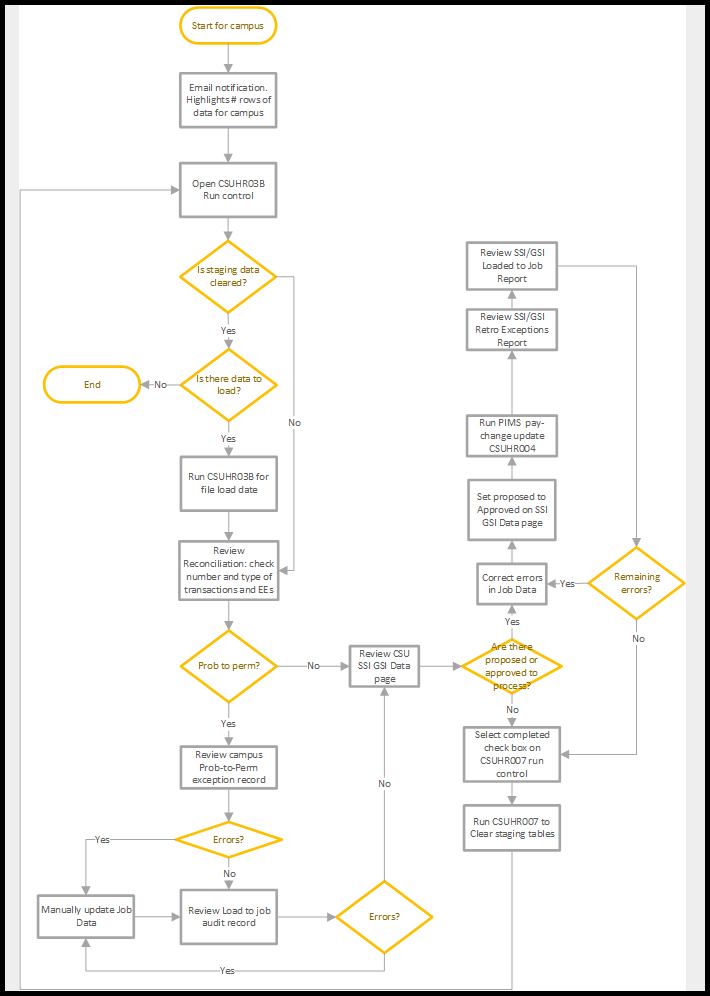
- Open the CSU Campus L15 Load page to see whether you need to clear the staging tables.
- If clear, run the process to load history rows into the staging table.
- If not clear, go to Review Reconciliation.
- For detailed instructions, see: CSU Campus L15 Load.
- Open the CSU L15 Reconciliation page
- Check both tabs of the page to decide if the file contains Prob-to-Perm, SSI/GSI. or both transaction types.
- For detailed instructions, see: CSU L15 File Reconciliation.
- Open the CSU Prob To Perm Exceptions page.
- Manually update Job Data for the Exceptions above.
- Review the CSU Prob to Perm Loaded to Job page (or audit).
- For detailed instructions, see: CSU Prob To Perm Exceptions
If Review Reconciliation shows the current file contains this: Do this: Only Prob-to-Perm transactions Skip to Clear the Staging Tables
Both Prob-to-Perm and SSI/GSI transactions
Proceed with SSI/GSI Processing
- Open CSU SSI/GSI data page
- Find Proposed or Approved rows
- Correct errors in job data
- Set proposed to approved
- Run CSUHR004 (Pay change update)
- Review SSI/GSI Retro exceptions
- Review SSI/GSI Loaded to job report
- For detailed instructions, see: CSU SSI/GSI Processing
- Open the CSU Clear Staging Tables page.
- Select the run control.
- Run the CSUHR007 process.
- For detailed instructions, see: Clear L15 Staging Tables
End of article
You are done. Great job!