Overview
Background
- Tracker I-9 is the official system of record for CSU employees’ I-9 documentation.
- The information is used for generating a PPT with field 825 populated correctly for PIMS keying.
Update Citizenship: Naturalization
Use this procedure when an employee becomes a U.S. citizen.
Select the employee
Step 1: Open the Navbar button.

Step 2: Navigate to Menu > Workforce Administration > Personal Information > Citizenship > Identification Data
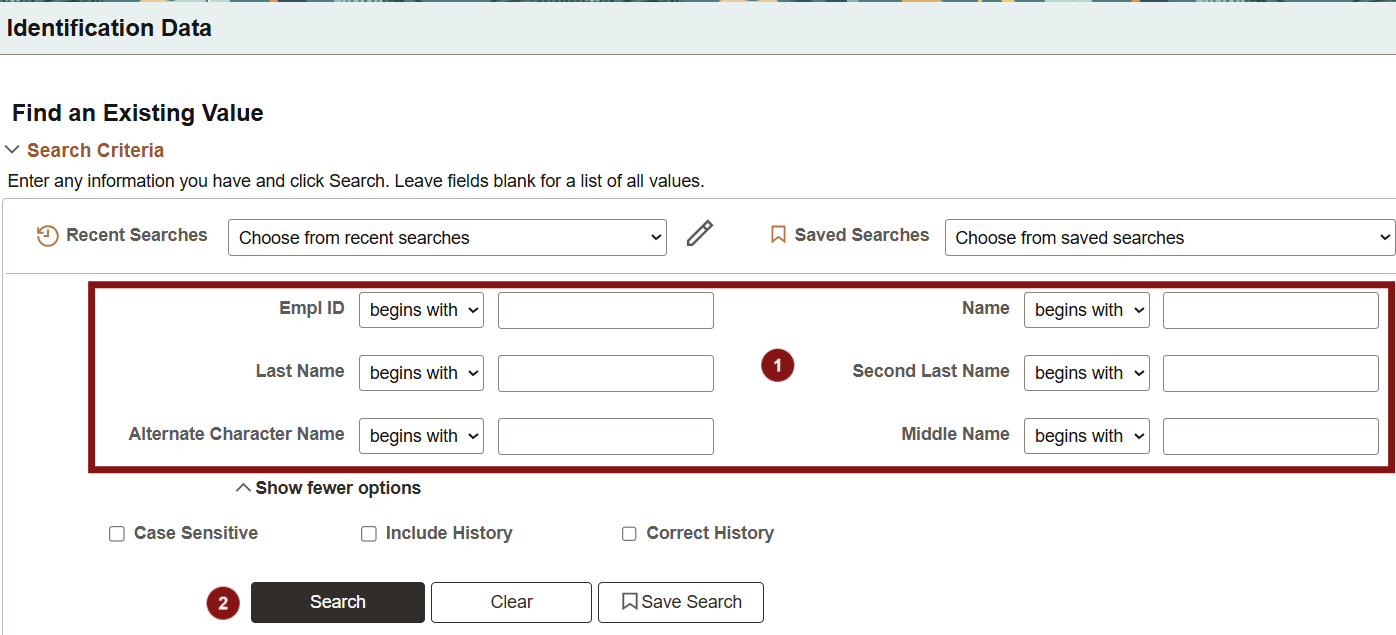
Step 3: Search for the employee.
- Enter search criteria.
- Click Search.
Update Citizenship/Passport data
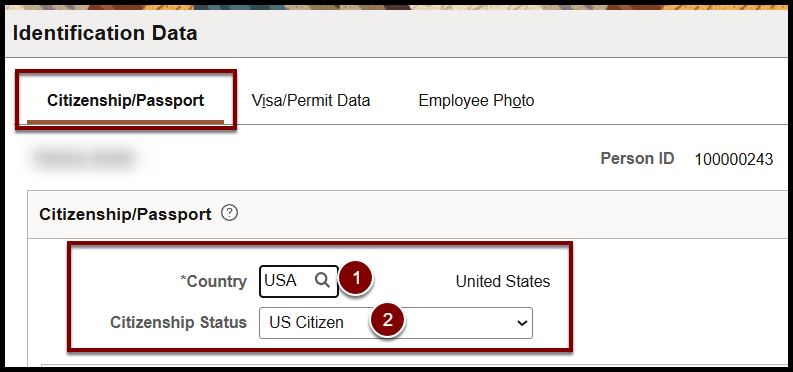
Step 1: Enter the required fields:
- Country: Change country to USA.
- Citizenship Status: Update to US Citizen.
Step 2: Click Save.

Remove Visa/Permit data
After naturalization, no visa/permit rows should remain in the system.
Step 1: Click the Visa/Permit Data tab.

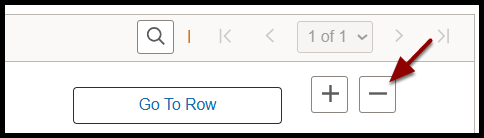
Step 2: Click the minus button (-) to delete all rows.
Step 3: Click Save.

Update Job Data
When an employee becomes a U.S. citizen, you must change Job Data as well as Personal Information.
Step 1: Navigate to: Menu > Workforce Administration > Job Information > Job Data
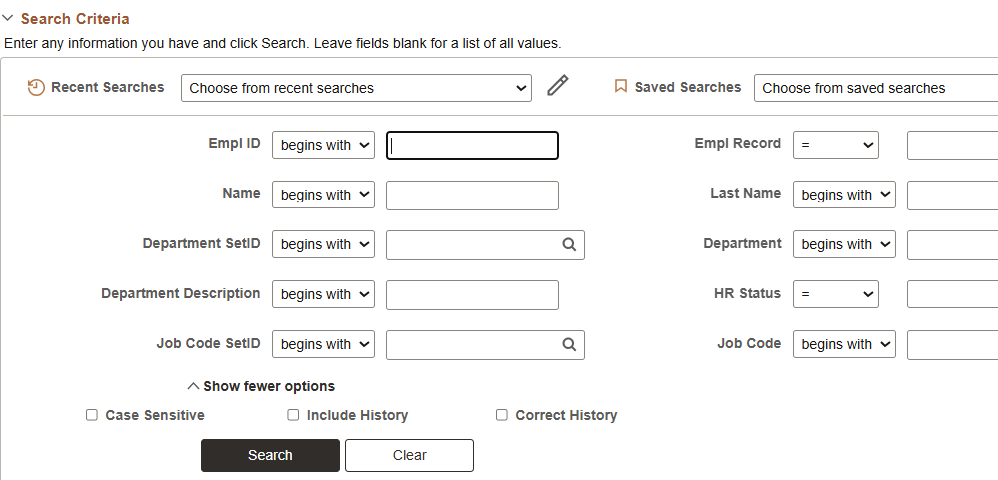
Step 2: Search for the employee.
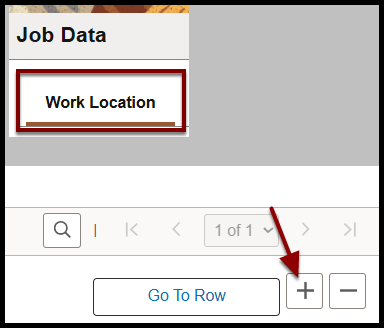
Step 3: On the Work Location page, Click the Plus button (+) to add a new Effective Dated Row.
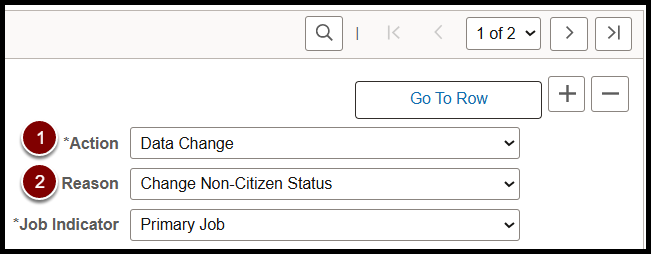
Step 4: Complete the following fields:
- Action: Data Change
- Reason: Change Non-Citizen Status
Step 5: Click Save.

End of Article