Overview
Background
You have started a Life Event and you need to add or remove dependents to or from your plans.
- If you have not started a Life Event, go to: Life Event Quick-start Guide.
- If you have not yet added your dependent to your record, go to: Add a New Dependent.
Add or remove dependents
- Use this procedure to add or remove dependents to your medical, dental, and vision plans.
- You can also remove dependents from enrolled benefits at this time.
Step 1: On the Benefits Enrollment page, click the Medical tile to open enrollment options for that benefit.
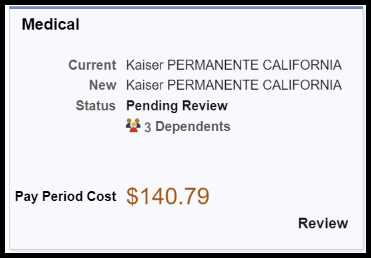
- The benefit enrollment page opens.
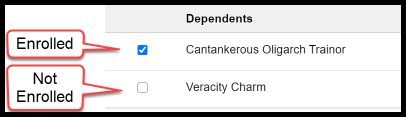
Step 2: Manage dependent enrollment:
- Check the box to enroll your dependent in the benefit.
- Clear the check box to remove your dependent from the benefit.
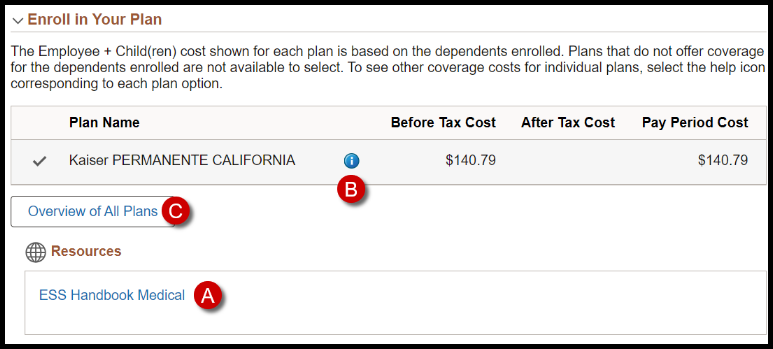
Step 3: Review your options.
- Open the ESS Handbook Medical to see CSU Employee resources information on a separate browser tab. You can close this tab when you finish reading the information.
- Click the Information icon for a short overview of benefit costs.
- Click Overview of All Plans to open a cost breakdown of all plans for comparison.
Guidelines
- The costs on this page include the dependents that are enrolled.
- The number of options you see depends on the life event type.
- If you elected to see After Tax Costs, you can see both Before Tax plans and After Tax plans. If you want to see After Tax Cost plans, contact your Benefits office.
Step 3: Click Done.

- You return to the Benefit Enrollment page.
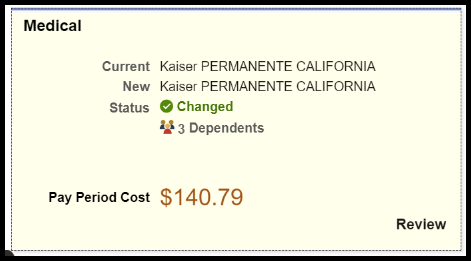
Step 4: Confirm that your benefit status is changed.
- Your Pay Period Cost might also change.
- The number of dependents and the Pay Period Cost also changed.
Step 5: Repeat the procedure to enroll or remove dependents from your Dental plan, if applicable.
Step 6: Repeat the procedure to enroll or remove dependents from your Vision plan, if applicable. Note that you cannot waive your vision plan.
What to do next
Return to the Life Event Quick-start Guide.
End of Article