Overview
- Guidelines for using Candidate Search
- Access Candidate Search
- Search for candidates
- Assign and Remove Categories and Talent Pools
- Send bulk communications
Background
Shared Talent Pools help campuses proactively identify and re-engage candidates from prior searches or expressed interest. They are not for initial sourcing or broad outreach.
It is important that all employees who work with candidate profiles actively contribute to Shared Talent Pools to help build stronger systemwide talent pipelines.
- Talent pools are collections of candidates.
- Categories are used as filters to refine results.
- Tags are Talent pools and Categories.
When to use Systemwide Talent Pools
- Consider Shared Talent Pools for hard-to-fill, critical capability, or recurring roles.
- Strong “silver medalist” candidates may be valuable for future opportunities.
- Candidates not selected or not qualified for the current role may still align well with another level or related position.
- Talent pools can also support future recruiting for roles with low applicant volume or specialized skill sets.
When to use Systemwide Categories
- Always add systemwide categories when you add candidates to systemwide talent pools.
- Use categories to refine searches for candidates within talent pools.
Before You Start
- You must have recruiter access in the system.
- Candidate Search is only available in production (not UAT).
Guidelines for using Systemwide Talent Pools
Understand talent pool uses
- Campuses must add candidates to talent pools and categories before they can use them for searching.
- Re-engage prior finalists and strong applicants
- Surface previously sourced candidates
- Maintain warm pipelines for future roles
- Not intended for initial sourcing or broad marketing-style outreach
Follow rules of engagement
Contact Timing
- Do not contact candidates who are:
- Interviewing, in offer stage, accepted, or in background check for another CSU role
- Hired into a CSU role within the last 12 months
- When status is unclear, confirm before outreach
Eligible Candidates
- Inactive (unsuccessful, withdrawn, declined, not moving forward)
- Not progressing in another CSU process
- Not recently hired into CSU
Targeted Outreach
- Outreach must be tied to a specific, relevant role
- Avoid general or repeated communications
Review candidate eligibility
Before organizing candidates or initiating outreach, confirm:
- Candidate is not active in another CSU recruitment (interview, offer, acceptance, background check, for example.)
- Candidate has not accepted a CSU role within the last 12 months
Organize and find applicants
Use talent pools to organize and find applicants based on their qualifications and other criteria.
Manage candidates in talent pools
- Do not remove candidates unless they request removal or they are no longer qualified
- Accepted CSU hires may remain in the pool
- Do not contact for new opportunities for 12 months if hired at a different campus
- No expiration timeline for talent pools at this time
- Include opt-out language in outreach
- Example: “Please let us know if you no longer wish to be contacted regarding future opportunities.”
- Opt-out requests should be honored and candidates removed
- For new pool categories or changes, submit a CHRS recruiting ticket request
Add a candidate to talent pools and categories
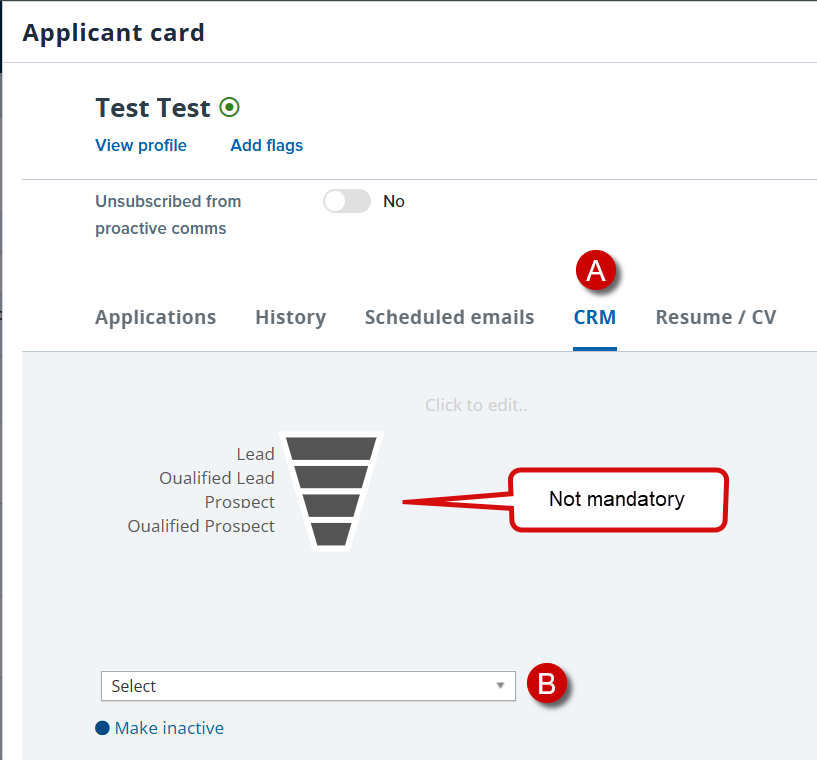
Step 1: From the Applicant Card,
- Open the CRM tab.
- Open the selection menu.
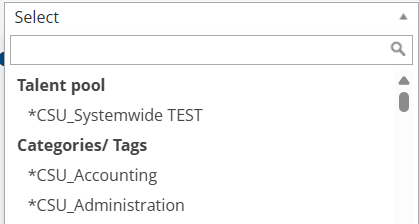
Step 2: Click to add systemwide talent pools
Step 3: Click to add systemwide categories.
Remove a candidate from a talent pool or category
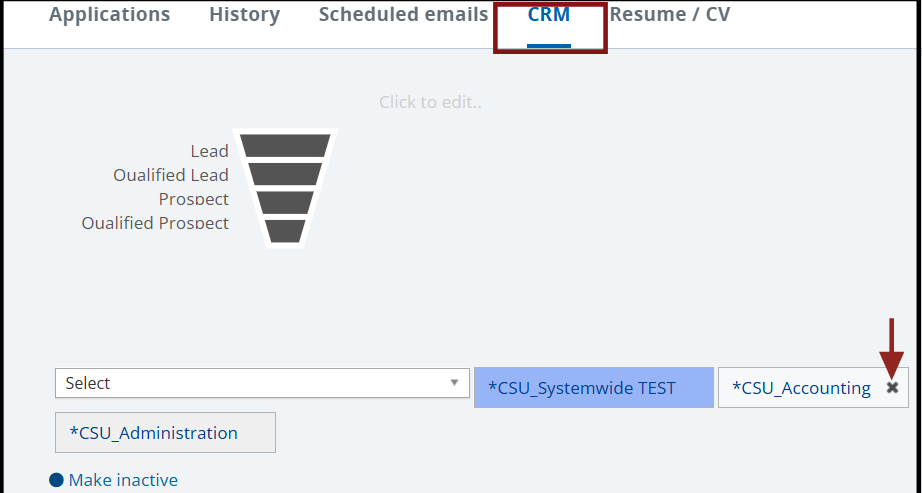
Step 1: From the Applicant Card, open the CRM tab.
Step 2: Click the X on the tag that you want to remove.
Find Candidates in a Systemwide Talent Pool
You can use systemwide talent pools only for a broad search. To refine the search, you can add categories.
Step 1: Click the menu (☰ hamburger button).
Step 2: Select Candidate Search (top option).

Apply Systemwide Talent Pool Filters
Step 1: Click the Talent Pool menu.

Step 2: Click View all talent pools.
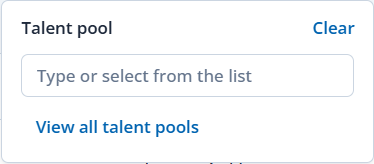
Step 3: Select a systemwide talent pool.
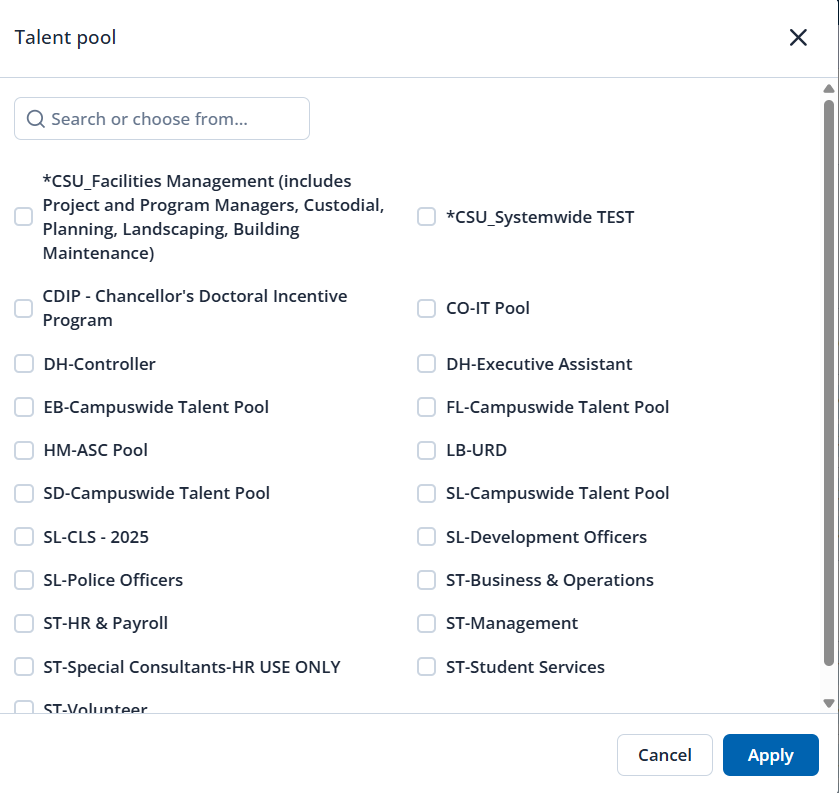
Step 4: Click Apply.

Apply Systemwide Category Filters
Use categories to refine the search. For example, if the talent pool search creates too many returns, you can focus on a targeted role by using a category.
Step 1: Click the Categories menu.
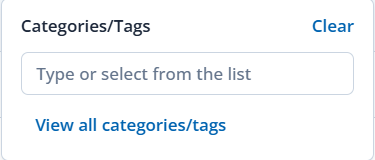
Step 2: Click View all categories/tags.
Step 3: Select one or more categories.
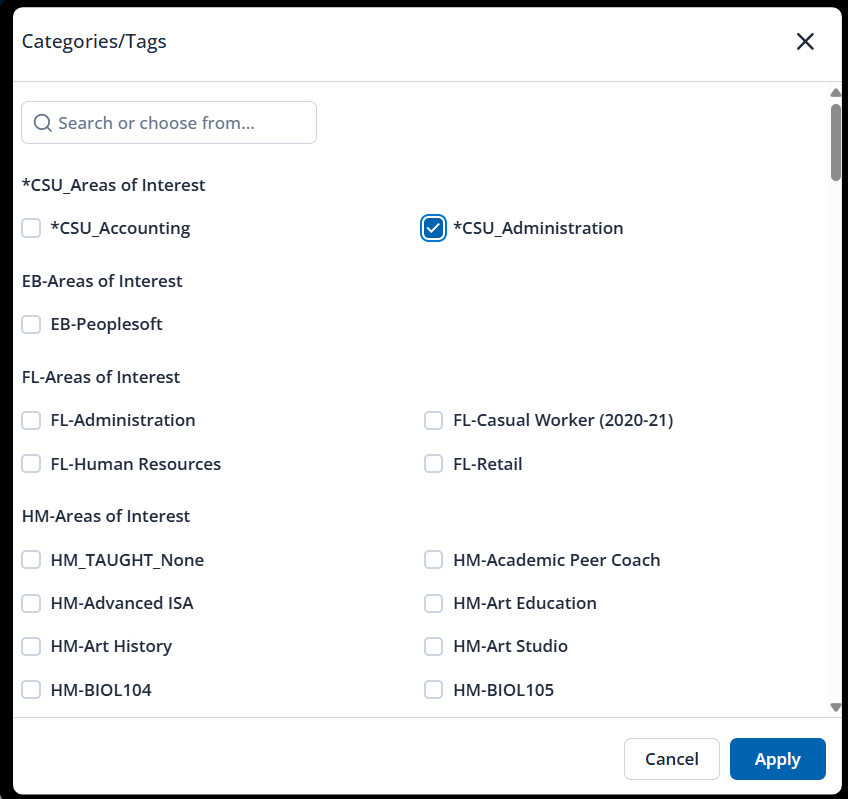
Step 4: Click Apply.
The system displays a list of candidates.
Evaluate Candidates
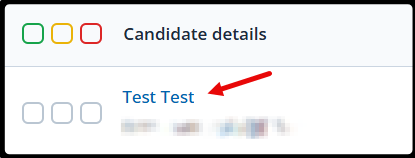
Step 1: Click the candidate's name to open the candidate's Applicant card.
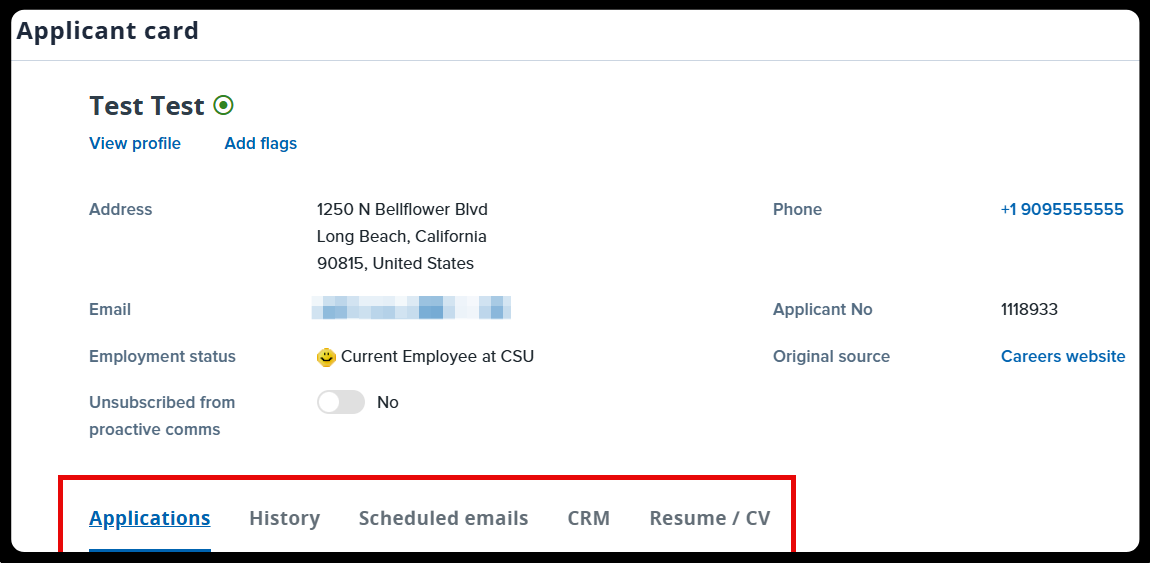
Step 2: View information from the following tabs:
- Applications
- History
- Scheduled emails
- CRM
- Resume/CV
Use the information to determine whether you should engage the candidate (based on rules of engagement).
Bulk Operations
You can use Bulk Operations to send communications and to invite candidates to apply for a job.
Select Candidates
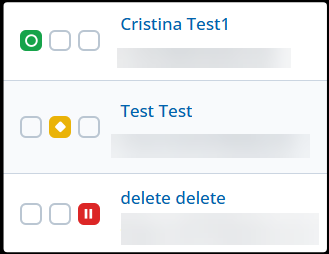
Step 1: Select one or more candidates by clicking the selection boxes.
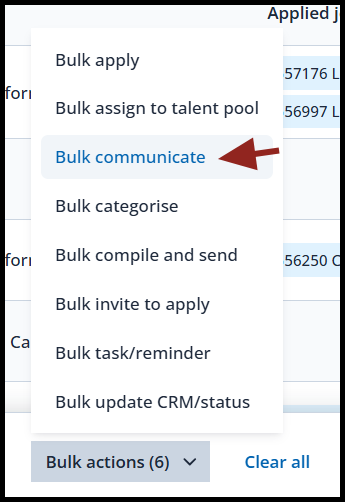
Step 2: Click Bulk Actions.

Send bulk communications
Step 1: Click Bulk communicate.
Step 2: Select a communication template.
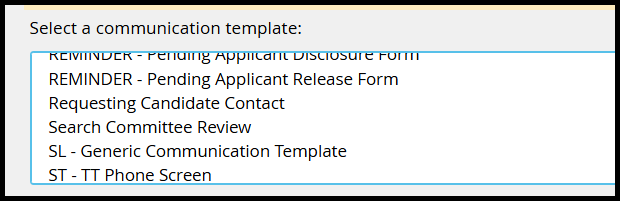
Step 3: Preview the communication.
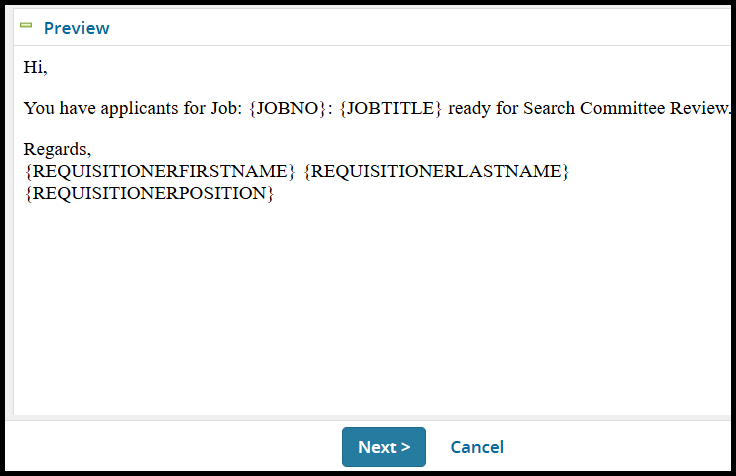
Step 4: Click Next.

Step 5: Click Send.

Send Bulk Invitations
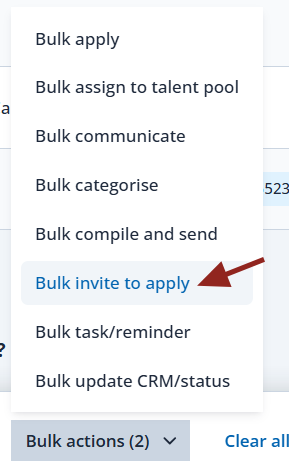
Step 1: Click Bulk invite to apply.
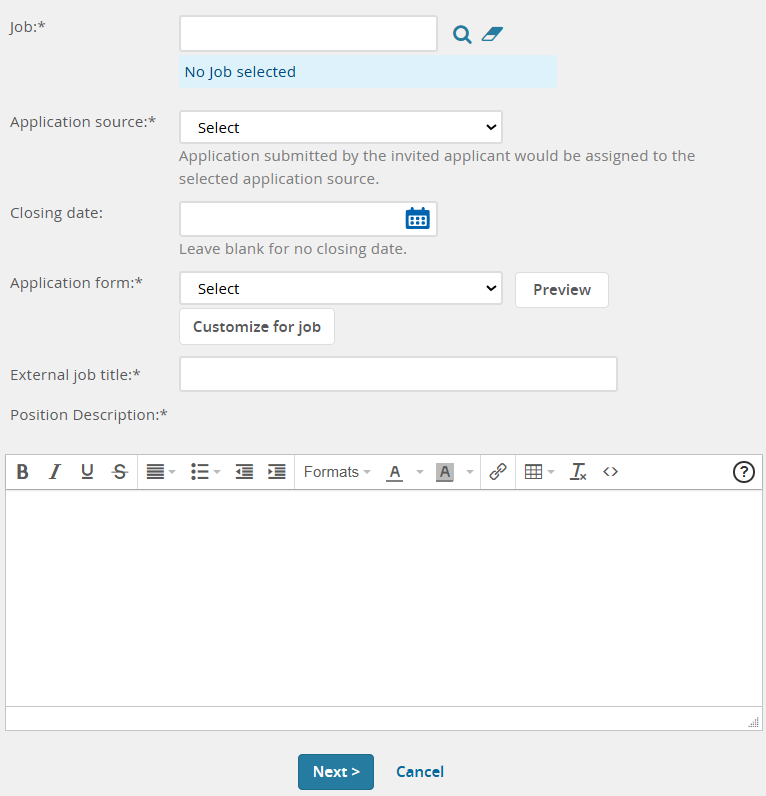
Step 2: Complete the required fields:
- Job
- Application Source
- Application form
- External job title
- Position description
Step 3: Click Next.
End of Article