
Background
The Start Date for Benefits Administration (Ben Admin) is defined on the Installation Table. This date is used to set the "look-back" window for benefits processing.
The Ben Admin Start Date serves a specific purpose in four areas of processing benefit events:
- Event Qualification: The system will only flag changes to job data, birthdate, service date, state, postal code, and union code if the job record that is being inserted, corrected, or deleted has an effective date greater than or equal to the Ben Admin Start Date.
- Event Maintenance Scheduling: When scheduling Event Maintenance, Ben Admin will only review event records with an effective date later than or equal to the Ben Admin Start Date. This review includes potentially flagging these event records for review and determining the proper events to leave open for processing.
- Event Maintenance Processing: Any transactions with effective dates prior to the Ben Admin Start Date will be ignored by the system and not created/processed. If historical data needs to be changed, those changes must be made directly in Base Benefits.
- Pay Calendar Access: For Event Maintenance, while setting coverage and deduction begin dates, Ben Admin will load pay calendar data starting with pay period end dates later than or equal to the Ben Admin start date.
Essentially, this information means that when job or address data is added or modified in the PeopleSoft, only effective dates on or after the Ben Admin start date will generate a benefits administration system (BAS) event for processing though the Ben Admin module. In addition, when the system is processing a benefit event, all benefit-related data elements effective on or after the Ben Admin start date are reviewed. This includes benefit programs, pay calendars, balance IDs, previous BAS events, job data, personal data, and base benefits enrollments.
For example, if the Ben Admin start date is January 1, 2023, the Ben Admin module will review and process all job or address data changes for an employee with an event date (effective date) equal to or after 01/01/2023. BAS events will not be created nor processed for job or address data effective-dated data with an effective date prior to 01/01/2023.
Issue
When the Ben Admin start date is not moved forward and old BAS events are not purged from the Ben Admin module, the amount of data reviewed by the Ben Admin module increases which, over time, slows down Ben Admin module performance.
The strategy behind updating the Ben Admin Start Date is to:
- improve Ben Admin system performance
- reduce the volume of Ben Admin data required to process and reprocess
- reduce the size of the BAS_PARTIC tables
- prevent exceeding the COBOL Ben Admin array sizes
Recommendations
Clean Benefits Baseline Data Defined:
- BAS Flags are reprocessed and cleared to zero daily.
- FE disconnected BAS events are voided and reprocessed to zero daily.
- There are no open Ben Admin issues or error messages for the period that will be purged with the change in the Ben Admin Start Date. For example, if the new Ben Admin Start Date will be 1/1/2022, all open Ben Admin issues or error messages with an effective date prior to 1/1/22 need to be resolved.
- There are no open BAS events requiring finalization for the period that will be purged with the change in the Ben Admin Start Date. For example, if the new Ben Admin Start Date will be 1/1/2022, all open BAS events with an effective date prior to 1/1/22 need to be finalized.
- There are no issues or errors to be resolved on the CSU Payroll Deduction Audit Report for the period that will be purged with the change in the Ben Admin Start Date. For example, if the new Ben Admin Start Date will be 1/1/2022, all CSU Payroll Deduction Audit Report issues and errors with an effective date prior to 1/1/22 need to be resolved.
- There are no issues or errors to be resolved on the SCO Interface Errors Report for the period that will be purged with the change in the Ben Admin Start Date. For example, if the new Ben Admin Start Date will be 1/1/2022, all SCO Interface Errors issues and errors with an effective date prior to 1/1/22 need to be resolved.
- There are no PSR issues or errors to be resolved for the period that will be purged with the change in the Ben Admin Start Date. For example, if the new Ben Admin Start Date will be 1/1/2022, all PSR issues and errors with an effective date prior to 1/1/22 need to be resolved.
Updating the Ben Admin Start Date on PeopleSoft Installation Table
- Once there aren’t any flagged BAS events, clear new flagged BAS events daily.
- Reprocessing does not mean to uncheck the flag checkbox.
- To maintain a clean environment, use the daily processing instructions under Daily Review, Resolve Ben Admin Issues/Errors in HR 9.0 (Appendix B).
- Use the Voiding Disconnected Events Position Paper to void the FE (finalized-enrolled) disconnected BAS event.
- Make a list of the FE disconnected BAS events being voided so you know who to reprocess after voiding the FE disconnected BAS events.
- To maintain a clean environment, use the daily processing instructions under Daily Review, Resolve Ben Admin Issues/Errors in HR 9.0 (Appendix B).
- Use the Voiding Disconnected Events Position Paper to void the FE (finalized-enrolled) disconnected BAS event.
- To maintain a clean environment, use the daily processing instructions under Daily Review, Resolve Ben Admin Issues/Errors in HR 9.0 (Appendix B).
If you have cleaned the HR 9.0 database per the preceding instructions, then work with a technical resource at your campus to complete Steps 1-8 below.
STEP 1: Determine the new Ben Admin Start Date
After finalizing the Open Enrollment process, resolving all Benefits/Ben Admin issues and errors, determine the new Ben Admin Start date. The new Ben Admin Start Date is a date at least 3 years preceding the current calendar year.
For example, let’s day your current Ben Admin Start Date is 1/1/2022. You have completed and finalized Open Enrollment 2026 using the OE BAS event and OE processing schedule in your 9.0 database. It is the first quarter of 2026. The new Ben Admin Start Date will be 1/1/2023. Pre-01/01/2023 BAS data will be purged from the BAS tables using the instructions in Step 5.
Considerations in determining a new Start Date
- Retain sufficient history of events to allow for reprocessing and corrections to enrollments using On-Demand Event Maintenance.
- Generally, a minimum of 3 years plus the current year of event history in the BAS_PARTIC tables is sufficient
- Campus business practice and historical event processing should be evaluated
- Events dated before the new Ben Admin Start date will be purged later in these steps
- The Open Enrollment selected as baseline should be cleared of all errors and properly closed
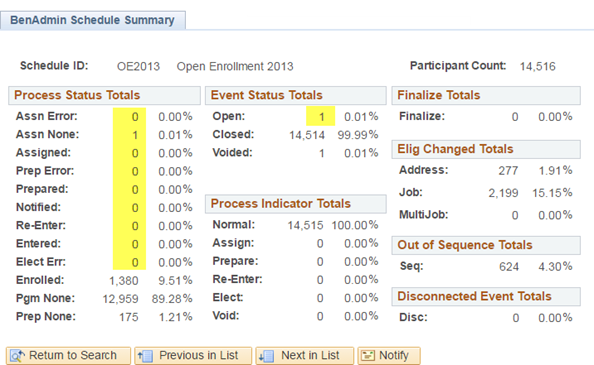
Highlighted in the Schedule Summary screen shot below are the Process Statuses that should be zero (0) and Event Status totals that should be closed or voided for all your BAS Schedule IDs (EM, OE2025, OE2024, SNAP, etc.)
Navigation: Benefits >Manage Automated Enrollment >Review Processing Results > Schedule Summary
STEP 2: Process Ben Admin Actions and Clear all Benefits/Ben Admin Issues and Errors
- Run CSUBAS and ensure all events have been finalized, and that no BAS actions remain in BAS_ACTIVITY for Benefit Record 0. Ignore Benefit Record 1+ BAS events if the employee is not enrolled in any benefits tied to that Benefit Record Number.
- If Events remain in BAS_ACTIVITY review Benefit Record Numbers to Empl Record Numbers.
- Events may have become orphaned due to a record number change.
- Submit an Optimize ticket if you are unable to clear BAS_ACTIVITY and require assistance.
- This Ben Admin Start Date process will not cleanup or remove anything from BAS_ACTIVITY however events dated prior to the new start date will be impacted.
- If Events remain in BAS_ACTIVITY review Benefit Record Numbers to Empl Record Numbers.
- Review processing messages and resolve any errors.
- Ensure that all schedules are clear of all Benefits/Ben Admin issues and errors (EM schedules, OE schedules, Snapshot schedules, etc.).
STEP 3: Gather Data for Post Change/Purge Validation
Gather data for the start data change and purge validation.
- Collect HEALTH_BENEFIT, FSA_BENEFIT, DISABILITY_BEN, LIFE_ADD_BEN data and record counts.
- Collect BAS_PARTIC, BAS_PARTIC_PLAN, BAS_PARTIC _DPND, BAS_PARTIC _OPTN, BAS_PARTIC _INVT, BAS_PARTIC record counts. These are the before purge record counts.
- Compare the employee enrollments in CSU Benefit Summary to the data before the changes.
- Expected Results: All enrollments are the same as before including all history
- Select 1 to 5 employees enrolled in benefits that have events prior to and after the new Start Date.
View the employee events in Update Event Status, taking notes on the count and dates of their events or screen shot the page.
Navigation: >Benefits >Manage Automated Enrollment >Events >Update Event Status
View the employee enrollments in CSU Benefit Summary with View All for historical rows, taking notes of the enrollments or screen shot the page.
Navigation: >Benefits >Review Employee Benefits >CSU Benefit Summary
- Save this employee information for validation in Step 7.
STEP 4: Update Benefits Administration Start Date
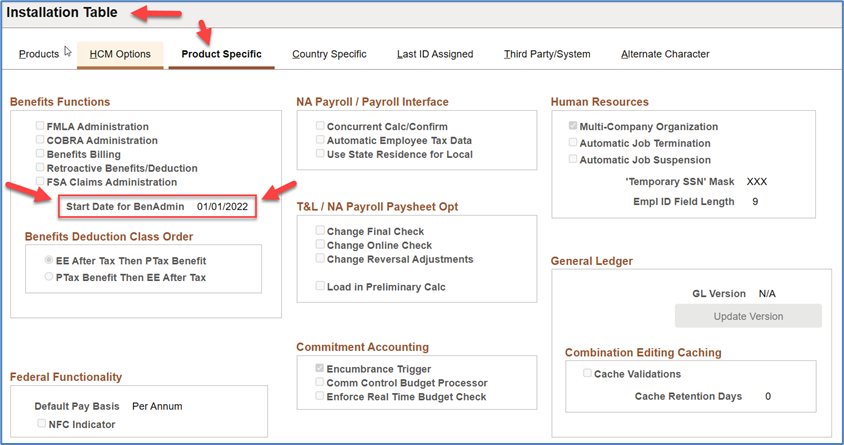
Update the date on the installation table with the agreed upon start date, and then click on the Save button.
Navigation: Set Up HRMS > Install > Installation Table > Product Specific
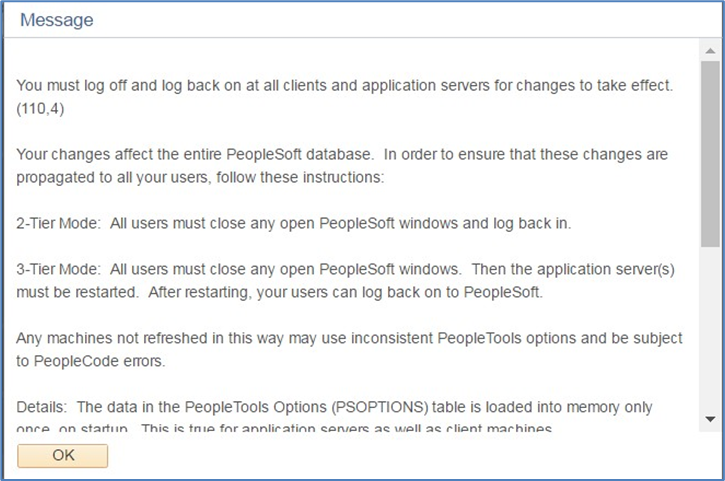
This is the expected message that will appear when the Installation table change is saved.
STEP 5: Purge BAS_PARTIC Data
Although Ben Admin data is being removed from BAS_PARTIC tables by purging data, Benefit enrollments remain in the Base Benefits tables. Base Benefits tables hold finalized enrollment data. Purging BAS data does not impact the data on the Base Benefits tables.
Data in the BAS_PARTIC tables that have an EVENT_DT less than the new start date can be removed. Benefits Administration performance issues will occur if data is not purged from PS_BAS_PARTIC_XXX tables. This task must be scheduled and completed after hours immediately following the Ben Admin Start Date change in step 4.
Use the following SQL statements to select and also to purge the applicable BAS data from the HR9.0 database BAS_PARTIC tables. Change the yellow highlighted date in the following SQL statements to be equal to the newly updated Ben Admin Start Date.
Notes:
- Based on the volume of data being purged, the process could take 2 or more hours for all tables.
- If the campus is interested in a count of records being purged, Select count(*) before and after the delete statement is executed for each table.
- Increment the year in the date by one when you repeat this process the calendar following year.
SELECT * FROM PS_BAS_PARTIC WHERE EVENT_DT < to_date('01/01/2022', 'MM/DD/YYYY')
SELECT * FROM PS_BAS_PARTIC_PLAN WHERE EVENT_DT < to_date('01/01/2022', 'MM/DD/YYYY')
SELECT * FROM PS_BAS_PARTIC_OPTN WHERE EVENT_DT < to_date('01/01/2022', 'MM/DD/YYYY')
SELECT * FROM PS_BAS_PARTIC_COST WHERE EVENT_DT < to_date('01/01/2022', 'MM/DD/YYYY')
SELECT * FROM PS_BAS_PARTIC_DPND WHERE EVENT_DT < to_date('01/01/2022', 'MM/DD/YYYY')
SELECT * FROM PS_BAS_ELIG_DBGVAL
SELECT COUNT(*) FROM PS_BAS_PARTIC WHERE EVENT_DT < to_date('01/01/2022', 'MM/DD/YYYY')
SELECT COUNT(*) FROM PS_BAS_PARTIC_PLAN WHERE EVENT_DT < to_date('01/01/2022', 'MM/DD/YYYY')
SELECT COUNT(*) FROM PS_BAS_PARTIC_OPTN WHERE EVENT_DT < to_date('01/01/2022', 'MM/DD/YYYY')
SELECT COUNT(*) FROM PS_BAS_PARTIC_COST WHERE EVENT_DT < to_date('01/01/2022', 'MM/DD/YYYY')
SELECT COUNT(*) FROM PS_BAS_PARTIC_DPND WHERE EVENT_DT < to_date('01/01/2022', 'MM/DD/YYYY')
SELECT COUNT(*) FROM PS_BAS_ELIG_DBGVAL
DELETE FROM PS_BAS_PARTIC WHERE EVENT_DT < to_date('01/01/2022', 'MM/DD/YYYY')
DELETE FROM PS_BAS_PARTIC_PLAN WHERE EVENT_DT < to_date('01/01/2022', 'MM/DD/YYYY')
DELETE FROM PS_BAS_PARTIC_OPTN WHERE EVENT_DT < to_date('01/01/2022', 'MM/DD/YYYY')
DELETE FROM PS_BAS_PARTIC_COST WHERE EVENT_DT < to_date('01/01/2022', 'MM/DD/YYYY')
DELETE FROM PS_BAS_PARTIC_DPND WHERE EVENT_DT < to_date('01/01/2022', 'MM/DD/YYYY')
*DELETE FROM PS_BAS_ELIG_DBGVAL
STEP 6: Bounce the Servers
After purging the BAS_PARTIC data, coordinate with campus technical resources and/or CMS to request that they bounce the servers and clear cache for the database from which data was purged and the start date changed. Cache should also be cleared on all application and web servers for the impacted database.
STEP 7: Validate Changes
After Steps 5 and 6 are complete, collect post validation data and compare against the data collected from Step 3 to ensure the post change and purge results are as expected. The following validations can be performed after the changes are completed.
- Verify the new Ben Admin Start Date in the Installation Table is correct.
- Collect HEALTH_BENEFIT, FSA_BENEFIT, DISABILITY_BEN, LIFE_ADD_BEN data and record counts. These are the after-purge record counts and data.
- Collect BAS_PARTIC, BAS_PARTIC_PLAN, BAS_PARTIC _DPND, BAS_PARTIC _OPTN, BAS_PARTIC _INVT, BAS_PARTIC record counts. These are the after-purge record counts.
- Compare the before and after record counts and the BAS_PARTIC.EVENT_DT.
- Expected Results:
- No impact to HEALTH_BENEFIT, FSA_BENEFIT, DISABILITY_BEN, LIFE_ADD_BEN data and record counts.
- BAS events prior to the new Start Date no longer exist.
- BAS events after the new Start Date are the same as before the changes (i.e., no adverse impacts)
- Expected Results:
- Compare the sample employee enrollments culled from the CSU Benefit Summary page to the data before the changes.
- Expected Results: All enrollments are the same as before including all history
STEP 8: Documentation and Maintenance Schedule
Document this as an annual activity going forward and set up a process to initiate discussions for next year’s Ben Admin start date change, if applicable.
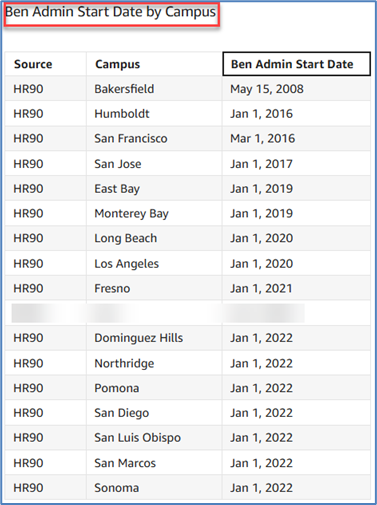
Updating the Benefits Administration Start Dateis a prerequisite for CHRS. Campuses will only change the Ben Admin Start Date in HR 9.0 databases.
HR 9.0 Ben Admin Start Dates as of 5/14/25:
Once you have initially changed your Ben Admin Start Date, change the Ben Admin Start Date annually in your HR 9.0 system in the first quarter of the new calendar year by moving the start date up by one year and then purging Ben Admin data from your database after finalizing OE and verify that your Benefits/Ben Admin data is clean by referencing the Clean Benefits Baseline Data definition above. For example, after finalizing the Open Enrollment 2026 process and resolving all Benefits/Ben Admin issues and errors, in the first quarter of 2026, change the Ben Admin Start Date to 1/1/2023 and then purge the pre-1/1/2023 Ben Admin data from your database.
Considerations
Review this documentation with functional and technical resources at your campus that support PeopleSoft HR and Benefits first to plan this effort and determine the timing of all tasks.
When you are ready to change the Ben Admin Start Date, perform steps 1-8 under Updating the Ben Admin Start Date on PeopleSoft Installation Table in a clone database of your campus production environment to identify any issues and to make sure that you understand the full date change process. Do some testing in your clone environment to ensure that
- the Ben Admin Start Date is changed
- BAS events prior to the Ben Admin Start Date have been purged from your 9.0 environment
- you are unable to create a BAS event with an event date prior to the new Ben Admin Start Date
Follow the process of requesting changes in production and complete an Optimize ticket when needed to bounce the application server and web servicer when needed in the process. In addition, consider any down time and communications for the reboot/bounce/clearing of cache and the impact to other modules, including self-service.
Cross-Functional Impacts (Positive / Negative)
Downtime in production required for reboot and clearing of cache.
CHANGE IMPACT
To be filled out by BSA (from Change Impact Tracking log):
Module | Map ID | Change Impact Log ID | Map Name | Impact Type | % of Employees Impact |
BA | 47 | 182 | Workforce Admin- Initiate or Change Enrollment | People, Process, Technology, Culture | <10% |
The following items will be answered / addressed by Change Management:
Areas of potential change resistance to proposed HR process / policy changes?
The process to change the Start Date is a completely new concept to all campuses.
There is a reluctance to delete data from tables
Coordinating among multiple departments to complete the work
Potential resource needs in order to plan, engage, prepare, and/or deploy the change?
Multiple department resources are required to complete the steps
IT/HRIS at the campus with benefits (for preparation and testing)
Application Support team coordinates with CMS (for production changes)
Functional and Technical resources are required to coordinate tasksAssociated costs relative to the scope of the change to requirements requested?
Employee time is the only cost
Two days for initial review and execution in test environment
Two to five days for review and execution in production (requires ServiceNow ticket 1 week in advance). Requires coordination with CMS for production changes.
Training needs or if a straightforward change?
This document is designed to be a step-by-step guide
Implication on any other related process / functions?
Production changes impact CS and all modules when servers are bounced and cache cleared.
Appendix A: Reprocessing in HR 9.0
To re-process a BAS Event, open three PeopleSoft windows and pull up the employee on CSU Benefits Summary, Job Data, and CSU Pre-Processing pages.
Instructions:
- Expand the EE’s benefits on CSU Benefits Summary, click on View All and take a screen shot.
- Get familiar with the EE in Job Data... active or termed? FERP EE? Benefits eligible or not?
- Go to CSU Pre-Processing page to see if any BAS events require pre-processing for the EE for Benefit Record 0. If nothing is there, go to step 4.
- Go to the On Demand Event Maintenance page for Benefit Record 0.
- Pull up the EE, then click on the Event Status Update button.
- Find the BAS event(s) to reprocess (these are the BAS events with the check marked flagged items; Address Eligibility Change, Job Eligibility Change, Out of Sequence). Be sure to reprocess in the correct order (EFFDT, Event Priority and then Event ID - see below for the processing order instructions). Start with the oldest flagged BAS event.
- Change the *Event Status to Open.
- Change *Process Indicator to ‘Re-enter’ if the Process Status is ‘Enrolled.’
- If the BAS event is HIR (New Hire), TER (Terminate) or the Process Status says, ‘Prep None’ or ‘Pgm None,’ and it is not the HIR BAS event associated with a FERP hire event, you can set the *Process Indicator to ‘Assign Pgm’, change the BAS event status to 'Open', click on the OK button, and then go to step 15.
- If it is the HIR BAS event associated with a FERP hire event, set the *Process Indicator to ‘Re-enter, and change the BAS event status to ‘Open’ and go to step 9.
- If the BAS event is not HIR (New Hire), TER (Terminate) or the Process Status does not say ‘Prep None,’ go to step 9.
- If the BAS event is voided or disconnected, uncheck the flag. Click on OK, then click on Save. You do not need to reprocess a voided or disconnected BAS event.
- Click on the OK button.
- Click on the Reprocess button. After processing, click on the Show Plans button to see if elections were entered. If no elections were entered, change the Process Indicator from 'R' (Re-enter) to 'A' (Assign Pgm) then skip to step 15. If elections were entered, go to step 11.
- After you click on Show Plans to see plan elections (Y), write down the options that were selected, then click on the Return button, and then click on the Election Entry button to see the election details.
- Make a screen print of EE’s elections, covered dependents or write them down. Click on the Cancel button.
- Change the *Process Indicator to ‘Assign’ and click on the Reprocess button.
- Re-enter the employee’s elections and applicable covered dependents for that BAS event and then click on the OK button. Go to step 16.
- On the On Demand Event Maintenance page, click on the Reprocess button. After processing, click on OK.
- On the On Demand Event Maintenance page. select the Finalize/Apply Defaults checkbox, then click on the Validate/Finalize button.
- Once done with all reprocessing for the EE, refresh the employee’s CSU Benefits Summary page and compare it to the CSU Benefits Summary screen shot that you took at the beginning of the process. Determine if there were benefit changes, especially to mandatory benefits (Life, Vision and LTD if applicable).
The order to reprocess BAS events is as follows:
- Date order from the oldest BAS event to the newest BAS event (reprocess 1/1/2015 BAS event, then reprocess 2/1/2015 BAS event and then reprocess 3/1/2015 BAS event).
- If you have multiple BAS events for the same date, process those BAS events in Event Priority order from lowest to highest (reprocess Event Priority 75, then 200, 290, 375, 900, etc.). Refer to the Event Class Cheat Sheet job aid for BAS event priority information.
- If you have multiple BAS events for the same date and same Event Priority, process those BAS events by Event ID from lowest to highest.
Appendix B: Daily Review, Resolve Ben Admin Issues/Errors in HR 9.0
Void Disconnected Events
Please follow the steps outlined in the Voiding Disconnected Events position paper.
CSU Employee Process Status Report
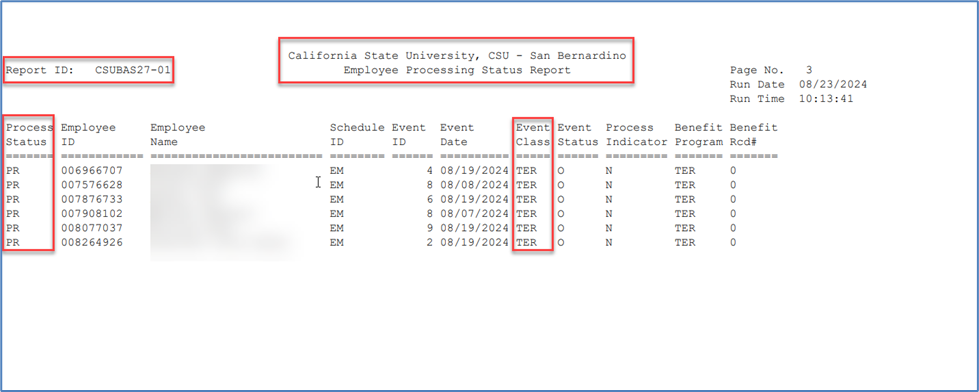
After you have voided disconnected BAS events and reprocessed the BAS for those employees, run the CSU Employee Process Status Report.
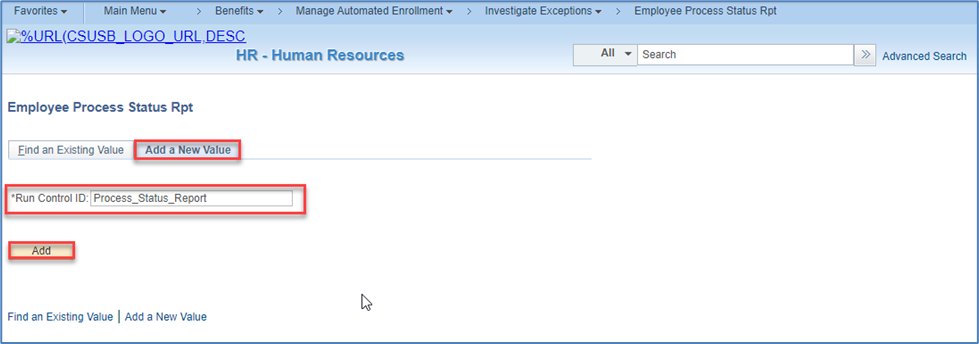
Navigation: Benefits > Manage Automated Enrollment > Investigate Exceptions > Employee Process Status Report
One-time task: create a run control so you can run the report. See screen shot below.
Fill out the run control page as shown below I the screen shot and then click on the Save button.
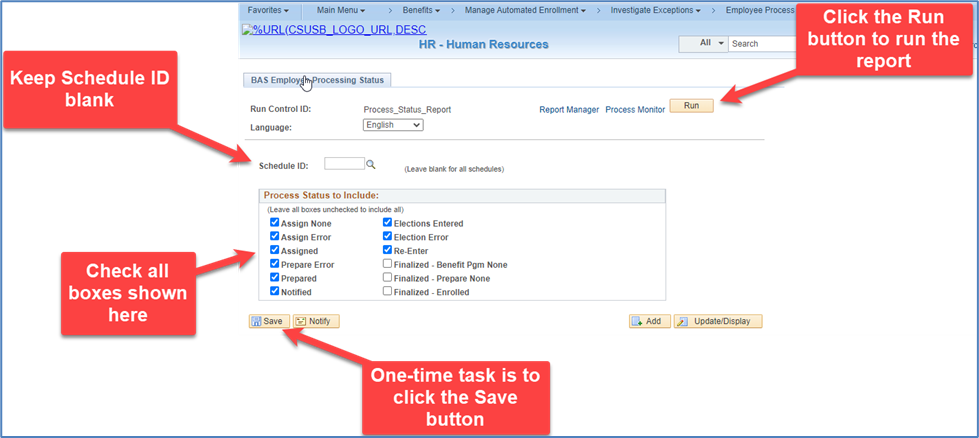
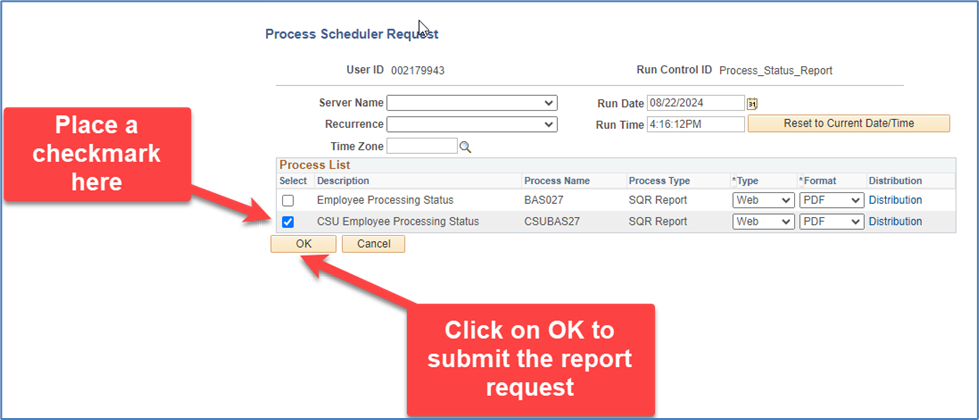
Click on the Run button to run the report.
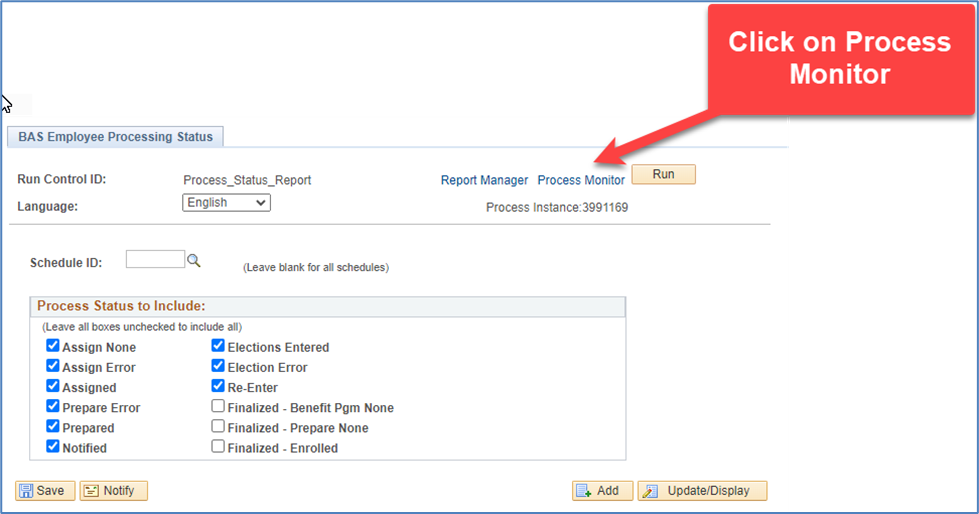
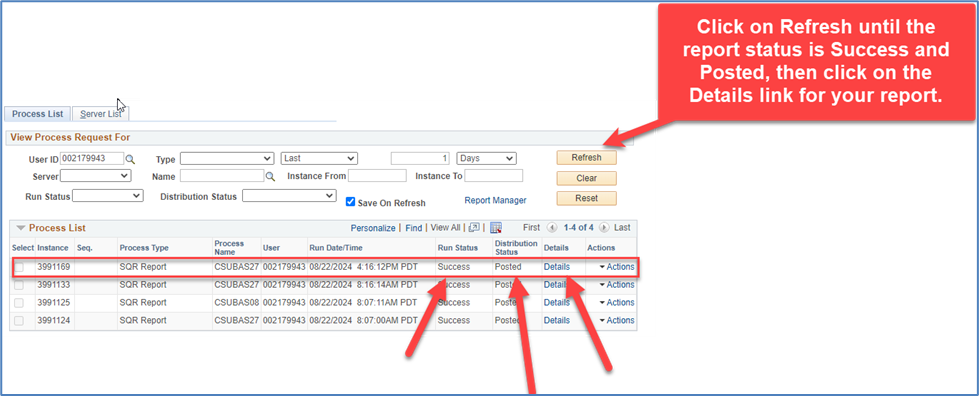
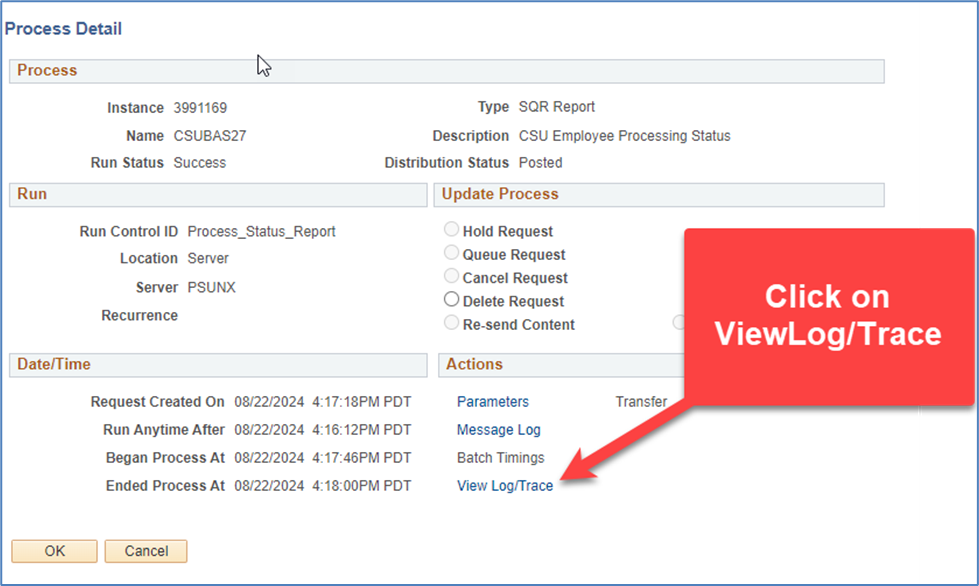
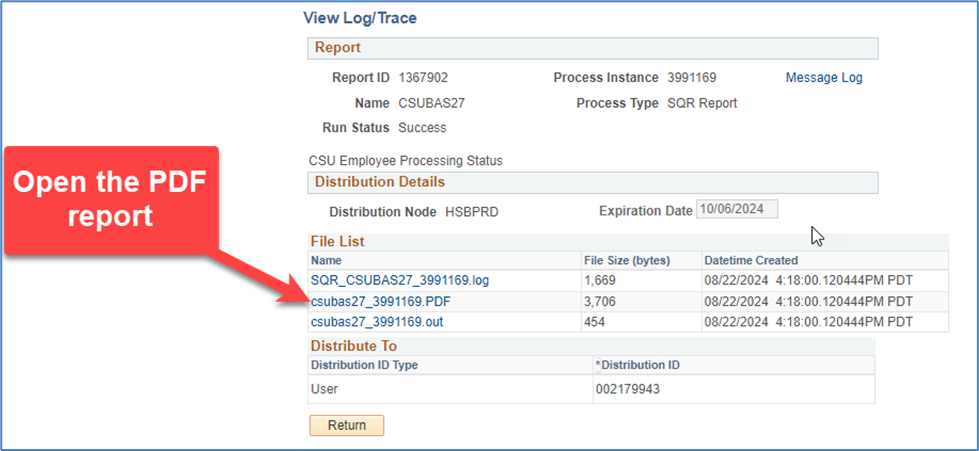
You are returned to the run control page. See the following screen shot.
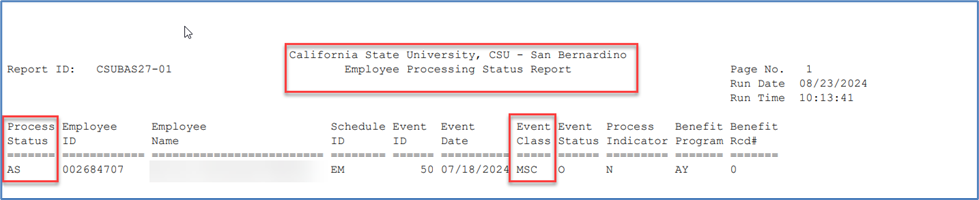
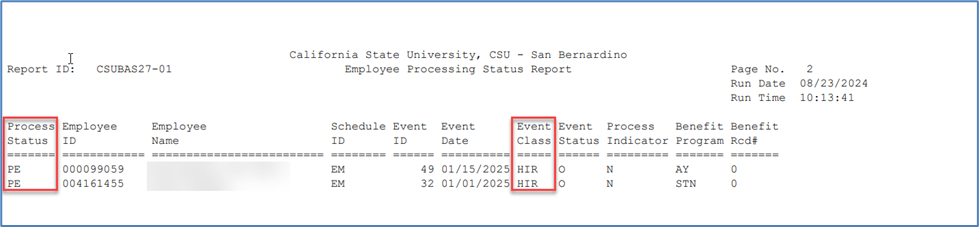
CSU Flagged Items Report
After you finish with the CSU Employee Process Status Report, run the CSU Flagged Items Report.
Navigation: Benefits > Manage Automated Enrollment > Investigate Exceptions > Report on Flagged Items
One-time task: create a run control so you can run the report.
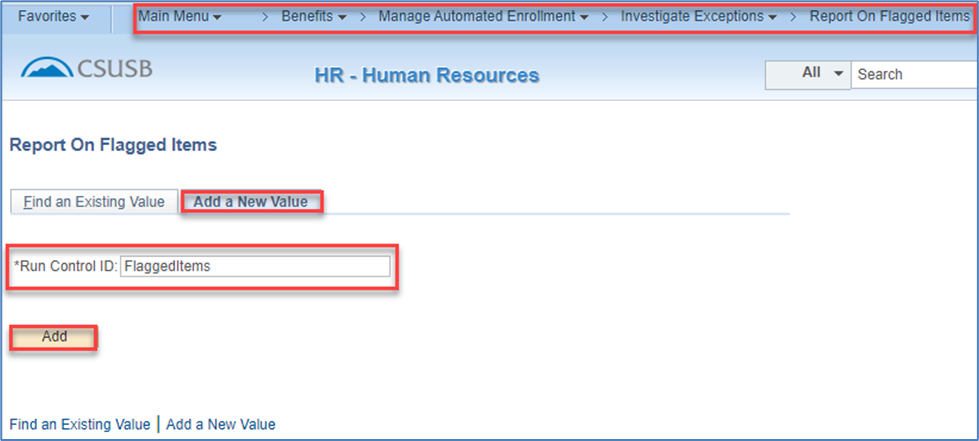
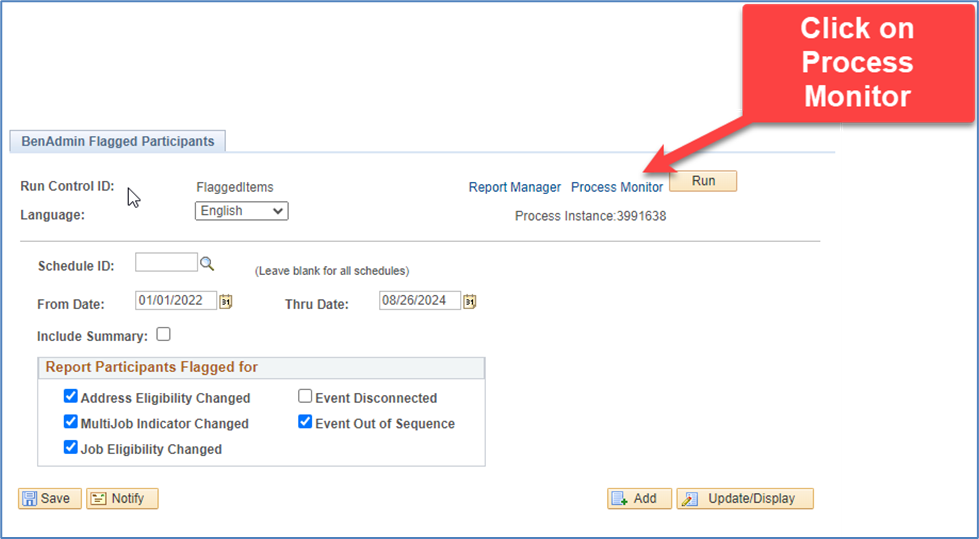
Fill out the run control page as shown below I the screen shot and then click on the Save button.
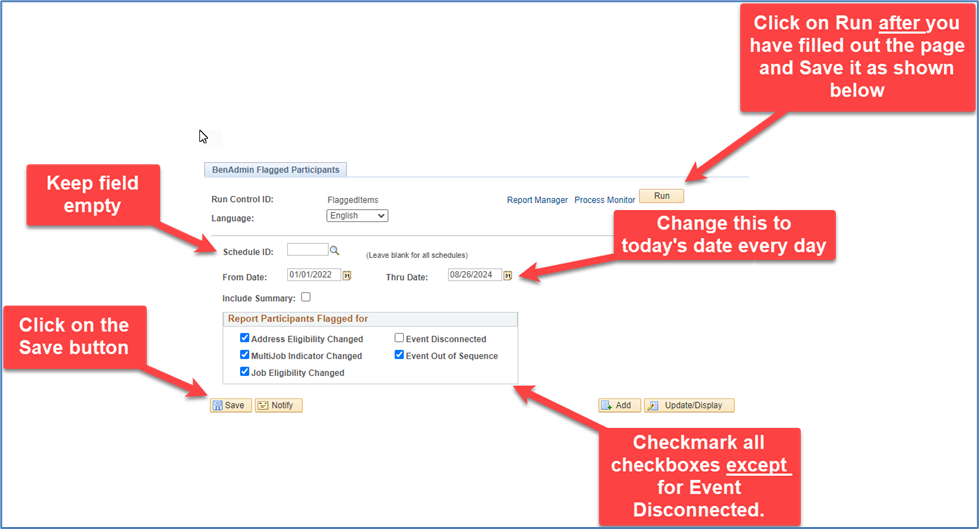
Before you click on the Run button, make sure that you have updated the Thru Date to today’s date and have then clicked on the Save button.
Then, click on the Run button to run the report.
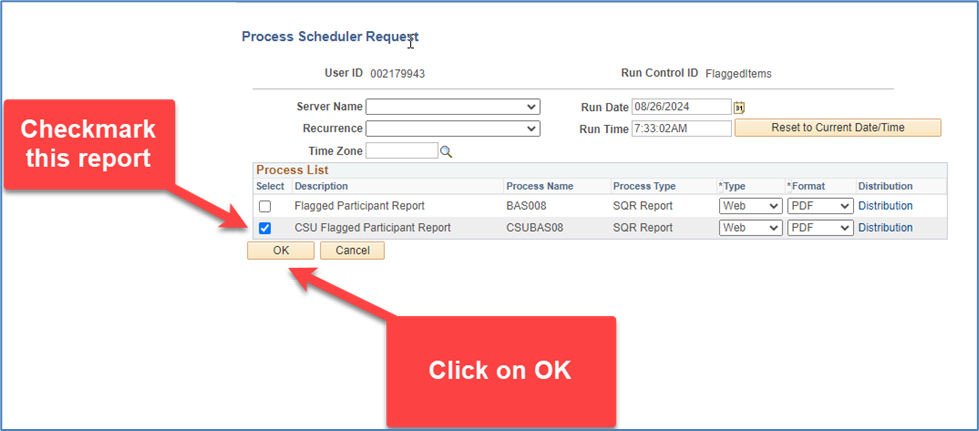
You returned to the run control page. See the following screen shot.
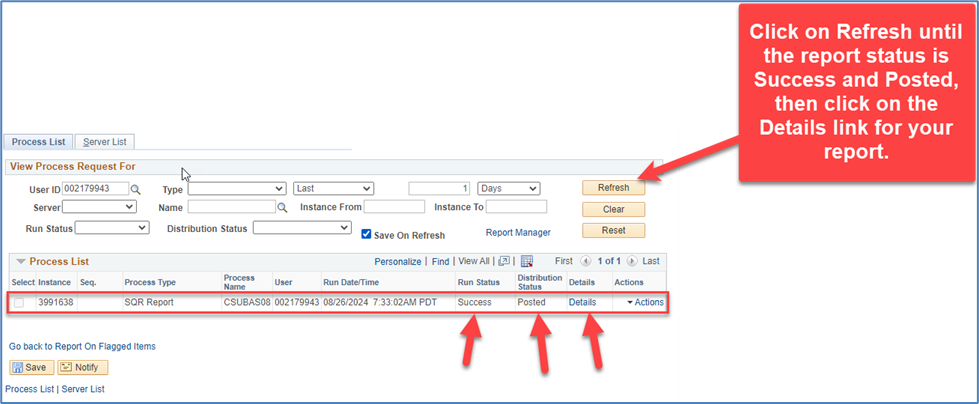
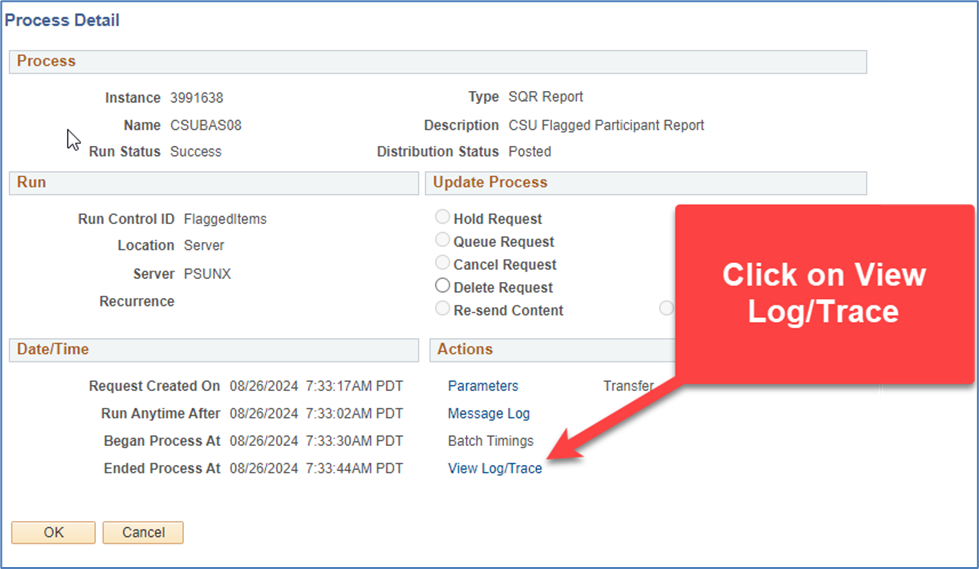
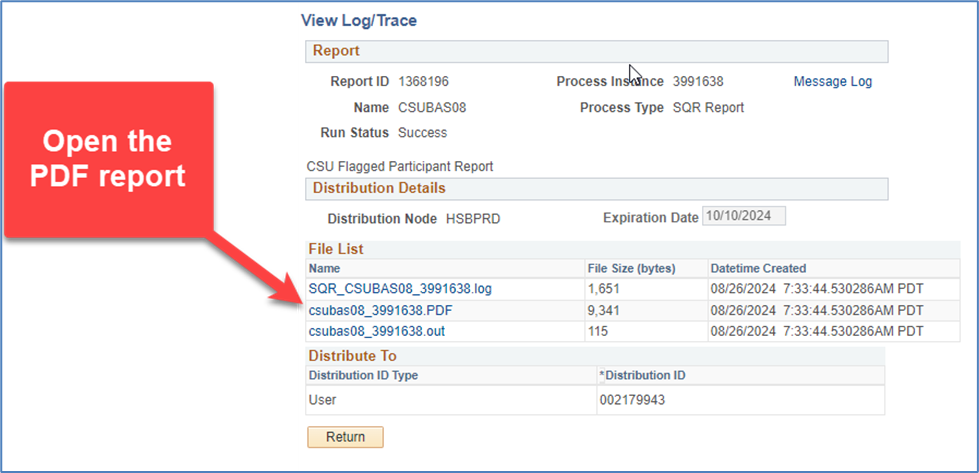
Review the PDF report.

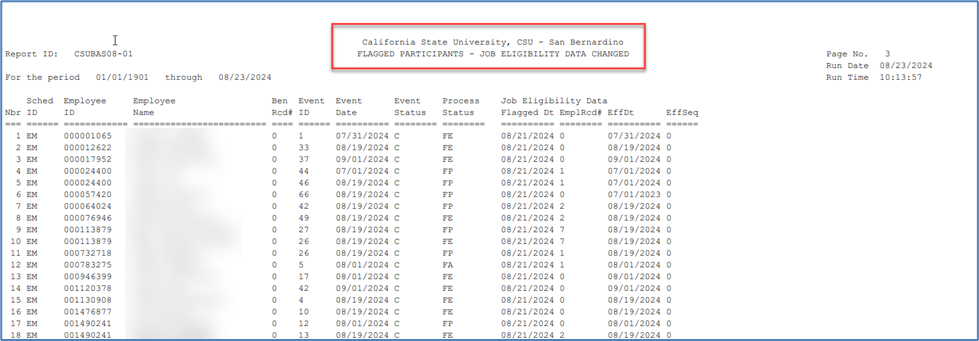
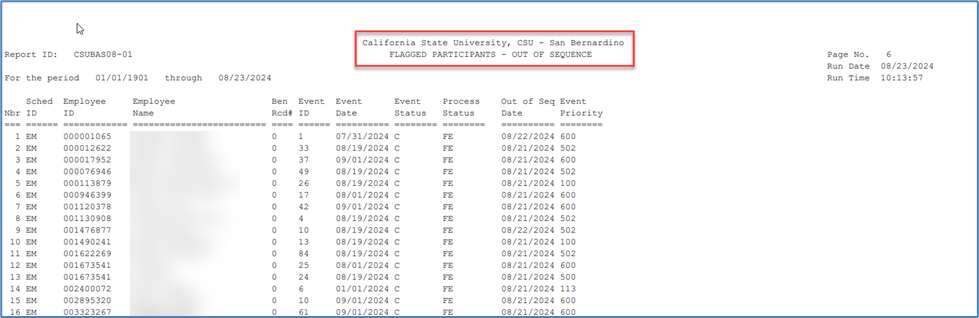
Review and resolve all items on the report by reprocessing all the employee’s BAS events from the very first flagged BAS event until you reach the most current BAS event for the employee by following the instructions under Reprocessing in HR 9.0.
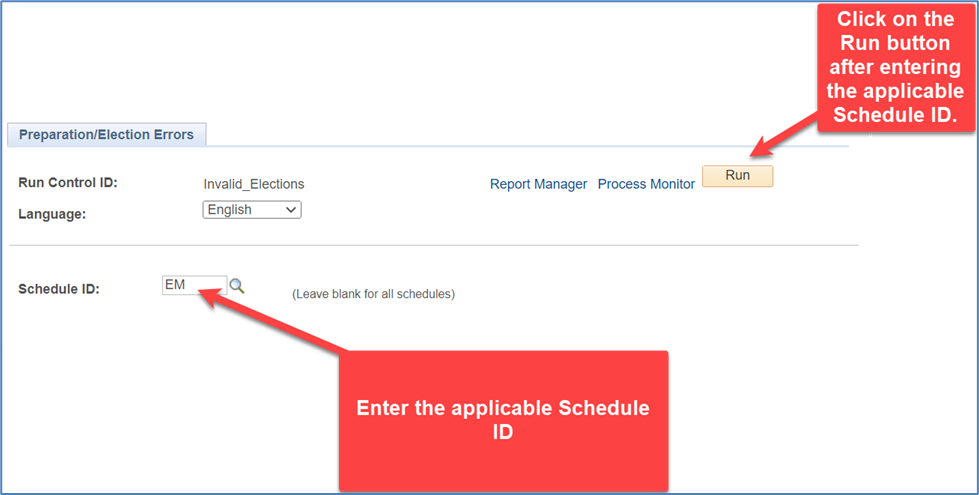
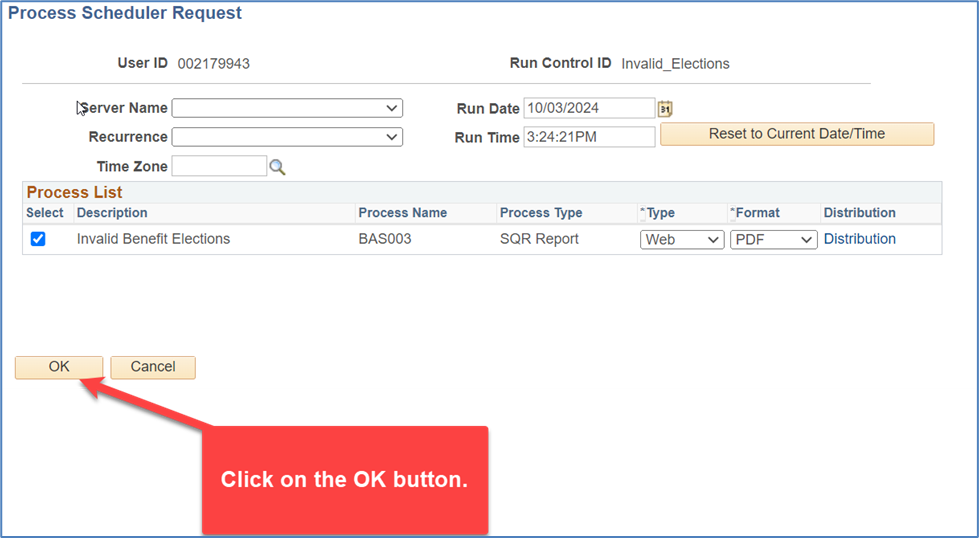
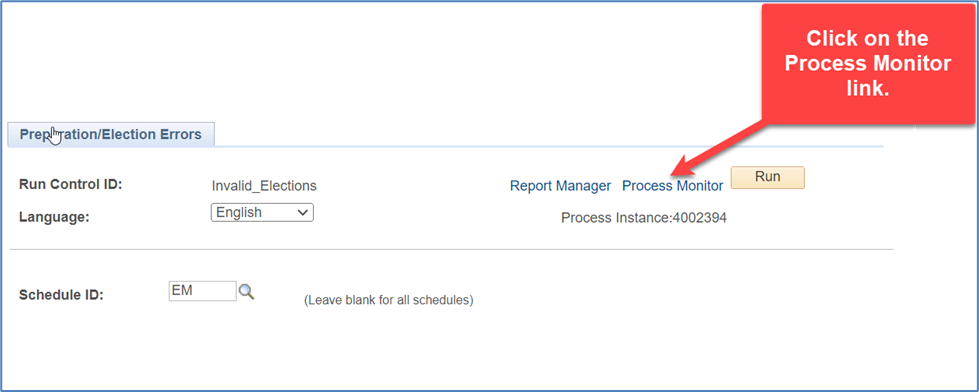
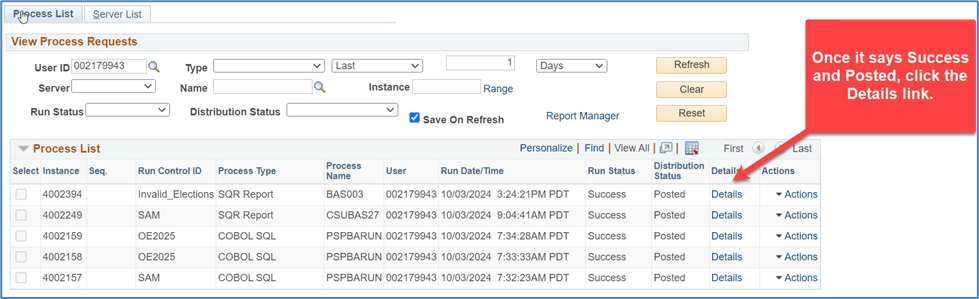
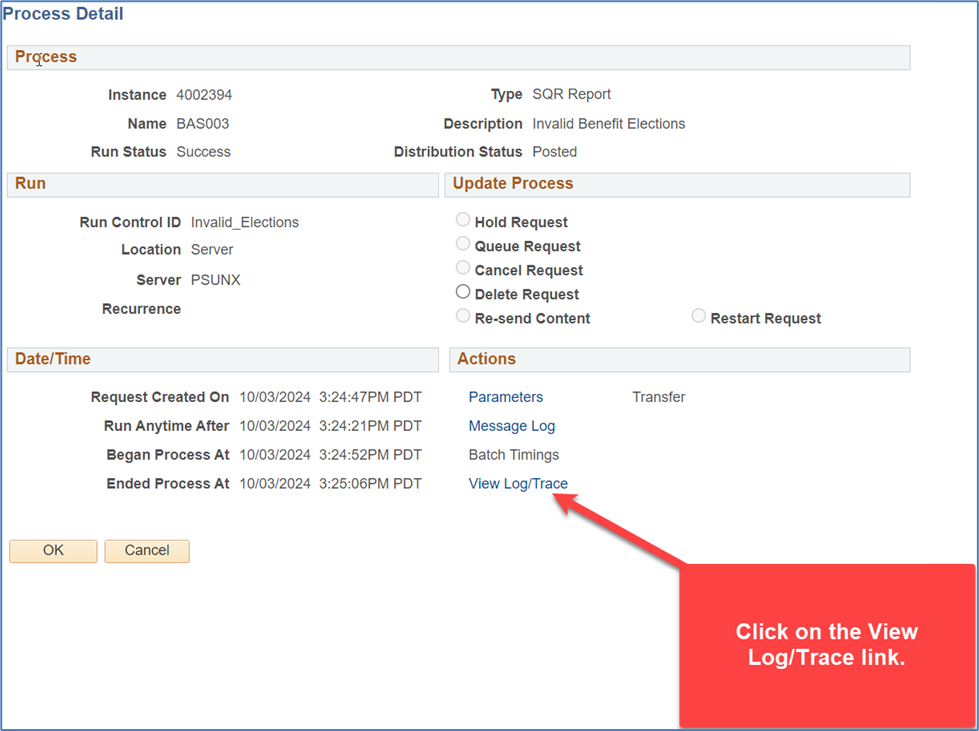
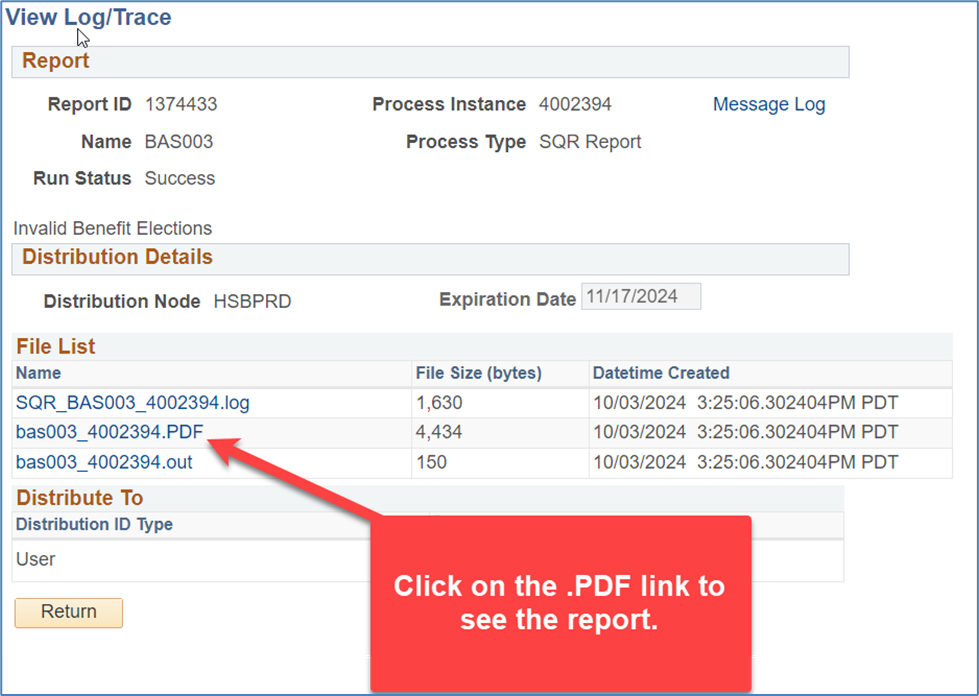
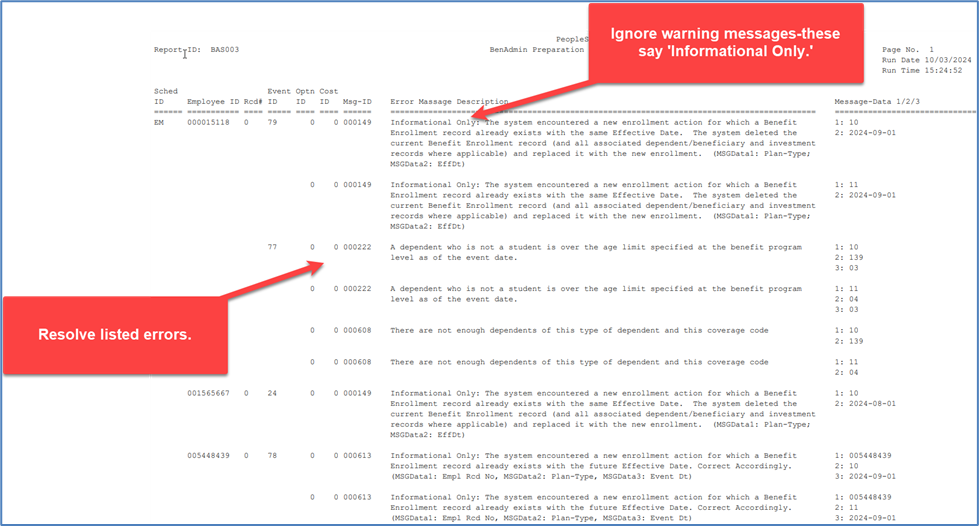
Invalid Elections Report
After you have completed clearing all flags on the CSU Report on Flagged Items report, run the Invalid Elections Report.
Navigation: Benefits > Manage Automated Enrollment > Investigate Exceptions > Invalid Elections Rpt.
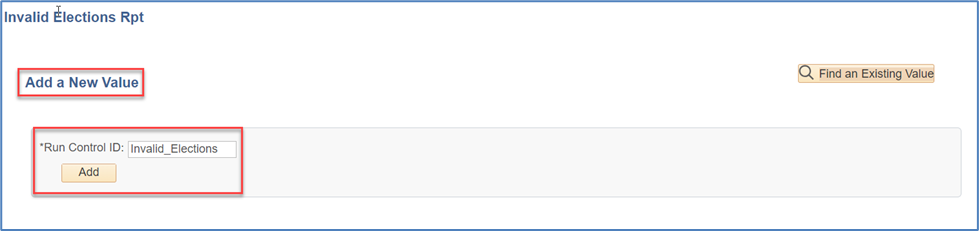
One-time Setup: Create a report run control for the Invalid Elections Report.
End of Article
You are done. Great job!