
Background
All events within Benefits Administration must complete a predetermined process. Any event that does not properly complete the cycle will require intervention from benefits staff. This could be straight forward data entry for benefit elections, require reprocessing due to data changes, or require troubleshooting error messages.
Issue
The Benefits Administration process actively processes one event per participant during each run of the PSPBARUN Cobol. The CSUBAS batch initiates the Ben Admin Cobol twice, yet several events could remain pending for later processing. When an error occurs or an event status cannot move forward in processing, Ben Admin will pend subsequent events and hold processing until the previous issue or processing status is resolved. This can create a bottle neck of events waiting to process for a particular individual. All subsequent events are negatively impacted.
Analysis
Review of Ben Admin event status is part of regular benefit activities. Depending on the volume of transactions this could be performed multiple times a week or weekly at each campus. It is recommended to complete this analysis at least monthly. The supporting guide, Benefit Event Troubleshooting, provides information to setup reporting on benefit event status using a PeopleSoft query or SQL.
Recommendations
Perform a regular review of benefit events utilizing the information provided in the Benefit Event Troubleshooting Guide.
Recommended Implementation Date: August 1, 2018
Considerations
Results of the initial event review will vary by campus. Manage any backlog for event cleanup as applicable to current priorities and available resources. Regular review of current events, error messages and flags should continue at a minimum of monthly so that events created during the month are properly processed and closed with flags and errors resolved. This will aid in ensuring that current month actions, changes, and enrollments are validated prior to processing vendor interfaces.
Cross-Functional Impacts (Positive / Negative)
Transactions in Job Data directly impact the events and subsequent triggers for Benefits Administration. Data deletions, effective date changes, and late data entry all impact the processing, reprocessing, errors, and flags activated within the events processed by Ben Admin.
Managing benefit events in an environment of data changes is less intrusive when mass updates, data deletions, and retroactive actions can be communicated between HR and Benefits staff.
CHANGE IMPACT
To be filled out by BSA (from Change Impact Tracking log:
| Module | Map ID | Change Impact Log ID | Map Name | Impact Type | % of Employees Impact |
| BA | 47 | Workforce Admin-Initiate or Change Enrollment |
BSA – Please answer the following:
Areas of potential change resistance to proposed HR process / policy changes:
None identified. This position paper outlines delivered functionality within benefits administration and provides a guide to campuses for evaluating how the data and events is being managed at their campus.
Potential resource needs in order to plan, engage, prepare, and/or deploy the change
The existing benefit staff at each campus can use this paper as a guide for reviewing the state of their benefit events. The advance publication is intended to provide campuses amble time to complete and data cleanup prior to implementation of CHRS.
If a large amount of issues are discovered, it is anticipated that the campus can use current resources to process corrections as time permits. Any items identified should be corrected prior to CHRS.
Associated costs relative to the scope of the change to requirements requested
No additional costs are anticipated. Existing resources would allot time within their regular schedule to complete the review and corrections needed.
Training needs or if a straightforward change
This position paper contains all of the required steps and directions. Previous experience with PeopleSoft Benefits Administration is required including processing events using On-Demand Event Maintenance and an understanding of benefits eligibility at CSU.
Implication on any other related process / functions
None identified
Benefit Event Troubleshooting Guide
1.0 Benefits Administration Event Processing
1.1 Determine benefit program
1.2 Prepare options
1.3 Enrollment forms and self-service
1.4 Data Entry
1.5 Validate & Load Elections
1.6 Re Enter
2.0 Analyze Benefit Event Status
2.1 Step 1: The Current State of Events
2.2 Step 2: The Order of Things
2.3 Step 3: When to Ask for Help
3.0 Resolving Event Processing Issues
3.1 Review Processing Messages
3.1.1 BAS MESSAGE Table Clean Up
3.1.2 Encountering Errors in On-Demand Event Maintenance
3.1.3 Decipher Error Messages
3.1.4 Warnings and Informational Messages
3.2 Review Flagged Events
3.3 Eligibility Debugging
4.0 Considerations for Benefit Record Number
5.0 Reprocessing Checklist for 9.0
Appendix A: Query to Identify Events requiring Analysis / Resolution
Appendix B: SQL to Identify Events requiring Analysis / Resolution
Appendix C: Benefit Related Processing Messages
Appendix D: Example SQL for Processing Message Query
Appendix E: SQL for Eligibility Changed Totals
1.0 Benefits Administration Event Processing
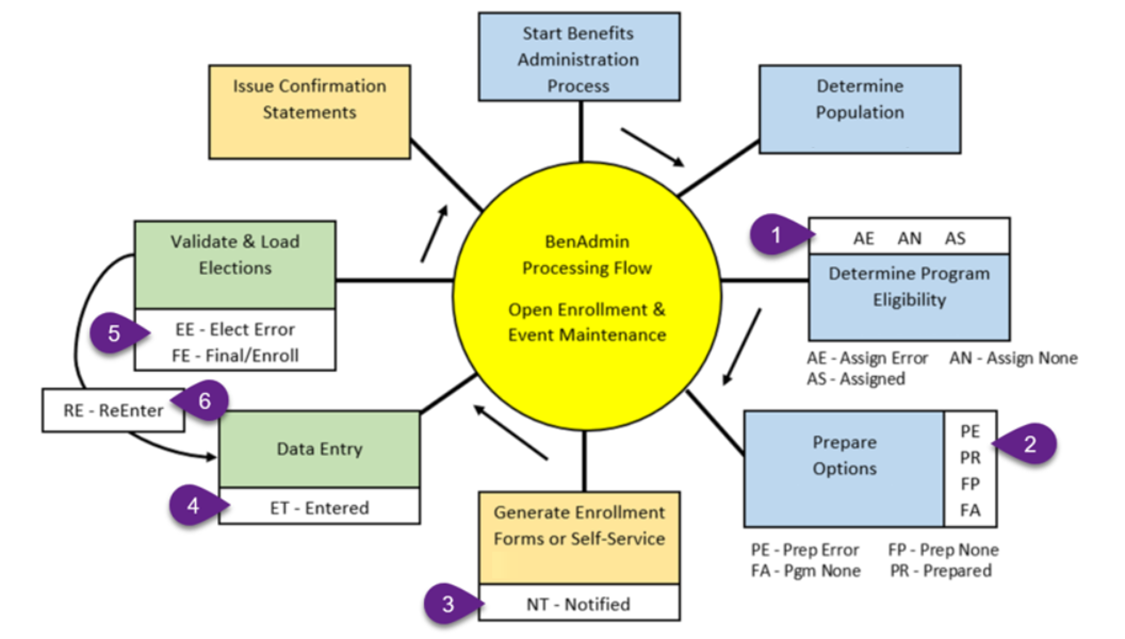
All Events processed within Benefits Administration must complete the process flow illustrated in Figure 1. Any event that does not complete the cycle will require intervention. That may be as straight forward as data entry for benefit elections, require reprocessing due to data changes, or require troubleshooting error messages.
Some events complete the cycle of processing at different steps. Events can complete at Step 2 in status of FP or FA or the final status in Step 5 of FE.
Figure 1: Benefits Administration Processing Flow
When the delivered COBOL PSPBARUN is initiated the following actions occur:
1.1 Determine benefit program
- Benefit program configuration
- Eligibility rules
When Ben Admin stops processing an event at Step 1 and the BAS_PROCESS_STATUS remains at AE, AN, or AS intervention from benefits staff is required to determine the cause, review any related error messages and reprocess the event so Ben Admin can continue its processing.
1.2 Prepare options
- Benefit plan configuration
- Event rules
When Ben Admin stops processing an event at Step 2 and the BAS_PROCESS_STATUS remains at PE intervention from benefits staff is required to review error messages, correct data as needed, and reprocess the event so Ben Admin can continue its processing.
1.3 Enrollment forms and self-service
- Applicable to eBenefit campuses
When an employee first opens an event via Self-Service Ben Admin updates the BAS_PROCESS_STATUS to NT. When an event remains in Step 3 it indicates that enrollment began but was not submitted.
For campuses with Self-Service, it is recommended to periodically run a report, such as daily or weekly, that identifies events that have remained in NT status for an extended period and contact the employee to submit enrollment. The results of the query and/or SQL provided in Appendix A and B can be filtered to identify events with status NT.
All campuses should review the CSUBAS06 report which generates an enrollment form to identify employees eligible to enroll. Benefit staff can use this information to notify the employee and/or to confirm that all notifications have been made.
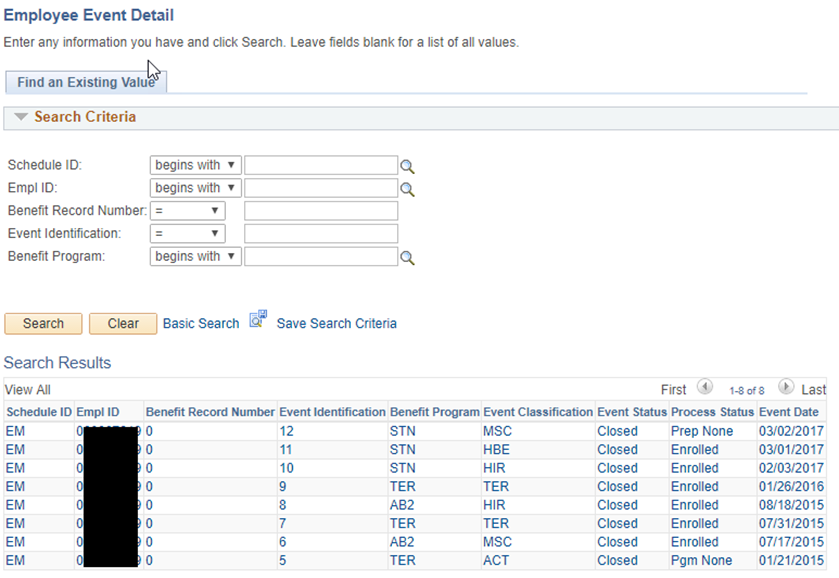
A review of the Employee Event Detail page will provide the date (Option Notify) when that report was generated for a specific employee.
1.4 Data Entry
Ben Admin updates the BAS_PROCESS_STATUS to ET when data entry is complete. For self-service that occurs when the employee clicks Submit. Data entry via On-Demand Event Maintenance updates the status when benefit staff clicks OK.
An event with BAS_PROCESS_STATUS of ET will be processed by Ben Admin at the next occurrence of CSUBAS or when benefit staff click Validate/Finalize in On-Demand Event Maintenance.
1.5 Validate & Load Elections
- Validation results in one of two possible values for BAS_PROCESS_STATUS
Ben Admin updates the BAS_PROCESS_STATUS to EE when data entry does not pass validation. In self-service, employees might encounter error messages regarding data entry mistakes. All error messages from ET process status can be reviewed at >Benefits >Manage Automated Enrollment >Review Processing Results >Processing Messages
An election error encountered via On-Demand Event Maintenance will be visible as a popup message box containing the error message. Benefit staff will be required to return to Election Entry and correct the issue. When an event passes all validation Ben Admin updates the BAS_PROCESS_STATUS to FE and the event processing is concluded.
1.6 Re Enter
- Any event can be reprocessed to allow election changes.
When elections changes are necessary for a specific event, benefits staff can change an event to Re-Enter. Ben Admin updates the BAS_PROCESS_STATUS to RE when an event is available for revisions. Events reset to RE should be updated and completed the same day.
2.0 Analyze Benefit Event Status
Review of Ben Admin event status should be part of regular campus activities. Depending on the volume of transactions this could be performed multiple times a week or weekly. It is recommended to complete this analysis at least monthly and prior to running interfaces.
These steps can be utilized on a daily basis, while processing events and/or enrollments for individual employees. Ensuring that the history of events have been correctly processed will help to prevent future errors. When processing events in On-Demand Event Maintenance, reviewing daily reports (for example CSUBAS02, CSUBAS06, or Payroll Deduction Audit Report [CSUBAS03]), or troubleshooting issues it is recommended that benefits staff review all events for an individual to verify processing status is correct for all events listed. Use the table below to identify any actions needed such as re-processing.
2.1 - Step 1: The Current State of Events
When a campus is not running the Open Enrollment schedule, the objective of benefit event analysis is to determine what tasks should be completed as preparation before an OE Schedule can be used. When there are unresolved errors or events that have not completed the Ben Admin process, OE events will not prepare or process efficiently.
When a campus is running an annual OE Schedule, this event analysis is a measurable way to know that event processing is complete and up-to-date. These steps can also provide validation of readiness prior to the next OE.
Appendix 1 and 2 provide information to setup reporting on benefit event status using PS Query or SQL. The results will exclude events where no action is required, those already voided, or disconnected events that cannot be processed (refer to voiding position paper to resolve disconnects).
- Create the Query or Run the SQL in your campus production environment.
The following table contains the possible combinations of EVENT_STATUS and BAS_PROCESS_STATUS, describing the event stage and identifying any required actions to resolve issues and/or complete processing within Ben Admin.
| Event Status | Process Status | Description | Action Required |
| Open (O) | Prepared (PR) | Eligible options and rates are prepared for the employee in the event. | Waiting for election entry. HIR and TER Events will be finalized and closed with the next processing of CSUBAS. |
| Open (O) | Notified (NT) | The event was opened for election entry but not completed. | Complete election entry, finalize in On-Demand. For eBenefit campuses, contact the employee to submit their choices. |
| Open (O) | Re-Enter (RE) | Manually opened for data changes | Complete changes to election entry, finalize in On-Demand or let CSUBAS close the event in the next processing. |
| Open (O) | Entered (ET) | Data entry complete | CSUBAS must run to validate and close event |
| Event Status | Process Status | Description | Action Required |
| Closed (C) | Finalized Prep None (FP) | Ben Admin has verified that the employee’s eligibility has not changed. No options available | No action required. |
| Closed (C) | Finalized Enrolled (FE) | Ben Admin processing is complete for the employee event. All elections have been validated and loaded. | No action required. Audit enrollments as needed. |
| Closed (C) | Finalized Ben Pgm None (FA) | Employee event has no program assignment and no current elections. This could be a result of the Benefit Flag being set to a terminated Empl_Rcd. | No action required. |
| Event Status | Process Status | Description | Action Required |
| Open (O) or Closed (C) | Program Elig Assign Error (AE) | Ben Admin is unable to assign Benefit Program due to missing or incorrect information. | Review processing messages for the Empl ID with error. Run eligibility debugging as needed to determine root cause. Correct data issue or error and reprocess event |
| Open (O) or Closed (C) | Program Elig Assign None (AN) | Ben Admin was unable to assign a benefit program. This could be a result of the Benefit Flag set to a terminated Employee Record (Empl_Rcd). | Run CSU Pre-Processing for the Employee. Change Process Indicator to “Assign Program (AS)” and Event Status to “Open (O)”. Then reprocess the event. |
| Open (O) or Closed (C) | Program Elig Assigned (AS) | Ben Admin is not able to assign Benefit Program because a prior event is Open or not processed to the correct status | Review previous events and process/re-process to the correct closed status. |
| Open (O) or Closed (C) | Election Error (EE) | The system encountered an error in processing the elections. | Review processing message(s) for the Empl ID with error. Once errors are corrected, CSUBAS will finalize or the event can be finalized manually in On-Demand Event Maintenance |
| Open (O) or Closed (C) | Prepare Error (PE) | The system encountered an error during the preparation of options. | Review processing messages for the Empl ID with error. Correct data issue or error and reprocess event. Run eligibility debugging as needed to determine root cause |
| Event Status | Process Status | Description | Action Required |
| Closed (C) | Prepared (PR) | The event was closed for one of two reasons. Either manually by staff or by the system so it could process another event. For various reasons, the system may have been unable to reopen the event. | Reprocess the event to complete any data entry |
| Closed (C) | Notified (NT) | Open the event to complete any data entry | |
| Closed (C) | Re-Enter (RE) | Open the event and determine if data entry is needed, then validate/finalize | |
| Closed (C) | Entered (ET) | Set event back to Re-enter and determine if data entry is needed, then validate/finalize |
2.2 - Step 2: The Order of Things
Once the status of benefit events is collected it is time to prioritize the required actions. The objective of this step is to determine where to start, what events should be looked at first, which ones need to be reprocessed, are there any that need detailed analysis of Job Data and so on.
A. Priority:
In the determination of benefits eligibility and enrollment identify what is Urgent vs. Important. Based on the data returned in Step 1;
- What needs immediate attention? What may result in negative consequences to enrollment for either active or terminated benefits?
- What is the employment status of employees with events returned in the query results? Ensure recent terminations have been processed correctly, however events for employees long since terminated are a lower priority for review.
- What Schedules are included in the results? Multiple schedules imply event maintenance and open enrollment events may both require attention. If OE is about to begin or just completed, those events may need to be reviewed before EM.
- What is the Benefit Record Number associated with the events? Benefit record 1 events are attributed to benefit ineligible assignments and could be resolved after benefit record 0 events.
The following order is provided as guidance for setting priorities when multiple events require review.
- Events with an error status should be the first priority. Review error messages
- BAS_PROCESS_STATUS = AE (Debugging may be required)
- BAS_PROCESS_STATUS = EE
- BAS_PROCESS_STATUS = PE
- Events that did not make it past the first stage of processing Ben Admin
- Review previous events and reprocess: BAS_PROCESS_STATUS = AS
- Run pre-processing and reprocess event: BAS_PROCESS_STATUS = AN
- Events that may have stalled in the processing flow and require intervention to restart/complete.
Event was closed for another event to process but did not re-open: open and reprocess
EVENT_STATUS = C AND BAS_PROCESS_STATUS = PR
Event closed instead of finalizing: Set to Open and Re-Enter; Verify elections and Finalize
EVENT_STATUS = C AND BAS_PROCESS_STATUS = ET
- Events that may have been closed manually to process a different event but were not re-opened
Open event and complete elections:
EVENT_STATUS = C AND BAS_PROCESS_STATUS = NT
EVENT_STATUS = C AND BAS_PROCESS_STATUS = RE
- Events that may have options prepared and either enrollments should be entered, or defaults applied by checking Finalize/Apply Defaults
Waiting for Elections: Complete Elections
EVENT_STATUS = O AND BAS_PROCESS_STATUS = PR
EVENT_STATUS = O AND BAS_PROCESS_STATUS = NT
EVENT_STATUS = O AND BAS_PROCESS_STATUS = RE
B. Value:
Once the event results have been prioritized it is important to assess the value of the work that should be done. That value may differ from initial evaluation based on campus priorities, current workload, or immediate deadlines.
For example, if the monthly interfaces are due in the next day or so, it may be prudent to process and resolve all items in sections III, IV and V above in order to maximize complete data transmitted to vendors.
Also for consideration is the Benefit Record Number. While Ben Admin expects all events to be processed correctly and completely, benefit record 1 events are attributed to benefit ineligible assignments and could be resolved after benefit record 0 events. Refer to section Considerations for Benefit Record Number for additional information.
C. Effort
It may be that some campuses find the analysis and cleanup of benefit events to be overwhelming. This is understandable and can be addressed by roughly estimating the effort to accomplish event cleanup.
- How many events were returned in the report results?
- Once prioritized, how many are in each group defined in Section A?
- Can the benefit record number be used to pinpoint high value work?
- How many resources are available to you?
- Can the event review be incorporated into daily work/auditing?
Select and schedule work based on what resources are available and what the current workload and priorities are at the campus. Identify the time of year or month when a large task could be tackled.
Other options for targeting event cleanup is to order by event date, correct the most current issues and work backwards in time.
2.3 - Step 3: When to Ask for Help
An important goal of benefit event cleanup is to position campuses for success in CHRS. The short term gain is that Ben Admin processing would present less issues and improve processing results for campuses on a daily basis. Those campuses not utilizing the Open Enrollment Schedule would be able to run OE and establish annual baselines that validate enrollments and improve compliance with eligibility rules.
However, data analysis on benefit events at each campus will vary. Even a small volume of cleanup does not necessarily mean the resources and knowledge are available. Once Step 1 and Step 2-A are complete, any campus may request assistance from CMS-HR by submitting a ServiceNow ticket.
3.0 Resolving Event Processing Issues
3.1 Review Processing Messages
Each time the delivered COBOL PSPBARUN is executed, any messages generated by the system are available in Processing Messages record. It is required to review the Processing Messages after each batch process is executed. For example, if CSUBAS is scheduled to run nightly, the following day processing messages should be reviewed for issues to be resolved.
Schedule ID is a key search criteria for error messages. This means that a review of each schedule and its corresponding errors is required. During Open Enrollment, both the Event Maintenance (EM) and OE schedules must be reviewed for errors.
Reviewing error messages can be accomplished by:
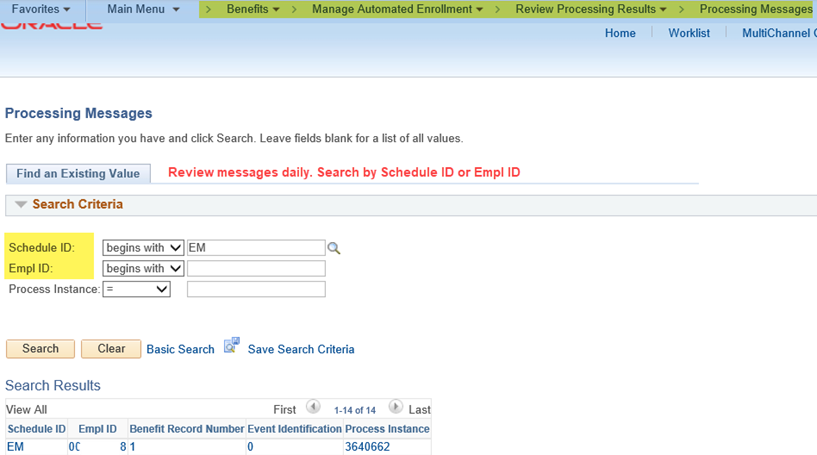
Search by Schedule ID from the online page: >Benefits >Manage Automated Enrollment >Review Processing Results >Processing Messages
This is a quick and easy way to see what errors have appeared from the nightly processing. If there are too many messages to review from this online page or if additional data would be helpful with troubleshooting then select option 2 or 3 below.
The section following this provides detail about error messages.
Run the delivered report BAS003 from the online page:>Benefits >Manage Automated Enrollment >Investigate Exceptions >Invalid Elections Rpt
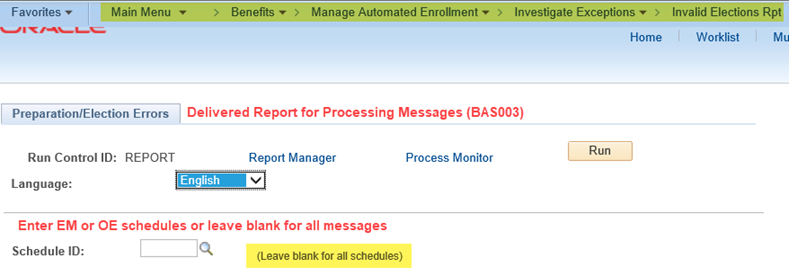
This delivered report provides a PDF document with the details of each error message. Rather than opening each employee individually as in Step 1, this report will list the details of all messages.
This example shows the column headers of a finished report:

Processing messages can also be reviewed by creating a query that includes additional information such as employee job data and/or benefit event details.
- Message Data is stored in BAS_MESSAGE table.
- Detailed message text descriptions are joined by MSGID to PAY_MESSAGE_TBL.
- Details for the Ben Admin event can be included by joining BAS_PARTIC to BAS_MESSAGE.
- Details for Job Data can be included however it is important to note the benefit record number and employee record number must be considered when linking to benefit primary job
- BENEFIT_RCD_NBR from BAS_MESSAGE must be joined to PER_ORG_ASGN
- Use PRIMARY_JOBS joined to PER_ORG_ASGN to identify Benefit Primary Job
- Once the Benefit Primary job is identified, join to Job Data by EMPLID and EMPL_RCD
- Sample SQL is provided in Appendix D as an example of the joins described in Step 3. Additional review based on effective dates of Job Data and Ben Admin events should be considered.
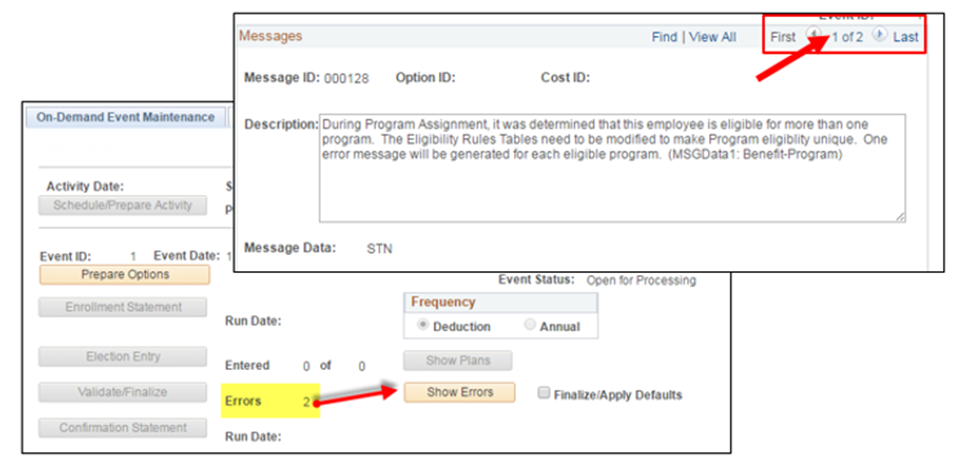
3.1.2 Encountering Errors in On-Demand Event Maintenance
While manually processing events in On-Demand Event Maintenance the user will be notified of any errors by pop-up messages.
The Show Errors button will send you to the processing results page where you can review all errors.
3.1.3 Decipher Error Messages
To evaluate the message and determine next steps it is important to decipher the information in a processing message and determine which items on the page provide the clues to a root cause. Most important items are Empl ID, Name (removed from image) and Event ID which are needed to find the event that triggered the message.
In the following example, the message data provided corresponds to the text in the description and is correlated by color for benefit plan, deduction code and benefit program. The Option ID and Cost ID are listed only if relevant to the error. They can be used as references from within the benefit program should any option/plan item need updating.
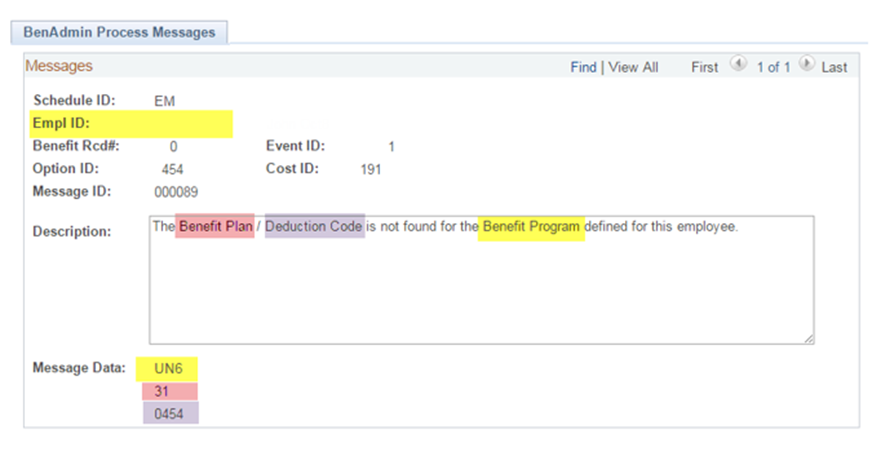
The content of the message and related data elements will change from message to message. The message ID is a reference to the catalog number, the table in Appendix C contains many of the relevant messages for Benefits Administration.
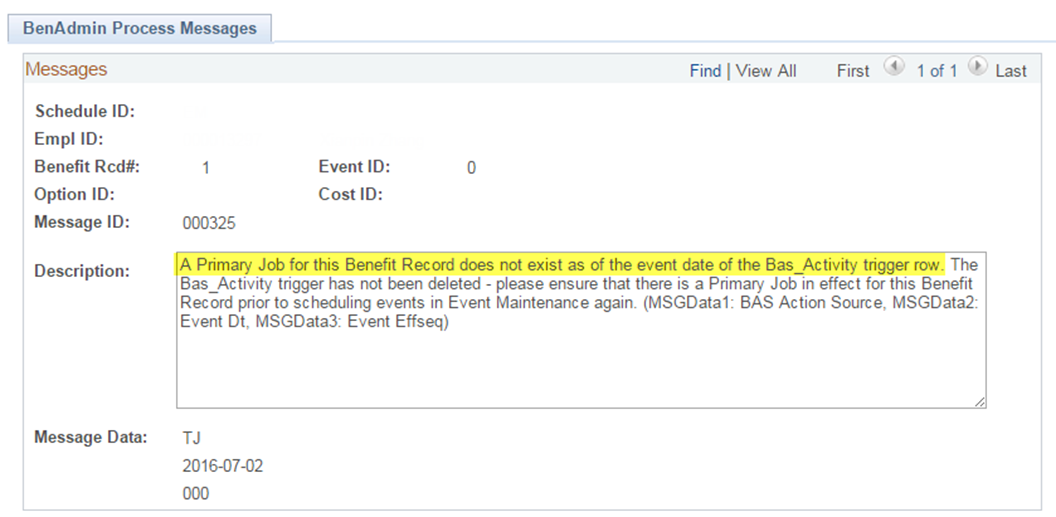
When the primary job for benefits message is encountered, set the event to Open and Assign Program, run CSU pre-processing, and then process the event.
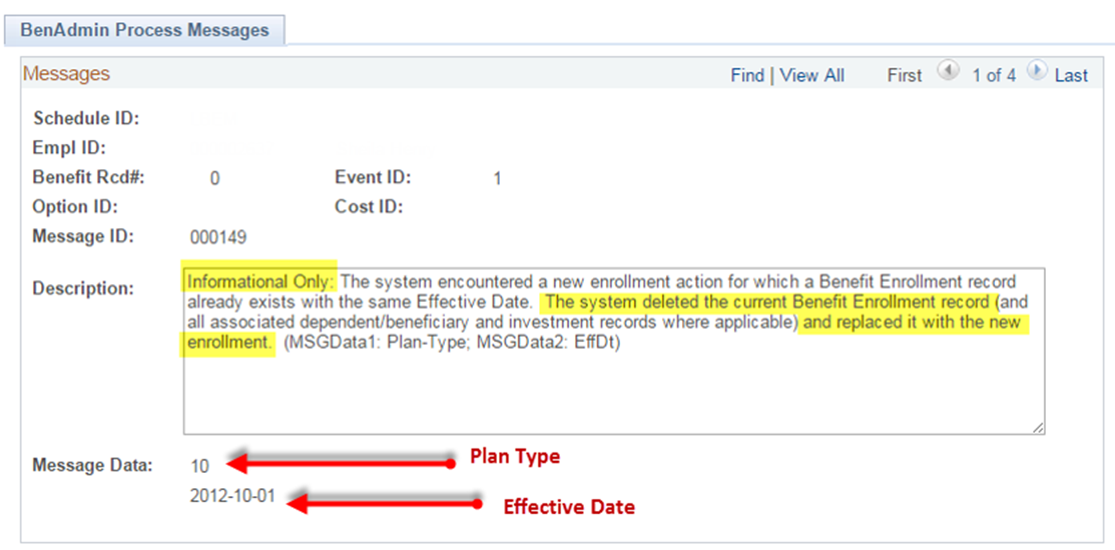
3.1.4 Warnings and Informational Messages
Informational Messages are provided when the system has made a decision regarding how rows are inserted or possibly removed based on new data being processed. Read each message carefully to determine if action is needed, in most cases, no action is required.
This message indicates it is Informational yet contains instructions to Correct Accordingly. In this case, benefits staff would need to review the event and base benefit tables to determine if corrections are needed.
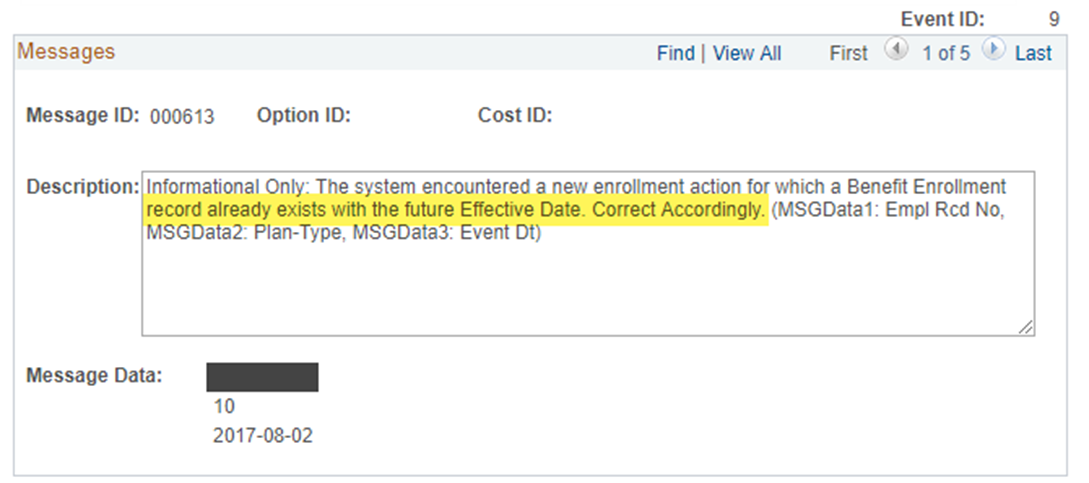
This message indicates it is Informational and explains what action was taken. This is a common message when a newer event is processed that updates/corrects enrollment information from a previous event such as a revised hire or termination date. In this scenario, benefit staff would have no action to take.
3.2 Review Flagged Events
Benefits Administration may generate a message when any of the five event flags are enabled. The flags, when enabled, indicate that the system has detected data changes or event processing that may impact eligibility and/or enrollments. Ben Admin is either unable to determine the resolution or unable to make the changes. These flags require staff to intervene and analyze the situation to determine if action is required.
It is important to remember that regular review of flagged events must take place. It is recommended that this review take place daily or at minimum at least monthly, prior to interfaces generating.
The delivered flag report can be generated from >Benefits >Manage Automated Enrollment >Investigate Exceptions >Report on Flagged Items. This data can also be accessed from BAS_PARTIC table for each event.
- MultiJob Indicator Changed (MJ_ELIG_CHG) – this flag indicates that a change affecting an employee with multiple jobs that is also eligible for more than one benefit program. This does not apply to CSU.
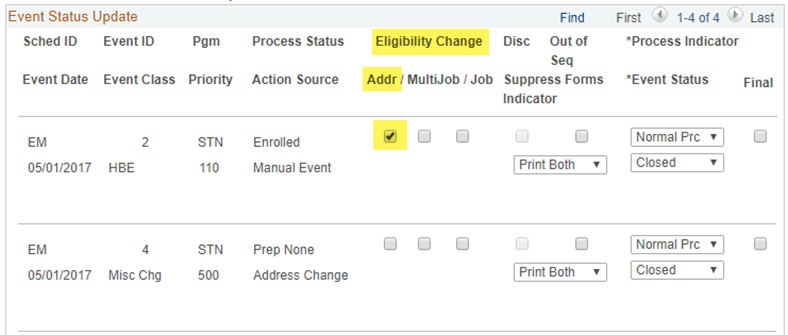
- Address Eligibility Changed (ADDR_ELIG_CHG) – no message is generated when this flag is enabled.
- This flag indicates that an employee address change should be reviewed to determine if their eligibility impacts their current enrollments.
- If an address change makes the employee ineligible for their current coverage, benefits staff should notify the employee to determine options. CalPERS will automatically unenroll the employee if they are no longer eligible and move them into PERS Choice.
- Job Eligibility Changed (JOB_ELIG_CHG)
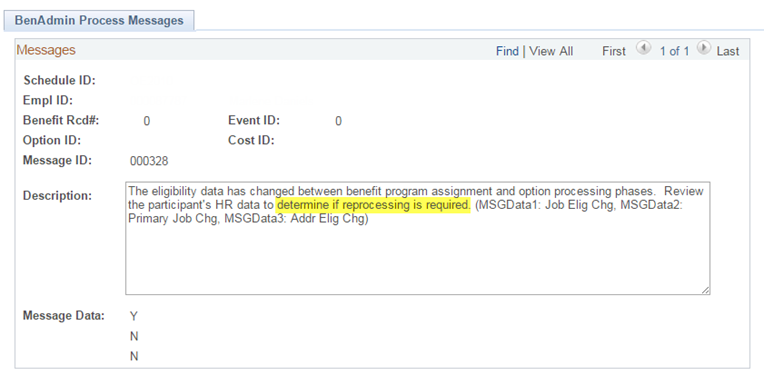
- This flag indicates that the employee Job Data has changed since the event was first processed. The data change may or may not directly impact eligibility, however, the system cannot make that determination and a staff member should review the event.
- If the event is Open and Prepared, change the process indicator to Assgn Program and reprocess the event.
- If the HIR event has this flag enabled, open the event to Assgn Program and reprocess. Review the employee’s enrollments to determine if further action is needed, such as offer of benefits, or change to no benefits).
If the event created enrollment or termination rows in base benefits, review employee job data to verify if eligibility and enrollment is still valid.
- This flag indicates that the employee Job Data has changed since the event was first processed. The data change may or may not directly impact eligibility, however, the system cannot make that determination and a staff member should review the event.
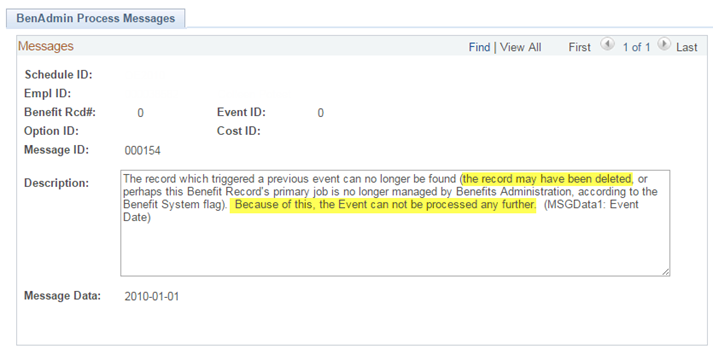
- Event Disconnected (BAS_EVT_DISCONNECT)
- This flag indicates that the data associated with the event was deleted or the effective date has been changed. The system can no longer process or review this event.
- These events should be voided. Refer to the position paper for Voiding Disconnected Events.
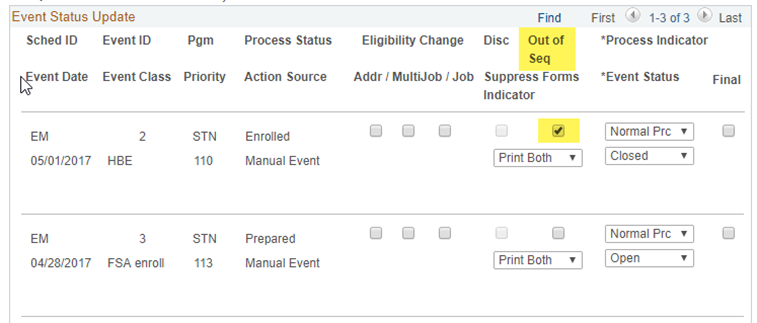
- Event Out of Sequence (BAS_EVENT_CHG) – no message is generated when this flag is enabled
- This flag indicates that another event has been processed that has an earlier date or the same date and a higher priority for processing.
- The system is not able to determine if the earlier event eligibility or enrollment will impact the later event.
- Benefits staff should review the events to determine if changes to the later event are needed, such as Open Enrollment January 1st is processed, then a Marriage (HBE) for Dec 15th is processed. The Open Enrollment will be flagged as out of sequence and require revision to add the spouse.
3.3 Eligibility Debugging
Benefits Administration provides a debugging tool that evaluates an event from program assignment to preparation of options and returns the results of the analysis for all benefit programs and options reviewed during processing. The Eligibility Debugging process is specifically useful to troubleshoot events in Assign Error (AE) and Prep Error (PE).
When the Record Eligibility Results check box on the Ben Admin run control page is selected, the system will log all results of the process. Recording eligibility results cannot be selected from On-Demand Event Maintenance.
To prepare an event for debugging, change the Process Indicator to Assign Program on the Update Event Status page or through On-Demand Event Maintenance. Make a note of the Event ID for the specific event to be processed in debugging. Ensure the event is open, and save the changes.
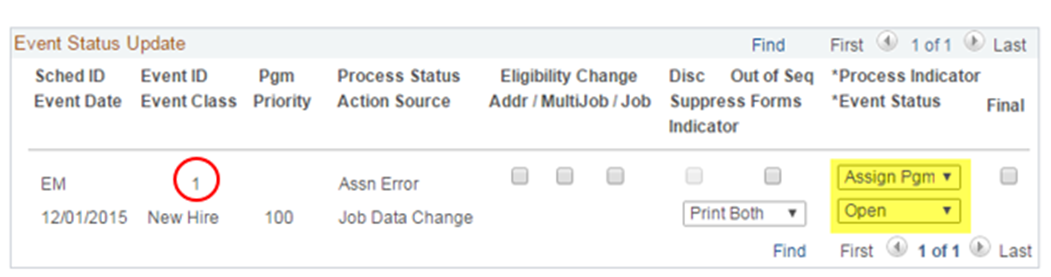
Navigation: Benefits > Manage Automated Enrollment > Events > Update Events Status
Run the Ben Admin batch process for this schedule with record eligibility results checked.
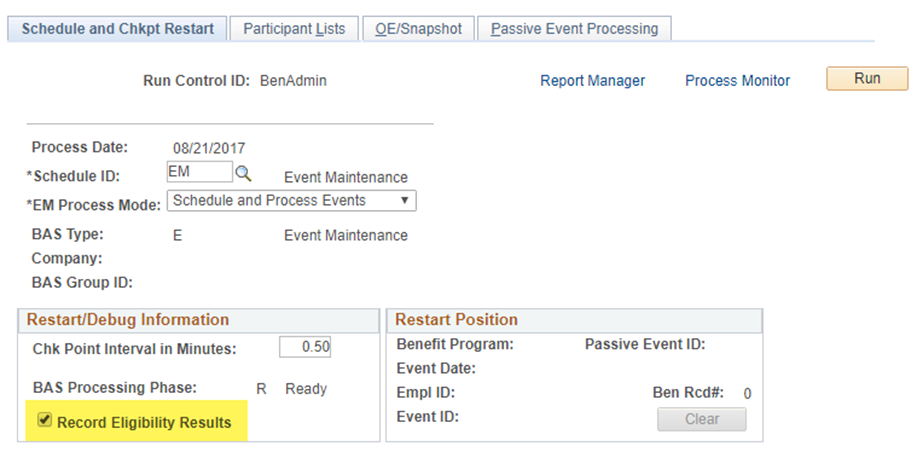
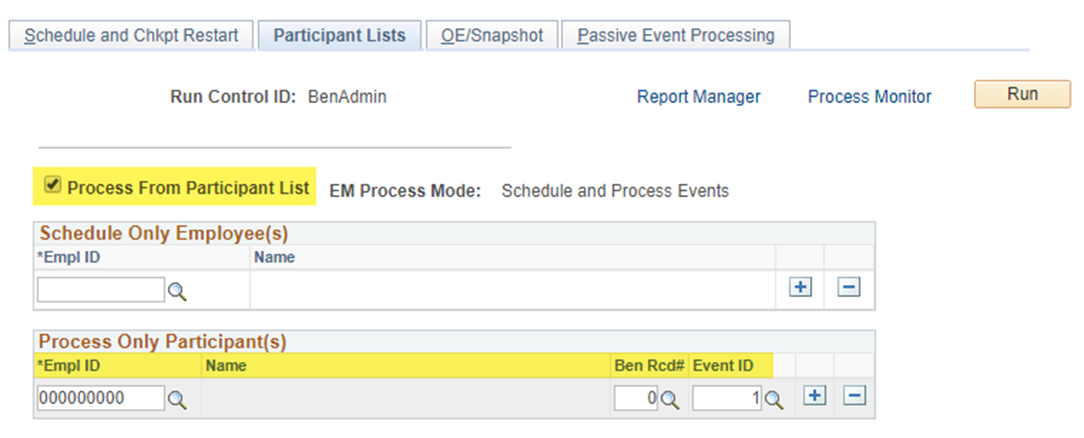
When debugging, it is recommended to limit processing to a few employees at a time. Depending on your server/processing resources, you could process 2 or 3 at a time. Do not run the entire Schedule ID as it does require a lot of processing resources.
The tables that store the results are cleared every time the process is run so if the Schedule ID is run for one employee with the Record Eligibility Results flag checked, only that employee will be available for review.
If the Process Indicator is set to Assign Program: the system starts by checking for eligibility rules associated with
benefit programs. If a benefit program fails the eligibility check, the system records that eligibility check and moves on to the next benefit program in the sequence. After all benefit program eligibility has been processed, and if eligibility for only one program has been met, the system begins testing all the option-level eligibility rules associated with that benefit program and recording those results.
Navigation: Benefits > Manage Automated Enrollment > Investigate Exceptions > Review Eligibility Results
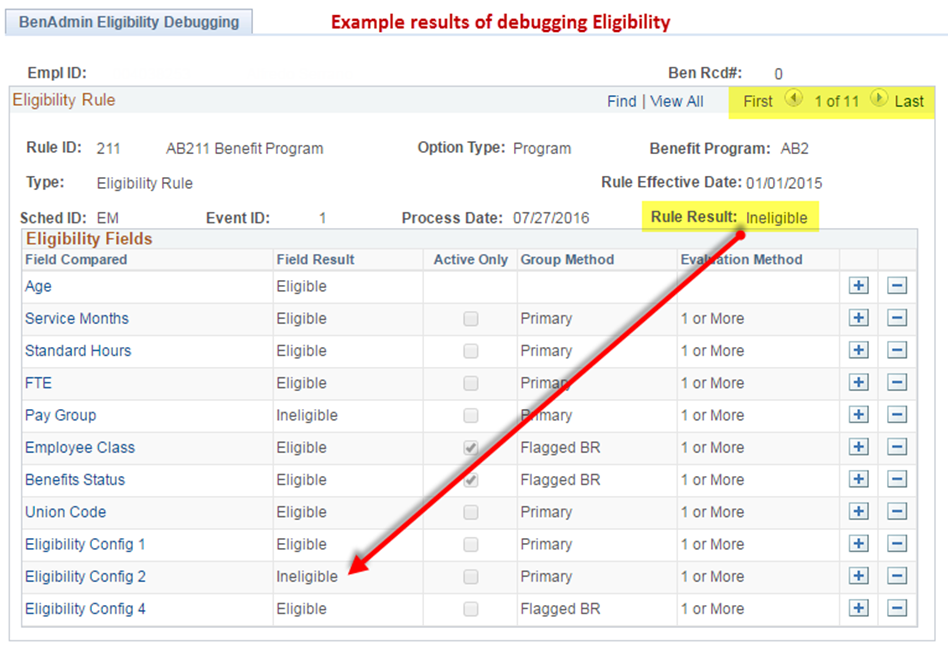
For details on each result click on the link of the Field compared and see exactly what data qualified or disqualified the employee.
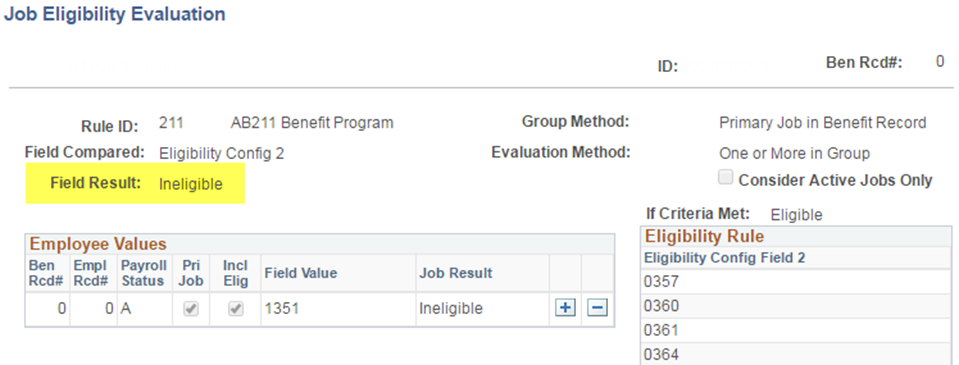
In reviewing the results of Rule “211” the employee is ineligible due to the value in field on Job data, Eligibility Config 2 (1351). This Job code is not listed in the rule, show to the right.
4.0 Considerations for Benefit Record Number
In the current CSU 9.0 Baseline there is a modification that changes the benefit record number from 0 to 1 if the job code is not benefits eligible.
- 1151 Instr Stdnt Asst On-Cmps WS
- 1153 Instr Stdnt Asst Off-Cmps WS
- 1871 Stdnt Trainee On-Cmps WS
- 1872 Stdnt Trainee Off-Cmps WS
- 1875 Brdg Stdnt Trainee On-Cmps WS
- 1876 Brdg Stdnt Trainee Off-Cmps WS
- 2326 Graduate Assistant OCWS
- 2681 Acad Supp Student Em I-OnCmpWS
This modification is on the Job Save action. If an assignment changes from eligible job code to ineligible job code or vice versa, the benefit record number would update upon Save.
When processing a benefit event Ben Admin needs values from a Job record to determine an employee’s eligibility for each benefit program and plan. Ben Admin searches for a Job record that contains the same Effective Date, Employee Record and Benefit Record values as the event. If it is not able to find a Job record that matches this criteria, it is unable to process the event.
If a job effective date is changed or data deleted the event becomes disconnected. Disconnected events can be voided to remove any previous changes or enrollments. When the Benefit Record number is changed, the data link is no longer valid and the event is orphaned. Ben Admin cannot process an event that is no longer linked by Ben Rcd Nbr.
These orphaned ben rcd nbr events remain in all of the BAS_PARTIC tables, appear on reports, and can be viewed from the Update Event Status page. They cannot be viewed from On-Demand Event Maintenance nor processed in any way. If the orphaned events remain in BAS_ACTIVITY, they can be deleted. To determine if events remaining in BAS_ACTIVITY are orphaned, run CSUBAS at least twice and review any events remaining in BAS_ACTIVITY to determine if the EMPLID, Effective Date, Employee Record Number and Benefit Record Number values exist in Job. BAS_ACTIVITY Events orphaned by missing benefit record number can be deleted directly from the page.
The CHRS project is working on a process that will correct or remove these orphaned events either as preparation prior to or included in conversion. The benefit record modification will not move forward into CHRS. Since Benefit Record 1 and Benefit Record 1 related BAS event data is not moving forward from CMS 9.0 to CHRS 9,2, you do not need to fix Benefit Record 1 Ben Admin issues and errors for CHRS 9.2 purposes.
However, you can fix Benefit Record 1 Ben Admin issues and errors for CMS 9.0 purposes.
5.0 Reprocessing Checklist for 9.0
Use the following checklist when reprocessing BAS events via the On Demand Event Maintenance page. The end goal when reprocessing BAS events is to have:
- No flagged items
- The employee enrolled, waived or terminated (canceled) in the correct benefits
- The BAS event in a Finalized-Prep None or Finalized Enrolled Process Status.
| # | Step | Notes |
|---|---|---|
| 1 | Go to Job Data and review the employee’s job(s) to see what’s going on with the employee. | Check the current action/action-reason, Payroll Status, HR Status, Benefits Employee Status for each job. Go to Job Data > Benefit Program Participation to review the BAS Group ID and the Eligibility Fields 1-9 for the Benefits Primary Job (use Maintain Flags to confirm the Benefits Primary Job). |
| 2 | Go to Update Event Status and determine when all flagged event(s) occurred-you may need to reprocess multiple BAS events back to when the first flagged event occurred. | Assess via On Demand Event Maintenance or Update Event Status. Use Employee Event Detail > Participant page to see the date the flag occurred. The flag date is often the same date as the Event Date of the BAS event that caused the flag. Note that you cannot reprocess BAS events that are voided or disconnected. |
| 3 | Once you know when the flagged event(s) occurred, review the employee’s job, personal and benefit information for the impacted timeline to determine what caused the flag(s) and if the change impacted the employee’s benefit eligibility. Go to CSU Benefit Summary to see coverage level and benefit plan changes, then go to Base Benefits pages to see if dependents were added or removed (for example, Health Benefits, Life and Ad/D Benefits, etc.). Determine what the employee’s benefits were prior to the first flagged event. You need to know what the employee’s benefits were prior to the first flagged event in order to determine what the employee’s correct benefits should be in the system. | |
| 3a | If the Address Eligibility Change flag is checked, go to Modify a Person and see if the employee’s home state and/or home zip code changed, then go to Job Data and review the Job Data rows equal to and prior to the reprocess BAS event date to see if the employee’s work location changed that resulted in a zip code or state change. Note that mailing and benefits billing addresses do not impact benefit eligibility. If the home or work location address change did not include a zip code or state change, you can uncheck the Address Eligibility Change flag on the Update Event Status page and then click on Save instead of reprocessing the specific BAS event. If the home or work location address zip code or state changed, you must reprocess the BAS event to see if the employee’s benefit eligibility changed. The employee may need to or have the option to elect a new benefit plan for cetain zip code eligibility changes. | Zip code and state changes may impact benefit plan participation eligibility if the employee is enrolled in region-based benefit plans. For example, if an employee moves out of a benefit plan service area, the employee is no longer eligibile to participate in that benefit plan. If you have access to view, go to Set Up HCM > Automated Benefits > Eligibility and Event Rules > Geographic Location EligTable to see zip code eligibility for impacted benefit plans. |
| 3b | If the Job Eligibility Change flag is checked, go to Job Data and review the following fields on the Job Data rows equal to and prior to the reprocess BAS event date to see if changes occurred that would impact the employee’s benefits as Ben Admin puts a checkmark in the Job Eligibility Change field if any of the following fields change for the employee: Location, Empl_Class, Employee Type, FLSA Status, Salary Plan, Grade, Full/Part Time, Regular/Temporary, Service Months, Standard Hours, Union Code, Pay Group, Officer Code, FTE, Combined FTE, ACA Eligibility Status, Elig Fld 1, Elig Fld 2, Elig Fld 3, Elig Fld 4, Elig Fld 5, Elig Fld 6, Elig Fld 7, Elig Fld 8 and Elig Fld 9. If the Job Data change did not update a field that would impact the employee’s benefits eligibility, you can uncheck the Job Eligibility Change flag on the Update Event Status page and then click on Save instead of reprocessing the specific BAS event. If the Job Data change did update a field that would impact the employee’s benefits eligibility, you must reprocess the BAS event to see if the employee’s benefit eligibility changed. | |
| 3c | If the Multi Job Eligibility Change flag is checked, go to Job Data and review the following fields for all active jobs for the employee on Job Data rows equal to and prior to the reprocess BAS event date to see if changes occurred that would impact the employee’s benefits as Ben Admin puts a checkmark in the Multi Job Eligibility Change field if any of the following fields change for the employee: Location, Empl_Class, Employee Type, FLSA Status, Salary Plan, Grade, Full/Part Time, Regular/Temporary, Service Months, Standard Hours, Union Code, Pay Group, Officer Code, FTE, Combined FTE, ACA Eligibility Status, Elig Fld 1, Elig Fld 2, Elig Fld 3, Elig Fld 4, Elig Fld 5, Elig Fld 6, Elig Fld 7, Elig Fld 8 and Elig Fld 9. Also check to see if the employee’s Primary Benefit Job changed. If the Job Data change did not update a field that would impact the employee’s benefits, you can uncheck the Job Eligibility Change flag on the Update Event Status page and then click on Save instead of reprocessing the specific BAS event. If the Job Data change did update a field that would impact the employee’s benefits eligibility, you must reprocess the BAS event to see if the employee’s benefit eligibility changed. | |
| 4 | From your analysis of items 3a, 3b and 3c, determine which BAS events require reprocessing and determine the reprocessing order. The order to reprocess BAS events is as follows:
| All Out of Sequence BAS events require reprocessing. Reprocessing BAS events in the wrong order can erroneously terminate an employee’s or dependent’s benefits. |
| 5 | Open the first BAS event to reprocess and then use the On Demand Event Maintenance page to determine if the BAS event to reprocess is an enrollment or non-enrollment BAS event by clicking on the Show Plans button. Check the Elections Made column to see if new enrollments occurred. | To open the BAS event, change the BAS event Event Status to Open for Processing. Note that you may need to temporarily close another open BAS event for the employee in order to reprocess as only one BAS event can be open for an employee at a time. You can also view the BAS event in the Employee Event Detail > Plan Type page to collect BAS event enrollment information without having to open the BAS event and use the Show Plans and/or Election Entry buttons. |
| 5a | Reprocess BAS events with elections and/or benefit eligibility changes, benefit plan changes, dependent additions, dependent deletions and/or Ben Admin configuration changes back to Re-Enter and print out the employee’s elections. Go to the appropriate Base Benefit page to gather dependent information. Click on the Finalize/Apply defaults checkbox and then click on the Validate/Finalize button. Reprocess BAS events without elections, benefit eligibility changes, benefit plan changes, dependent additions, dependent deletions and/or Ben Admin configuration changes to Assign Benefit Program (you do not need to go to the Re-Enter status first for these BAS events). Click on the Finalize/Apply defaults checkbox and then click on the Validate/Finalize button. | You can also view the BAS event in the Employee Event Detail > Plan Type page to collect BAS event dependent enrollment information. |
| 5b | After reprocessing BAS events with elections and/or benefit eligibility changes, benefit plan changes, dependent additions, dependent deletions and/or Ben Admin configuration to back to Re-Enter, reprocess the BAS event to Assign Benefit Program. Re-enter the employee’s enrollments, including additional benefit changes that may be warranted (i.e., enrolling a new dependent). | Click on the Finalize/Apply defaults checkbox and then click on the Validate/Finalize button. |
| 6 | After finalizing reprocessing and enrollments for each BAS event, verify that the event reprocess results are correct. Go to all Base Benefit pages and validate that the enrollments are correct. Base Benefit pages to review are: CSU Benefits Summary, Simple Benefits (if used), Health Benefits, Life and AD/D Benefits, Disability Benefits, Savings Plans, Spending Accounts and RetirementPlans (if used). | Verify that the employee’s benefit program, benefit plans, coverage levels, coverage amounts coverage begin date, deduction begin date and covered dependents are correct in the Base Benefit tables. |
| 7 | Go to On Demand Event Maintenance and click on the Event Status Update button. | |
| 8 | Repeat the steps on this checklist for each BAS event that requires reprocessing. | Remember, the end goal when reprocessing BAS events is to have the employee enrolled, waived or terminated in the correct benefits, no flagged items and the BAS event is in Finalized-Prep None or Finalized Enrolled Process Status.
Note that Ben Admin configuration issues can cause BAS events to not go to a Finalized-Prep None or Finalized Enrolled Process Status. Ben Admin configuration issues require analyst involvement to correct the Ben Admin configuration. Contact your supervisor if you are unable to correctly obtain benefit enrollments and a Finalized-Prep None or Finalized Enrolled Process Status. |
Appendix A: Query to Identify Events requiring Analysis / Resolution
- Create a new query using BAS_PARTIC table only
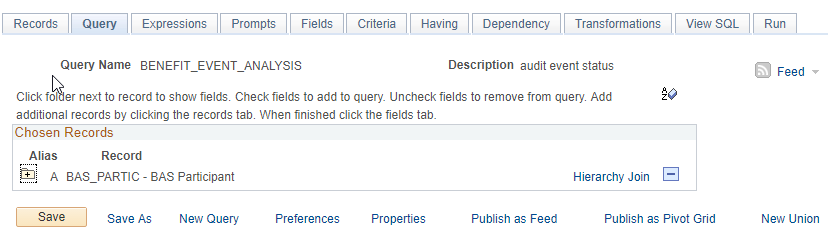
- Select the following fields
- SCHED_ID
- EMPLID
- EVENT_DT
- BENEFIT_RCD_NBR
- EMPL_RCD
- BENEFIT_PROGRAM
- EVENT_CLASS
- EVENT_STATUS
- BAS_PROCESS_STATUS
- ADDR_ELIG_CHG
- MJ_ELIG_CHG
- JOB_ELIG_CHG
BAS_EVENT_CHG
- Sort the Fields by EMPLID and Event Date
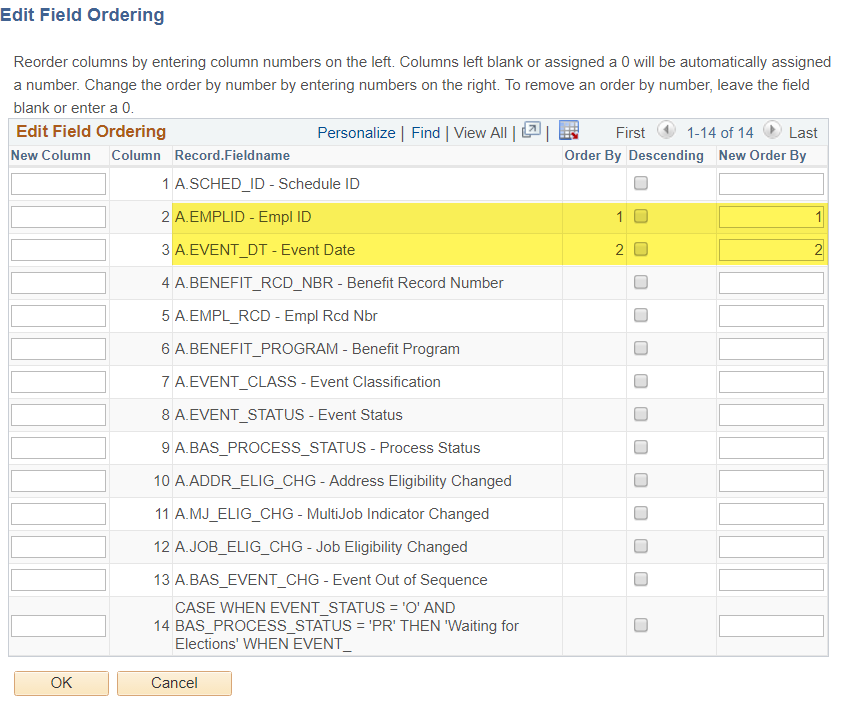
- Create an Expression (cut-n-paste text below)
- Click Use as Field
CASE
WHEN EVENT_STATUS = 'O' AND BAS_PROCESS_STATUS = 'PR' THEN 'Waiting for Elections'
WHEN EVENT_STATUS = 'O' AND BAS_PROCESS_STATUS = 'NT' THEN 'Complete Elections'
WHEN EVENT_STATUS = 'O' AND BAS_PROCESS_STATUS = 'RE' THEN 'Complete Election Changes'
WHEN EVENT_STATUS = 'O' AND BAS_PROCESS_STATUS = 'ET' THEN 'Run CSUBAS'
WHEN EVENT_STATUS = 'C' AND BAS_PROCESS_STATUS = 'PR' THEN 'Event was closed for another: reprocess'
WHEN EVENT_STATUS = 'C' AND BAS_PROCESS_STATUS = 'NT' THEN 'Open event and complete elections'
WHEN EVENT_STATUS = 'C' AND BAS_PROCESS_STATUS = 'RE' THEN 'Open event and complete elections'
WHEN EVENT_STATUS = 'C' AND BAS_PROCESS_STATUS = 'ET' THEN 'Set to Re-Enter and verify elections'
WHEN EVENT_STATUS = 'C' AND BAS_PROCESS_STATUS = 'FP' THEN 'No action required'
WHEN EVENT_STATUS = 'C' AND BAS_PROCESS_STATUS = 'FE' THEN 'No action required'
WHEN EVENT_STATUS = 'C' AND BAS_PROCESS_STATUS = 'FA' THEN 'No action required'
WHEN BAS_PROCESS_STATUS = 'AE' THEN 'Review error messages; Run Debugging'
WHEN BAS_PROCESS_STATUS = 'AN' THEN 'Run pre-processing and reprocess event'
WHEN BAS_PROCESS_STATUS = 'AS' THEN 'Review previous events and reprocess'
WHEN BAS_PROCESS_STATUS = 'EE' THEN 'Review error messages'
WHEN BAS_PROCESS_STATUS = 'PE' THEN 'Review error messages'
ELSE 'Not Found'
END
- Rename the column header

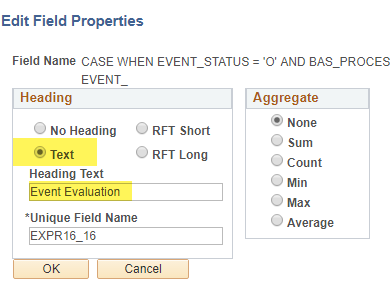
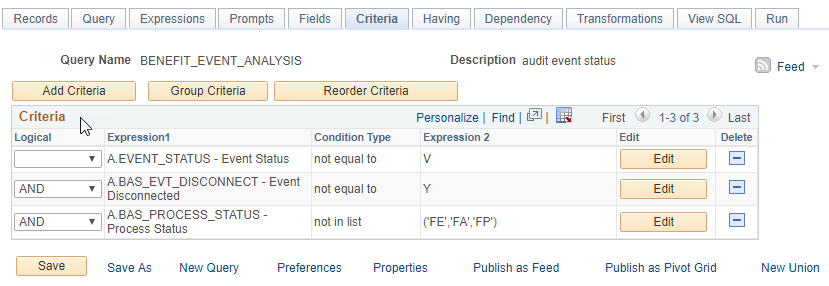
Add Criteria to eliminate events do not need to be reviewed
EVENT_STATUS not equal to ‘V’ – already voided
BAS_EVT_DISCONNECT not equal to ‘Y’ – disconnected and cannot be reprocessed
Note: Disconnected Events should be reviewed and processed according to Position Paper
BAS_PROCESS_STATUS not in list (‘FE’, ‘FA’, ‘FP’)
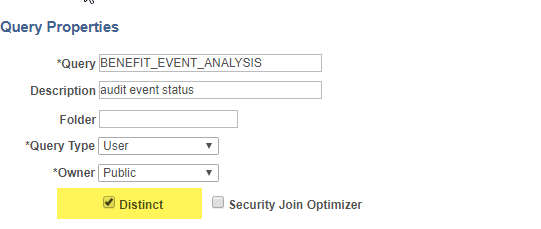
Save the Query
- Edit the Query Properties and Select Distinct

- Save again
Appendix B: SQL to Identify Events requiring Analysis / Resolution
SELECT A.SCHED_ID
, A.EMPLID
, TO_CHAR(A.EVENT_DT,'YYYY-MM-DD')
, A.BENEFIT_RCD_NBR
, A.EMPL_RCD
, A.BENEFIT_PROGRAM
, A.EVENT_CLASS
, A.EVENT_STATUS
, A.BAS_PROCESS_STATUS
, A.ADDR_ELIG_CHG
, A.MJ_ELIG_CHG
, A.JOB_ELIG_CHG
, A.BAS_EVENT_CHG
, CASE
WHEN EVENT_STATUS = 'O' AND BAS_PROCESS_STATUS = 'PR' THEN 'Waiting for Elections'
WHEN EVENT_STATUS = 'O' AND BAS_PROCESS_STATUS = 'NT' THEN 'Complete Elections'
WHEN EVENT_STATUS = 'O' AND BAS_PROCESS_STATUS = 'RE' THEN 'Complete Election Changes'
WHEN EVENT_STATUS = 'O' AND BAS_PROCESS_STATUS = 'ET' THEN 'Run CSUBAS'
WHEN EVENT_STATUS = 'C' AND BAS_PROCESS_STATUS = 'PR' THEN 'Event was closed for another: reprocess'
WHEN EVENT_STATUS = 'C' AND BAS_PROCESS_STATUS = 'NT' THEN 'Open event and complete elections'
WHEN EVENT_STATUS = 'C' AND BAS_PROCESS_STATUS = 'RE' THEN 'Open event and complete elections'
WHEN EVENT_STATUS = 'C' AND BAS_PROCESS_STATUS = 'ET' THEN 'Set to Re-Enter and verify elections'
WHEN EVENT_STATUS = 'C' AND BAS_PROCESS_STATUS = 'FP' THEN 'No action required'
WHEN EVENT_STATUS = 'C' AND BAS_PROCESS_STATUS = 'FE' THEN 'No action required'
WHEN EVENT_STATUS = 'C' AND BAS_PROCESS_STATUS = 'FA' THEN 'No action required'
WHEN BAS_PROCESS_STATUS = 'AE' THEN 'Review error messages; Run Debugging'
WHEN BAS_PROCESS_STATUS = 'AN' THEN 'Run pre-processing and reprocess event'
WHEN BAS_PROCESS_STATUS = 'AS' THEN 'Review previous events and reprocess'
WHEN BAS_PROCESS_STATUS = 'EE' THEN 'Review error messages'
WHEN BAS_PROCESS_STATUS = 'PE' THEN 'Review error messages'
ELSE 'Not Found'
END AS ACTION
FROM PS_BAS_PARTIC A
WHERE A.EVENT_STATUS <> 'V'
AND A.BAS_EVT_DISCONNECT <> 'Y'
AND A.BAS_PROCESS_STATUS NOT IN ('FE','FA','FP')
ORDER BY 2,3
Appendix C: Benefit Related Processing Messages
| Message Text | Message Description |
| A Benefits-Base Is Required | The Option-Cd elected on Bas_Partic_Plan requires that a Benefits Base (either the Annual or Benefits Base salary) be indicated for use in the calculation of Factor-Times-Salary life coverage amounts (the Life-ADD-Covrg code is '2') but the Benefits-Base flag on Bas_Partic_Plan is blank. (This message will only occur when the Life-ADD-Covrg code on Life_ADD_Tbl is '3' - Specify on Employee Record) (MSGData1: Plan-Type; MSGData2: Option-Cd) |
| A Flat Amount Is Required | The Option-Cd elected on Bas_Partic_Plan requires that a flat coverage amount be supplied (the Life-ADD-Covrg code is '1') but the Flat-Amount on Bas_Partic_Plan is zero. (This message will only occur when the Life-ADD-Covrg type on Life_ADD_Tbl is '3' -Specify on Employee Record). (MSGData1: Plan-Type; MSGData2: Option-Cd) |
| Address not found | The address record with the address type displayed below was not found for the Emplid that triggered the COBRA event. The new COBRA Emplid was created with a default address record. (MSGData1: COBRA Event Id; MSGData2: Address Type) |
| Age Rate Table Not Found | An age graded rate was not found for the employee's category. |
| Annual Pledge is Required | An Annual Pledge amount is required for this Spending Account because the Plan Type is defined as "Employee Contribution Required". Therefore, if the employee is choosing to elect this Plan, they must also specify a contribution amount. (MSGData1: Plan-Type; MSGData2: Option-Cd) |
| Benefit Not Found | The Benefit Plan / Deduction Code is not found for the Benefit Program defined for this employee. |
| Benefit Plan Not Found | The benefit plan displayed below was not found in the appropriate benefit table. |
| Benefit Program Inactive | The Benefit Program defined for this employee was inactive for the current check date. |
| Benefit Program Not Found | The Benefit Program defined for this employee was not found. |
| Benefit Rate Key not Matched | During benefit rate processing, the system was unable to find an acceptable match between the rate key value for the employee and the rates defined in the benefit Rate Data table. Therefore, a rate could not be assigned and a deduction could not be calculated. (MsgData1: Plan Type and Benefit Rate ID; MsgData2: Rate Key field; MsgData3: Target key value). |
| Benefit Rate Key Not Resolved | During benefit rate processing, the system could not determine a value to use for one of the keys to the benefit Rate Data table. Therefore, a rate could not be assigned and a deduction could not be calculated. If the system was trying to use dependent demographics, the failed dependent will be reported below. (MsgData1: Plan Type and Benefit Rate ID; MsgData2: Rate Key field; MsgData3: Dependent ID). |
| Calc Rules Table Not Found | The Calculation Rules table associated with the benefit being processed was not found. (MsgData1: Plan Type; MsgData2: Benefit Plan; MsgData3: Calc Rule ID). |
| Calculation Rule not found | Cannot find the Calculation Rule. |
| Change flag set on | This employee had an event that was disconnected from its JOB row. The disconnect occurred during option processing, rather than during event scheduling, where disconnects normally occur. It is possible that the employee has other events that the system has not processed. The system has set the BAS_DATA_CHG flag (which indicates a change has occurred) on. The next Event Maintenance run will examine the job rows for other events. |
| COBRA Event Conflict | A COBRA event exists with an earlier COBRA event date than the COBRA event currently being processed by COBRA. Determine if the out of sequen ce nature of these two COBRA events requires reprocessing. (MSGData1: COBRA-Event-Dt of new event; MSGData2: COBRA-Event-Id of earlier event MSGData3: COBRA-Event-Dt of new event) |
| Cost ID Not Found | A Bas_Partic_Cost record required for computing the indicated option's price or credit amount cannot be found. (MSGData1: Plan-Type; MSGData2: Option-Id) |
| Coverage code inactive | The coverage code has an inactive effecte date status. |
| Coverage Code Invalid | The coverage code the employee is enrolled in is missing from the coverage code table. The initial event status will be set to Option Preparation Error and each time PSPCOBRA is run, options will be processed for the event. (MSGData1: Plan-type; MSGData2: Benefit-Plan; MSGData3: Coverage-Code) |
| Coverage Code Not Found | Coverage code not found |
| Current coverage ineligible | The employee is not eligible for the coverage in the base benefits tables. This may be either an error in the data load to the base benefits tables or an error in the eligibility rules. (MSGData1: Plan-Type; MSGData2: Benefit-Plan; MSGData3: Coverage-Code) |
| Current Pay Period Not Found | Based on the Event date being processed, the Pay-Begin-Date for the current pay period cannot be determined from PS_Pay_Calendar. Establish the missing periods in the pay calendar. (MSGData1: Company; MSGData2: Pay-Group; MSGData3: Event-Dt) |
| Database Error Insert/Update | There was an error inserting or updating a database table. Check the SQR.LOG file for detailed information. You may need to contact your database administrator if a table or tablespace is out of space. |
| Deduction Code Not Found | The deduction code displayed below was not found in the deduction table. |
| Dependent Birthdate Missing | During overage processing, this dependent was found to have no birthdate recorded. Because there is no birthdate, this dependent will remain in any current coverage, regardless of the maximum age parameters defined for the coverage. |
| Dependent COBRA Event Conflict | COBRA Overage processing has attempted to initiate a COBRA overage event for an employee's health dependent. The dependent's dependent_benef record is currently marked with another dependent COBRA event that must be processed first. (MSGData1: Dependent_Benef.COBRA-Action; MSGData2: Dependent_Benef.COBRA-Event-Dt) |
| Dependent Entry Required | The employee has elected a Plan Type that requires covered dependents, but no dependents (Dependent-Benef types 'D' or 'O') have been specified on Bas_Partic_Dpnd. Dependents must be specified under Plan Types 1X, 24 and 25. (MSGData1: Plan-Type; MSGData2: Option-Cd) |
| Dependent is deceased | Dependent enrolled in a health plan is deceased as of the event date. |
| Dependent is married | The benefit program does not allow coverage for married dependents. |
| Dependent Not Allowed | The employee has specified on Bas_Partic_Dpnd the Id of a dependent (type 'D') to be an assignee under a Plan Type that only allows beneficiaries (types 'B' or 'O'). Only "beneficiaries" may be covered under Plan Types 20, 21, 22, 4X and 8X. (MSGData1: Plan-Type; MSGData2: Option-Cd; MSGData3: Dependent-Benef) |
| Dependent not enrolled. | Cross Plan Validation: Dependent not enrolled in required Plan Type/Benefit Plan. |
| Dependent Not Found | During benefit rate processing, the system needed to access the demographics for a specific dependent. Either the system could not find the dependent specified, or it could not find a dependent with a specified target relationship. Depending on the calculation being performed, the system may fall back and use the employee's own demographics instead, or the process may fail for this employee. (MsgData1: Dependent ID) |
| Dependent/Benef Not Found | The employee has covered a dependent or assigned a beneficiary on the Bas_Partic_Dpnd table whose Dependent-Benef Id could not be found in the base H.R. Dependent_Benef table. (MSGData1: Plan-Type; MSGData2: Option-Cd; MSGData3: Dependent-Benef) |
| Duplicate COBRA Event | A COBRA Activity record was discarded due to the presence of a duplicate COBRA event record. (MSGData1: COBRA-Event-Dt; MSGData2: COBRA-Action; MSGData3: Empl-Rcd-No) |
| Duplicate Enrollment Replaced | Informational Only: The system encountered a new enrollment action for which a Benefit Enrollment record already exists with the same Effective Date. The system deleted the current Benefit Enrollment record (and all associated dependent/beneficiary and investment records where applicable) and replaced it with the new enrollment. (MSGData1: Plan-Type; MSGData2: EffDt) |
| Duplicate Manual Event | A BAS_PARTIC record exists for the same manual event on the BAS_ACTIVITY record. The BAS_ACTIVITY was not processed and was not deleted. (MSGData1: Empl Rcd No, MSGData2: Event Dt, MSGData3: Event Class) |
| Election Required In Plan Type | The Event Rule for this Plan Type requires that an election be made (the Election-Required indicator on Bas_Event_Rules is 'Y'es) but no Option-Cd has been specified on Bas_Partic_Plan. (MSGData1: Plan-Type) |
| Elig rule flags improperly set | The Eligibility Rules tables contain a set of flags that indicate which of the many eligibility fields actually participate in the specific rule. The batch process uses these flags to determine which of the many tables it needs to select from. Using these flags help improve performance by reducing unnecessary database reads. |
| Employee Only Covrg Not Found | No Employee Only options were found . Check the benefit program table and the coverage code table to determine the problem. Once the tables are fixed, if the initial status is set to Option Preparation Error, options will be processed again for the event when COBRA is run. If the initial event status is set to Options Prepared then the Reprocess Indicator must be set to Prepare Options for the event so that the event will be processed again when COBRA is run. [MSGData1: Plan-Type; MSGData2: Benefit-Plan; MSGData3: Coverage-Code] |
| Event / Record Mismatch | The record which triggered a previous event can no longer be found (the record may have been deleted, or perhaps this Benefit Record's primary job is no longer managed by Benefits Administration, according to the Benefit System flag). Because of this, the Event can not be processed any further. (MSGData1: Event Date) |
| Event Rules ID Not Found | While processing an event for this employee which involves a transfer between Benefit Programs, the system could not find an applicable Event Rule on PS_Ben_Defn_Plan to use to terminate the employee's current elections. (MSGData1: Plan-Type; MSGData2: Be |
| Ex-Spouse cannot be enrolled | A dependent who is an ex-spouse with a marital status date less than or equal to the event date may not be enrolled in a health plan. |
| Finalized event disconnected | This event has become disconnected (the associated set of HR records has been deleted or redated, or this employee is no longer managed by Benefits Administration). This event has a status of Finalized-Enrolled. This means that the system may have made changes to the employee's benefit elections. Review the employee's benefits to see if the employee's benefits should be changed or redated. You may Void this event to roll-back any changes to the employee's benefit elections that resulted from this event. (MSGData1: Event-Date) |
| FSA Entry Error | The employee elected an FSA Plan option, but the Annual-Pledge field on Bas_Partic_Plan is less than or equal to zero. This is a required entry and must be a positive dollar amount. (MSGData1: Plan-Type; MSGData2: Option-Cd) |
| Future Dated Enrollment Exists | Informational Only: The system encountered a new enrollment action for which a Benefit Enrollment record already exists with the future Effective Date. Correct Accordingly. (MSGData1: Empl Rcd No, MSGData2: Plan-Type, MSGData3: Event Dt) |
| Future Election Deleted | Informational Only: The system encountered a new enrollment action for a plan type for which a future dated Benefit Enrollment record already exists. The existing enrollment record was inserted by an event which precedes the current event. The system deleted the future Benefit Enrollment record (and all associated dependent/beneficiary, investment and billing records where applicable). MSGData1: Plan_Type; MSGData2: Effdt) |
| Invalid Overage Coverage Code | COBRA has attempted to adjust the health benefit coverage for an employee whose dependent has become overage and no longer eligible for coverage under the employee's current benefit plan. The correct coverage code for the remaining set of employee's eligible health dependents is not a valid coverage code option for the employee's benefit plan. (MSGData1: Plan-Type; MSGData2: Benefit-Plan; MSGData3: Covrg-Cd) |
| Min Number Covered Error | There are not enough dependents of this type of dependent and this coverage code |
| Missing coverage code rule | There is no coverage code rule for this dependent. The Covered Person Type does not have an associated rule in the Coverage Code Rule table. (MSGData1: Plan-Type; MSGData2: Option-Cd; MSGData3: Dependent-Benef) |
| Multiple Program Assignment | During Program Assignment, it was determined that this employee is eligible for more than one program. The Eligibility Rules Tables need to be modified to make Program eligiblity unique. One error message will be generated for each eligible program. (MSGData1: Benefit-Program) |
| No Benefit Options Found | No valid options were found for an employee, spouse or ex-spouse. Check the benefit program table and the coverage code table to determine the problem. Once the tables are fixed, if the initial status for the employee, spouse or ex-spouse is set to Option Preparation Error, options will be processed again for the event when COBRA is run. If the initial event status is set to Options Prepared then the Reprocess Indicator must be set to Prepare Options for the event so that the event will be processed again when COBRA is run. [MSGData1: Plan-Type; MSGData2: Benefit-Plan; MSGData3: Coverage-Code] |
| No Birth Date For Employee | There is no birth date provided for this employee. The employee participates in the benefit plan identified below. That plan uses a benefit rate table which requires age to determine costs and therefore requires a birth date. |
| No Coverage Record Found | During benefit rate processing, a Calculation Rule was encountered that specified the use of the employee's "Original Coverage Date" as a date reference. However, the system could not find an inital enrollment record for this Plan Type prior to, or equal to, the effective date. (MsgData1: Plan Type; MsgData2: Benefit Plan; MsgData3: Effective Date) |
| No Current BenPgm Participatn | During Program Assignment, it was determined that this employee is not eligible for any Benefit Program. The system attempted to terminate current participation, but no current PS_Ben_Prog_Partic record was found (default Hire record is missing). |
| No Eligible Benefit Program | Benefits Administration Eligibility found no benefit program for which this COBRA participant was eligible. The COBRA participant was assigned the benefit program the employee was enrolled at the time of the COBRA event. (MSGData1: Benefit Program) |
| No Open On-Cycle Pay Periods | If you receive this message, go to Job Data to determine the employee’s correct pay group as of the applicable effective date, and then go to the Pay Calendar Table and confirm that there is a valid pay calendar for the employee’s pay group and company code. |
| No Primary Job for Benefits | This employee has no Primary Job for Benefits in effect as of the Pay End Date, for the indicated Benefit Record. A Primary Job must be identified for each Benefit Record in order to calculate deductions (costs) for benefits. |
| No Schedule Found for Event | No Schedule could be found to process a new event. A Schedule-Id must exist that matches the employee's Company and BAS-Group-ID. (MSGData1: Company; MSGData2: BAS-Group-Id) |
| Non-student is overage | A dependent who is not a student is over the age limit specified at the benefit program level as of the event date. |
| Not Eligible For Any Plan Type | During Prepare Options, it was determined that this employee was not eligible for any Plan types within the assigned Benefit Program. The Eligibility Rules Tables may need to be modified to correct Plan-level eligibility. (MSGData1: Benefit-Program) |
| Num of deps less than minimum | The number of dependents is less than the minimum defined for the elected coverage code. |
| Number of deps exceeds maximum | The number of dependents enrolled exceeds the maximum allowed for the coverage code. |
| Open Enroll event reinstated | The system is reinstating the Open Enrollment event. The system disconnected the Open Enrollment event earlier because the employee did not have all of the appropriate HR records. The rows may have been put back or new ones have been added. The system can now process the employee through Open Enrollment again. The system will start this event from the beginning as the information on the HR records may have changed from before. Any previous elections have been lost and must be reentered. |
| Partic Eligibility has changed | The eligibility data has changed between benefit program assignment and option processing phases. Review the participant's HR data to determine if reprocessing is required. (MSGData1: Job Elig Chg, MSGData2: Primary Job Chg, MSGData3: Addr Elig Chg) |
| Pay Calendar Not Found | The pay calendar entry displayed below was not found in the pay calendar table. |
| Pledge Less Than Approved YTD | The FSA Annual Pledge elected cannot be less than the total amount of claims that have been approved for payment to date. Increase the Annual Pledge until it equals or exceeds the Approved amount, as shown on the FSA Year-to-Date Activity panel. (MSGData1: Plan-Type; MSGData2: Option-Cd) |
| Pledge Less Than Deduction YTD | The FSA Annual Pledge elected cannot be less than the total amount of FSA contributions that have been deducted to date. Increase the Annual Pledge until it equals or exceeds the Contributions amount, as shown on the FSA Year-to-Date Activity panel. (MSGData1: Plan-Type; MSGData2: Option-Cd) |
| Pledge Over Contrib Maximum | The employee elected a Spending Account option, but the Annual Pledge amount specified on BAS_Partic_Plan is more than the maximum allowed. (MSGData1: Plan-Type; MSGData2: Option-Cd; MSGData3: Pledge versus Maximum) |
| Pledge Over Current Contrib | The Event Rules for this Plan Type require the new Annual Pledge to be equal to or less than the current Annual Pledge. (MSGData1: Plan-Type; MSGData2: Option-Cd; MSGData3: Current-Annual-Pledge) |
| Pledge Under Contrib Minimum | The employee elected a Spending Account option, but the Annual Pledge amount specified on BAS_Partic_Plan is less than the minimum allowed on the FSA Benefit Table. (MSGData1: Plan-Type; MSGData2: Option-Cd; MSGData3: Pledge versus Minimum) |
| Pledge Under Current Contrib | The Event Rules for this Plan Type require the new Annual Pledge to be equal to or greater than the current Annual Pledge. (MSGData1: Plan-Type; MSGData2: Option-Cd; MSGData3: Current-Annual-Pledge) |
| Primary Job Not Found | A Primary Job for this Benefit Record does not exist as of the event date of the Bas_Activity trigger row. The Bas_Activity trigger has not been deleted - please ensure that there is a Primary Job in effect for this Benefit Record prior to scheduling events in Event Maintenance again. (MSGData1: BAS Action Source, MSGData2: Event Dt, MSGData3: Event Effseq) |
| Pay Period Not Found | In order to calculate the current FSA deduction, the balance of the FSA Annual Pledge is divided by the number on on-cycle, unconfirmed pay periods remaining in the Balance Year. No such pay periods were found – therefore, the entire remaining Annual Pledge balance (if any) has been returned as the current deduction. Please review. Is this a final Off-Cyc;e run for the year? Is the Pay Calendar complete? |
| Rate Coverage Not Found | The coverage code defined below was not found for the rate schedule specified. |
| Spouse coverage is required | A dependent with the relationship of spouse must be enrolled for the coverage elected. |
| Spouse coverage not allowed | A dependent who is a spouse has been elected for coverage. The coverage code prohibits spouses from being enrolled. |
Appendix D: Example SQL for Processing Message Query
SELECT DISTINCT A.SCHED_ID
, A.EMPLID
, A.BENEFIT_RCD_NBR
, A.EVENT_ID
, B.DESCR
, C.BENEFIT_PROGRAM
, C.EVENT_CLASS
, C.EVENT_STATUS
, C.BAS_PROCESS_STATUS
, TO_CHAR(C.EVENT_DT,'YYYY-MM-DD')
, E.EMPL_RCD
, F.JOBCODE
, F.EMPL_STATUS
, F.REG_TEMP
, F.FULL_PART_TIME
, F.PAYGROUP
, F.ELIG_CONFIG1
, F.ELIG_CONFIG2
, F.ELIG_CONFIG3
, F.UNION_CD
, F.FTE
, TO_CHAR(F.EFFDT,'YYYY-MM-DD')
FROM PS_BAS_MESSAGE A
, PS_PAY_MESSAGE_TBL B
, PS_BAS_PARTIC C
, PS_PER_ORG_ASGN D
, PS_PRIMARY_JOBS E
, PS_JOB F
WHERE A.MSGID = B.MSGID
AND A.SCHED_ID = C.SCHED_ID
AND A.EMPLID = C.EMPLID
AND A.BENEFIT_RCD_NBR = C.BENEFIT_RCD_NBR
AND A.EVENT_ID = C.EVENT_ID
AND A.EMPLID = D.EMPLID
AND A.BENEFIT_RCD_NBR = D.BENEFIT_RCD_NBR
AND D.EMPLID = E.EMPLID
AND D.EMPL_RCD = E.EMPL_RCD
AND E.EFFDT =
(SELECT MAX(E_ED.EFFDT) FROM PS_PRIMARY_JOBS E_ED
WHERE E.EMPLID = E_ED.EMPLID
AND E.PRIMARY_JOB_APP = E_ED.PRIMARY_JOB_APP
AND E.EMPL_RCD = E_ED.EMPL_RCD
AND E_ED.EFFDT <= SYSDATE)
AND E.PRIMARY_JOB_IND = 'Y'
AND E.EMPLID = F.EMPLID
AND E.EMPL_RCD = F.EMPL_RCD
AND F.EFFDT =
(SELECT MAX(F_ED.EFFDT) FROM PS_JOB F_ED
WHERE F.EMPLID = F_ED.EMPLID
AND F.EMPL_RCD = F_ED.EMPL_RCD
AND F_ED.EFFDT <= SYSDATE)
AND F.EFFSEQ =
(SELECT MAX(F_ES.EFFSEQ) FROM PS_JOB F_ES
WHERE F.EMPLID = F_ES.EMPLID
AND F.EMPL_RCD = F_ES.EMPL_RCD
AND F.EFFDT = F_ES.EFFDT)
Appendix E: SQL for Eligibility Changed Totals
--Report Eligibility Change Flags due to ‘Multiple Jobs’, Address Changes and Job Data Changes for All Events
SELECT SCHED_ID, MJ_ELIG_CHG "Multi-Job", COUNT(*) FROM PS_BAS_PARTIC WHERE MJ_ELIG_CHG = 'Y' AND EVENT_STATUS NOT IN ('V','D') AND BAS_EVT_DISCONNECT = 'N' GROUP BY SCHED_ID, MJ_ELIG_CHG;
SELECT SCHED_ID, JOB_ELIG_CHG "Job" , COUNT(*) FROM PS_BAS_PARTIC WHERE JOB_ELIG_CHG = 'Y' AND EVENT_STATUS NOT IN ('V','D') AND BAS_EVT_DISCONNECT = 'N' GROUP BY SCHED_ID, JOB_ELIG_CHG;
SELECT SCHED_ID, ADDR_ELIG_CHG "Address", COUNT(*) FROM PS_BAS_PARTIC WHERE ADDR_ELIG_CHG = 'Y' AND EVENT_STATUS NOT IN ('V','D') AND BAS_EVT_DISCONNECT = 'N' GROUP BY SCHED_ID, ADDR_ELIG_CHG;
End of Article