
Background
Open Enrollment (OE) is an annual process that gathers employees' enrollment data from Base Benefit tables, compares it to benefit programs, plans and eligibility rules and creates a record of the options an employee can have. This annual processing serves as a baseline of benefits enrollment data. Program, plan, and eligibility changes in the system are prepared and new options, defaults, corrections, and/or the end of ineligible enrollments are applied as applicable to each employee.
Processing an OE Schedule is independent of self service and does not require eBenefits.
Issue
For CHRS, an open enrollment schedule will be required to maintain data integrity in a combined database and enable the maintenance of staging tables used in processing benefit events.
Analysis
At the time of CHRS Solution Design Phase II initial review, ten campuses were running an OE Schedule.
Recommendations
The campuses not processing an OE schedule, should review this position paper as well as the Benefit Event Troubleshooting document. While it may not be required, a minimum of one successful OE Schedule should be processed prior to CHRS conversion.
Considerations
Review the documentation with functional and technical resources that support PeopleSoft HR and Benefits to plan the effort and timing of tasks. Perform the steps in a test environment and test enrollment and eligibility.
Cross-Functional Impacts (Positive / Negative)
None identified.
CHANGE IMPACT
| Module | Map ID | Log ID | Map Name | Type | % Emp Impact |
|---|---|---|---|---|---|
| BA | 47 | 182 | Workforce Admin-Initiate or Change Enrollment | People, Process, Technology, Culture | <10% |
The following impact areas should be addressed by the Position Paper author(s) or a relevant stakeholder/approver. All items should have a response.
Areas of potential change resistance to proposed HR process / policy changes?
For Campuses that do not regularly process an OE schedule, the preparation includes a review of benefit event status (outlined in the Benefit Event Troubleshooting position paper). Using that position paper, campuses should complete a thorough analysis of their event data before initiating the first open enrollment schedule.
Potential resource needs in order to plan, engage, prepare, and/or deploy the change?
IT/Benefits resource with access to Setup HRMS to complete basic configuration steps.
Benefits resources are required to validate setup and test processing of OE events.Associated costs relative to the scope of the change to requirements requested?
Employee time is the only cost.
Training needs or if a straightforward change?
This document along with other benefits Business Process Guides is designed to be a step-by-step guide. Basic knowledge required for this process includes:
- General navigation in the benefits administration module
- Creating a run control
- Running the Benefits Administration process
- Entering elections using On-Demand Event Maintenance
- Experience testing and/or troubleshooting benefit events
Implication on any other related process / functions?
None identified.
Union impact?
No.
Table of Contents
Introduction
Configuration for Open Enrollment
Generate Balance IDs and Pay Calendars for the upcoming year
Review OE Baseline Configuration Updates
Create an Open Enrollment Definition
Define the Open Enrollment Schedule
Create BAS Group ID (optional)
Event Maintenance
Benefits Event Review and Processing
Auditing Benefit Programs and Enrollments
Open Enrollment Testing
Identify Employees for Testing
Test Scenario Examples
Run Open Enrollment Schedule
Create Run Control
Review Schedule Summary
Review Processing Messages
Resolve Errors / Issues
Event Coordination
Analysis of EM Event Impact to OE Event
Scheduling New Employees
Reprocessing Open Enrollment Events
Managing Open Enrollment Events
Entering Benefit Elections
Completing the Open Enrollment Process
OE Event Review
Finalize/Apply Defaults
Audit Enrollment Changes
Close Open Enrollment Schedule
Introduction
Open Enrollment (OE) is an annual process that gathers employees' benefits enrollment data from Base Benefits, compares it to the benefit programs and eligibility rules and creates a record of the options an employee can have. The OE process generates an event for the annual enrollment period effective January 1st. When options are prepared the employee is able to change enrollments for the next plan year.
Open Enrollment serves as a baseline of benefits enrollment data. If there are any program, plan or eligibility changes the system prepares new options, defaults correct enrollments, and/or ends ineligible enrollments as applicable to each employee. This annual baseline validates data and enables the Ben Admin Start Date to move forward as part of system maintenance.
Experience / knowledge required for this process:
- General navigation in the benefits administration module
- Creating a run control
- Running the Ben Admin process
- Entering elections using On-Demand Event Maintenance
- Experience testing and/or troubleshooting benefit events
Prerequisites:
- Conduct initial setup and testing to prepare for Open Enrollment in a test environment.
- It is recommended to request a fresh clone of production database before beginning these steps. Build time into the schedule for your campus specific database cloning process.
Note: this guide does not provide instructions, configuration or guidance for eBenefits.
Configuration for Open Enrollment
Generate Balance IDs and Pay Calendars for the upcoming year
- Coordinate with HRIS or Payroll in accordance with your campus process.
- This must be done in the test environment(s) as well as production.
- This is a prerequisite, do not continue until balance id and pay calendars are prepared.
Review OE Baseline Configuration Updates
- This is delivered by CMS in a Baseline Push
- Complete all instructions outlined in the Summary of Release Changes and/or Release Notes.
- Review changes that impact your campus such as new/removed plans and zip code changes.
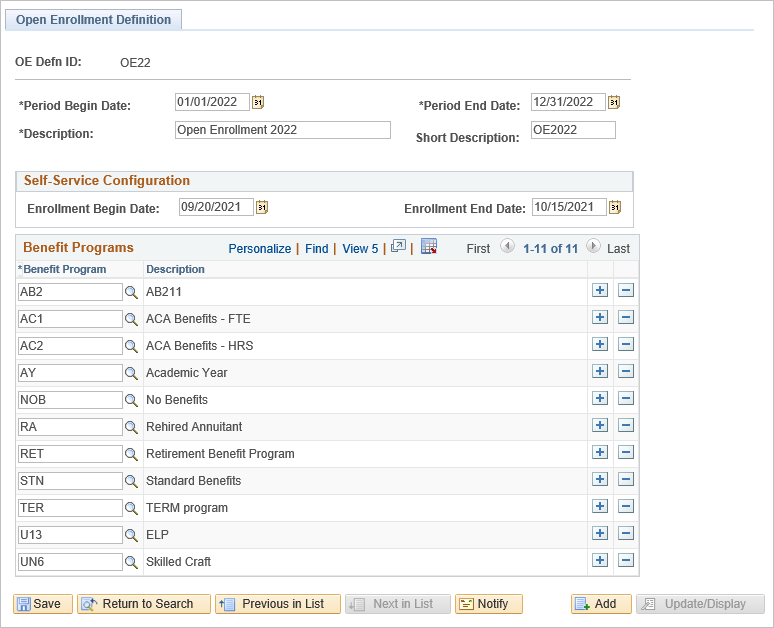
Create an Open Enrollment Definition
- Create a definition for OE that contains all benefit programs
Navigation: >Set Up HRMS >Product Related >Automated Benefits >Processing Controls >Open Enrollment Definition
- Add a New Value
- Period Begin Date: The first day that coverage becomes effective for this Open Enrollment (Jan 1)
- Period End Date: The end of the plan year (Dec 31)
- Description/Short Description: Open Enrollment/OE
- Enrollment Begin and End Dates for Self Service
- Benefit Programs: Selection of benefit programs that will participate in this open enrollment event.
Define the Open Enrollment Schedule
- Select the Company that is included in the Open Enrollment processing
- Check the box for Self Service if utilized at your campus
- Link the OE Definition to the Schedule
- When first created and not used, the status is unprocessed.
Navigation: >Set Up HRMS >Product Related >Automated Benefits >Processing Controls >Schedule Table
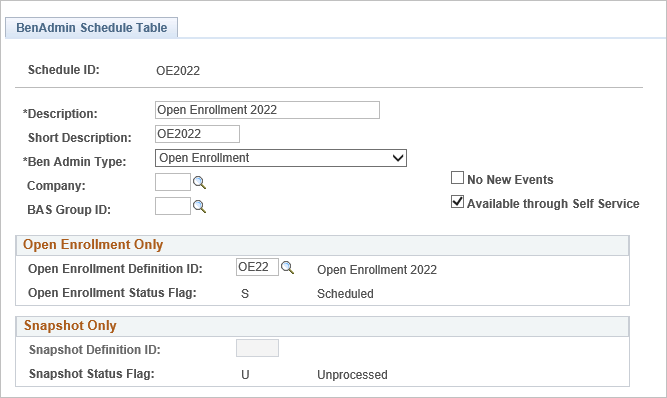
- Add a New Value
- Description/Short Description: Open Enrollment
- Ben Admin Type = Open Enrollment
- Company = Campus Specific
- BAS Group ID = blank, except in testing (see Section e.)
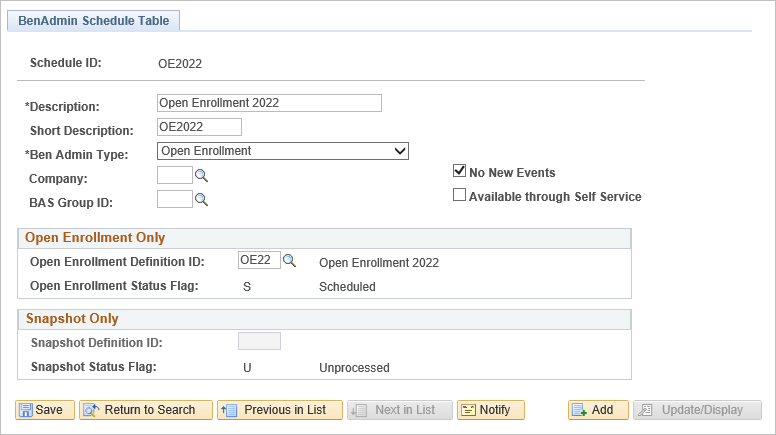
- No New Events = blank when first created; (checked later, see Finalizing OE Section 10.)
- Available for Self Service = check if campus allows employee Self Service enrollment
- Open Enrollment Definition ID = value created in previous step
- Snapshot Definition ID = blank
Create BAS Group ID (optional)
The BAS Group ID is a method to identify a population of employees and then attach only those individuals to a schedule for Ben Admin processing. This allows the OE schedule to run multiple times during testing without creating OE events for the entire population or listing employee IDs in the run control parameters.
Using the BAS Group ID to select a small population for testing is a method used to validate configuration, programs, plans, rates, and rules prior to testing an entire population of employees.
Navigation: >Set up HCM >Product Related >Automated Benefits >Processing Controls >Group Identification Table
- Create a BAS GROUP ID
- Update the Open Enrollment Schedule ID with the BAS GROUP ID. Remove the company
- Identify a 10 to 15 employees in each of 2 or 3 benefit programs such as STN, AY, or AB2.
- A single department can be selected as a test group such as HR or Benefits staff
- From the Benefit Program Participation page, enter the BAS GROUP ID on the current row for each of the selected employees. This is done in a test environment so Correction Mode can be used.
Event Maintenance
Benefits Event Review and Processing
Before starting OE in production, process open events using the Event Maintenance (EM) schedule. The goal is to have as few pending/open events as possible before beginning OE.
- Run EM Schedule to clear BAS_ACTIVITY
- Review processing messages and resolve errors.
- Review Flag report for issues
Newly eligible or new hires in their 60 days will remain open. Once the elections are made and processed to close, re-process their OE event so enrollments are in the next plan year and make change as needed.
Auditing Benefit Programs and Enrollments
Auditing is the most important tool for benefits staff. Regular review of benefit transactions provides validation for the proper assignment of benefit programs and enrollment in plans.
Suggestions for identifying Benefits Eligible Employees:
PeopleSoft delivers a participation report that provides current enrollment information organized by Plan Type and Benefit Plan.
Navigation >Benefits >Reports >Participation >Health Plan Participants
- Create a query that lists employees in benefit programs AB2, AC1, AC2, AY, STN, UN6, and U13.
Open Enrollment Testing
Identify Employees for Testing
To ensure a sufficient cross section of testing it is preferred to select a variety of employees.
- Select employees from each benefit program
- Select from each coverage code: employee only, employee + 1 dep, and employee + 2 or more dep.
- Include new hires and newly eligible for benefits with effective dates in December and January.
Test Scenario Examples
- Types of Transactions;
- Data entry changes for Medical, Dental, FlexCash, and Flexible Spending.
- Dependent changes for adding and removing enrollments.
- Data entry selections for each permitting event code available to Open Enrollment.
- Changes to Programs, Plans, or Eligibility;
- New benefit plans added to program(s)
- Existing benefit plans removed from program(s)
- Zip code changes impacting eligibility and current enrollments
- Validate options and rates
Run Open Enrollment Schedule
Create Run Control
Create a new Run Control for each new Open Enrollment year.
Navigation: Benefits >Manage Automated Enrollment >Events >Run Automated Event Processing
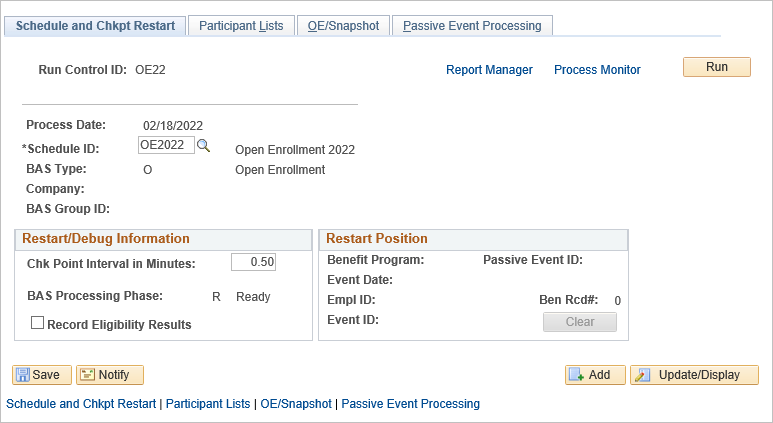
- Schedule ID - Enter “OE20XX”
- BAS Type – Defaults from the Schedule ID
- Company – Defaults from the Schedule ID
- BAS Group ID – Defaults from the Schedule ID
- Chk Point Interval in Minutes – 3
- Record Eligibility Results – Leave Blank
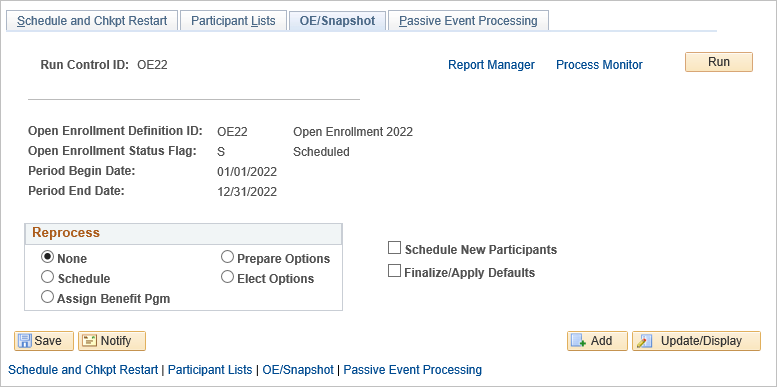
- Select the OE/Snapshot page, the following values are defaulted:
- Reprocess: None. This is the default action.
- Schedule New Participants: This field is grayed out on first run.
- Click on "Run" on top right hand corner.
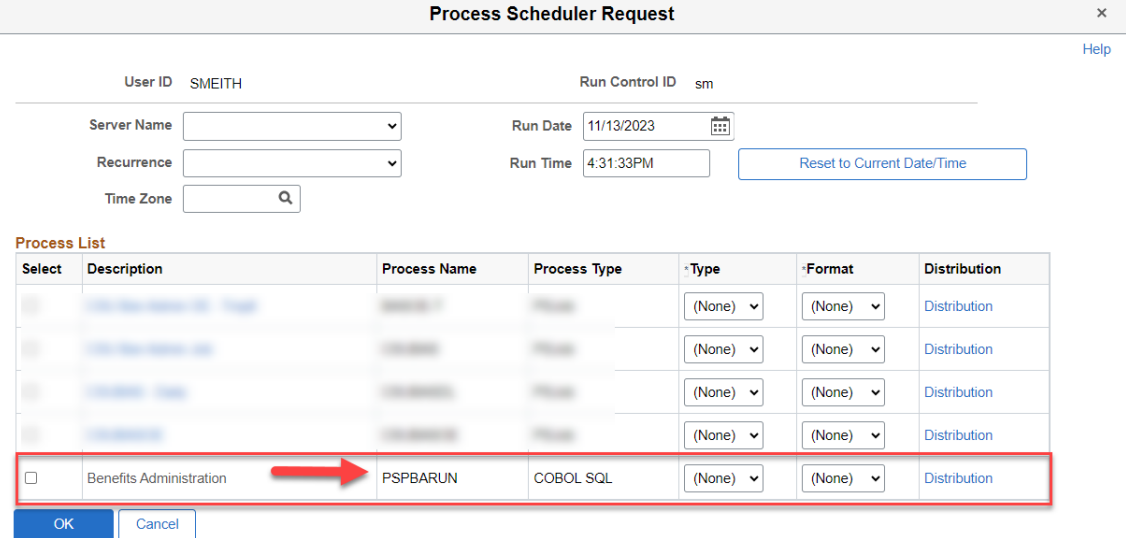
- Select "Benefits Administration", where the Process Name is ‘PSPBARUN.’
- Click “OK”
- Monitor process scheduler until "Success"
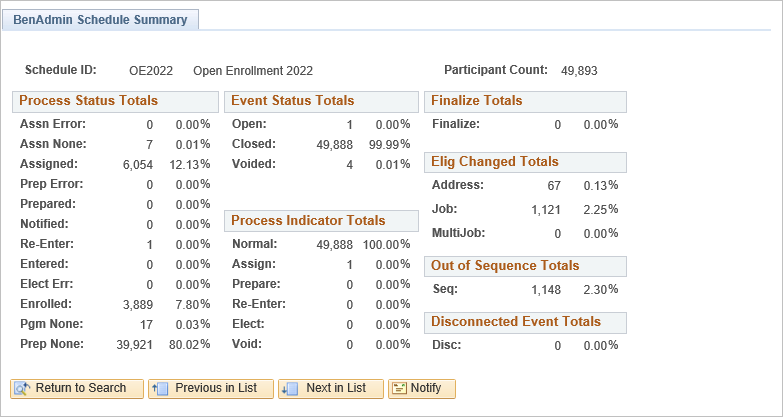
Review Schedule Summary
This at-a-glance is a summary of how many events are in which phase of processing.
- Review the OE Schedule Summary on a daily basis, at a minimum, or more with high volume.
Review Processing Messages
Every time the OE schedule is processed the first step is to review any processing messages that were generated and determine if corrective action is needed.
Navigation: Benefits > Manage Automated Enrollment >Review Processing Results >Processing Messages
Resolve Errors / Issues
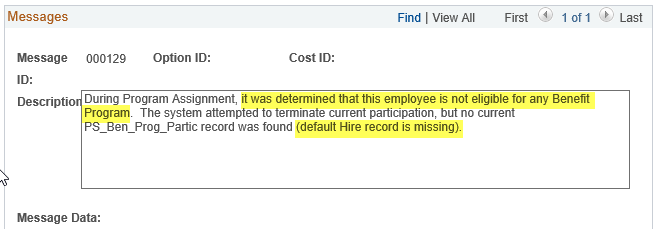
Review OE events that are in Assn Error, Assn None, Assigned, and Prep Error. Correct any data issues, process the employee using CSU On Demand pre-processing and reprocess the OE event.
For example, the following error may require one or two corrections:
- Run CSU on demand pre-processing to establish the correct benefits primary job
- Create the benefit program enrollment for the original hire date
Navigation: Benefits >Enroll in Benefits >Assign to Benefit Program
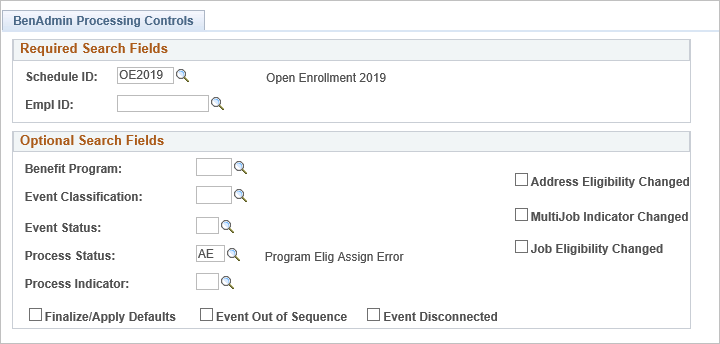
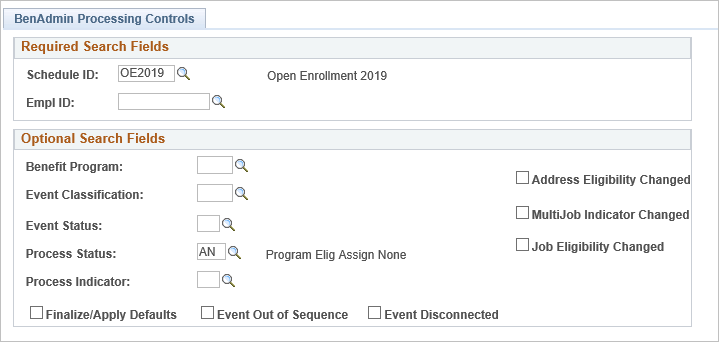
Lists of EMPLIDs can be found by process status using the Update Processing Controls search page or query.
Navigation: Benefits >Manage Automated Enrollment >Events >Update Processing Controls
Event Coordination
Event Coordination is managing two or more events for the same employee. Once OE begins, any New Hire, Life Event, Termination, or Job Eligibility change must be coordinated with the open enrollment event.
- Multiple schedules require coordination since processing one schedule does not always affect events in another schedule.
- While a participant’s open enrollment event is in process Ben Admin will continue to recognize new events as they are triggered.
- If a new event has an earlier date than OE, the system temporarily closes the OE and opens the new event for processing.
- The participant OE Event Status value changes from "Open" to "Closed".
- When the new event finalizes and changes to a closed status, the system reopens the OE event.
- Open Enrollment events, created and processed using the OE Schedule do not contain nor carry over changes made in an event processed by the EM Schedule.
- Any changes made after open enrollment begins, such as adding or removing dependents in an EM event like HBE or FSC, must also be made in the OE event or the changes will not be reflected once the new plan year begins January 1st.
Analysis of EM Event Impact to OE Event
When OE Events are created for employees it is as of a moment in time, that is, the options prepared are set based on the eligibility data reviewed by the system at the time the event is created.
If eligibility changes or new events cause changes in enrollment, the system will flag OE and/or the EM events to signify a review by Benefits staff is warranted. If a new event is completed after the OE event was created, a determination must be made as to whether it has had an impact on what Open Enrollment has prepared for the employee.
- If the new event has closed in a Prep None status then there would be no impact on the OE event as there would have been no opportunity to make elections in the EM event.
- If it is determined that the EM event has had an impact on the OE event (inserts or removes options due to eligibility change), you must complete the following:
- Treat each employee individually and use On-Demand Event Maintenance to reprocess the OE event back to the appropriate phase.
- If the OE event needs to be reprocessed back to ‘Assign Program’ or ‘Prepare Options’ that any elections previously entered will be erased. Elections should be printed/documented before reprocessing and re-entry.
Scheduling New Employees
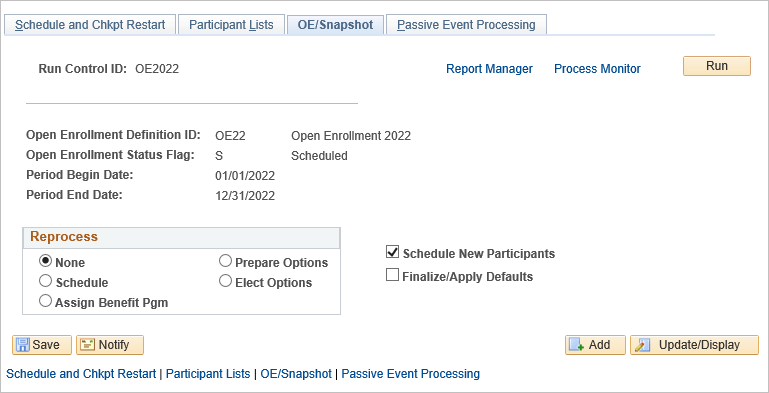
New employees hired after the OE process is scheduled can be processed for OE event using the Schedule New Participants feature or by using the Participant Lists page.
The Schedule New Participants feature is useful if there are numerous employees who were not included in the initial run of OE. These participants did not get scheduled and therefore do not have records on the participant file for the OE schedule. During this process, the system reevaluates all employees against the schedule parameters. If any participant fits the selection and they do not have an OE event, the system creates one.
OR
Create an OE event for a few specific employees (new hires or newly eligible)
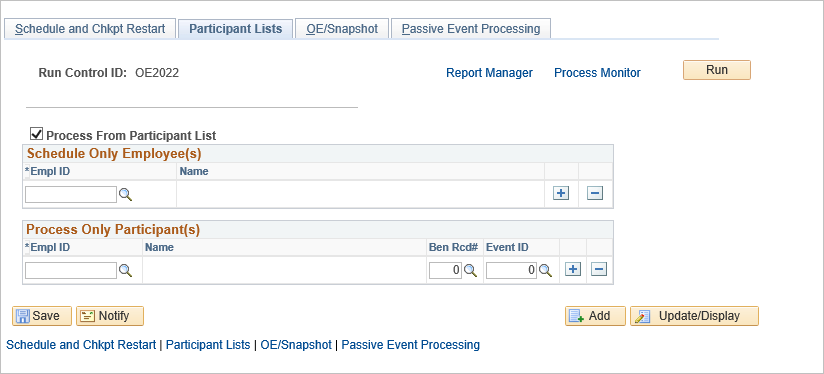
- Click on the Run button on top right hand corner.
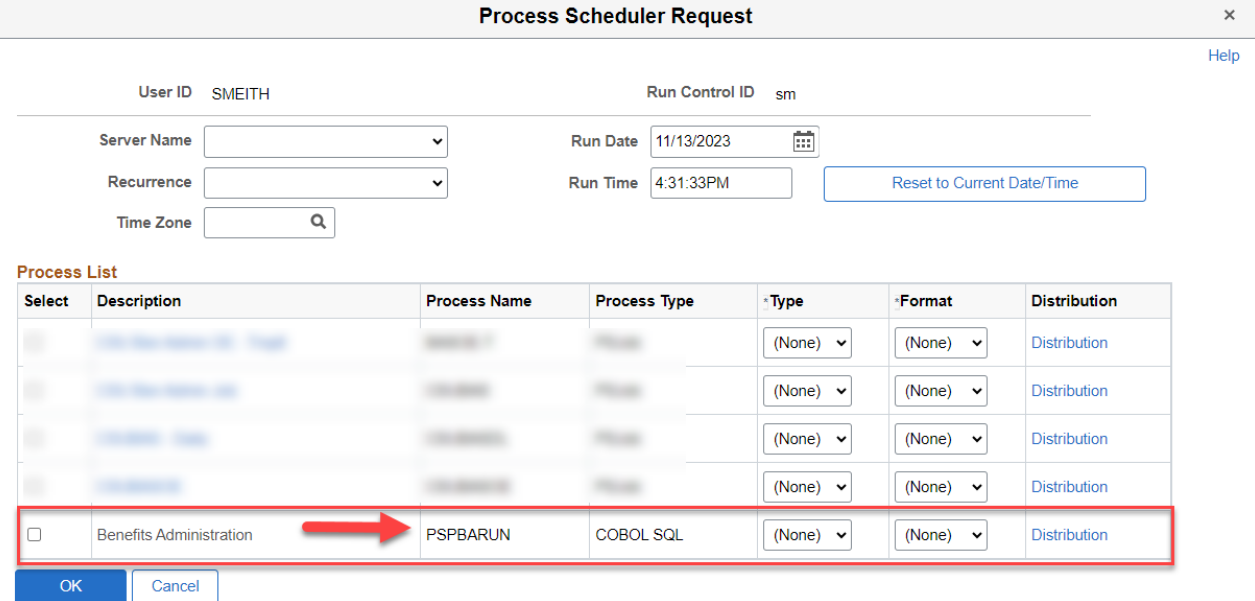
- Select Benefits Administration Job, where the Process Name is ‘PSPBARUN.’ and click “OK”
- Monitor process scheduler until Success
Reprocessing Open Enrollment Events
- If an event has been closed, the Event Status must be set to "O" and the Process Indicator to the appropriate step ("A"ssign, "P"repare Options, "E"lect).
- The OE/Snapshot tab cannot be used to open closed events, this must be done on the Update Event Status page for each employee.
- If Open Enrollment has to be reprocessed after it has gone live, the elections entered will be lost unless they are identified before re-running Open Enrollment
- All participants can be reprocessed at once from the run control parameters
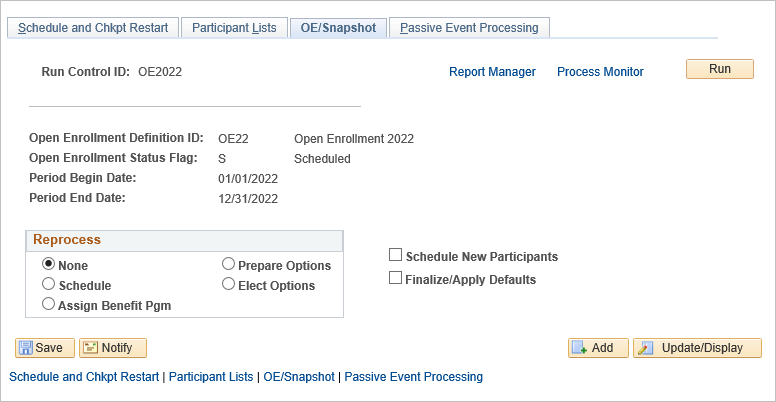
- If you want to reprocess a small group of OE events for employees you can use the Participant List page or change the process indicator from the Update Processing Controls page and then run OE Schedule again.
- Schedule New Participants will pick up any new hires or newly eligible employees and create an OE event for them
Managing Open Enrollment Events
- Event statuses that do not need immediate attention
- Prepared; Entered; Re-enter; Enrolled
- Event statuses that are cautionary and may need help
- Assigned – probably closed, another event is waiting to process and close
- Notified – data entry has not been completed or not submitted
- Event statuses that require intervention
- Elect Error – elections made did not pass validation.
- Prep Error – usually pay calendars or an error pointing to a configuration issue.
- Assign Error – employee is eligible for more than one benefit program.
- Disconnect – job eligibility information associated with the event has been lost
- The None
- Prep None – employee is terminated or not eligible for an OE event
- Program None – employee is not eligible for any program listed in OE definition. This could be an eligibility issue, the benefit primary job is not correct, or benefit program for hire date is missing.
- Assign None – no eligible program could be found for the employee. These should be reprocessed, the event is waiting for another to process correctly or close
Entering Benefit Elections
Enter the employee benefits elections using the On-Demand pages. Refer to the Business Process Guide HCM90_BPG_BA_Manual Events and Election Entry for details on election entry procedures.
Completing the Open Enrollment Process
The open enrollment period for employees to submit changes is set by CalPERS and is generally a 4-week period beginning in September each year.
The open enrollment period for campus benefits offices to complete data entry and submit enrollments and changes to all vendors is generally a few weeks to a month after the close of the CalPERS dates.
The open enrollment period for processing or reprocessing events in PeopleSoft can continue from the end of the CalPERS dates through the end of the calendar year and possibly into the new plan year.
OE Event Review
- Prior to finalizing open enrollment events, complete a review of any OE event with a Process Status of;
- Assn Error - Assigned
- Assn None - Prep Error
- Notified and Re-Enter Process Statuses indicate that enrollment was started but not completed. These should be completed before finalizing
- Open Enrollment Events should have one of these Process Statuses before the OE schedule is finalized.
- Prepared - Pgm None
- Entered - Prep None
- Enrolled
- Clear all processing messages for the OE Schedule. You can continually run the OE schedule until no more errors are present.
Finalize/Apply Defaults
This process closes any open enrollment events that were prepared but were not used to make selections or changes. The system will perform validations and assign defaults as needed for those with no elections.
Only run the finalize process after a review of OE Events and when employee selection period is closed.
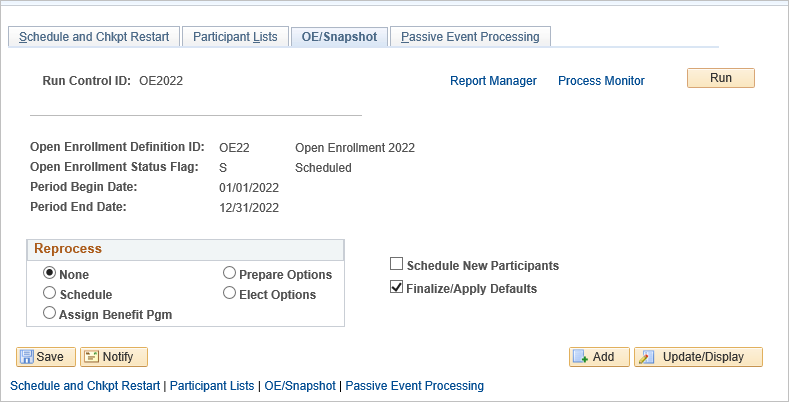
Click on the Run button on top right hand corner.
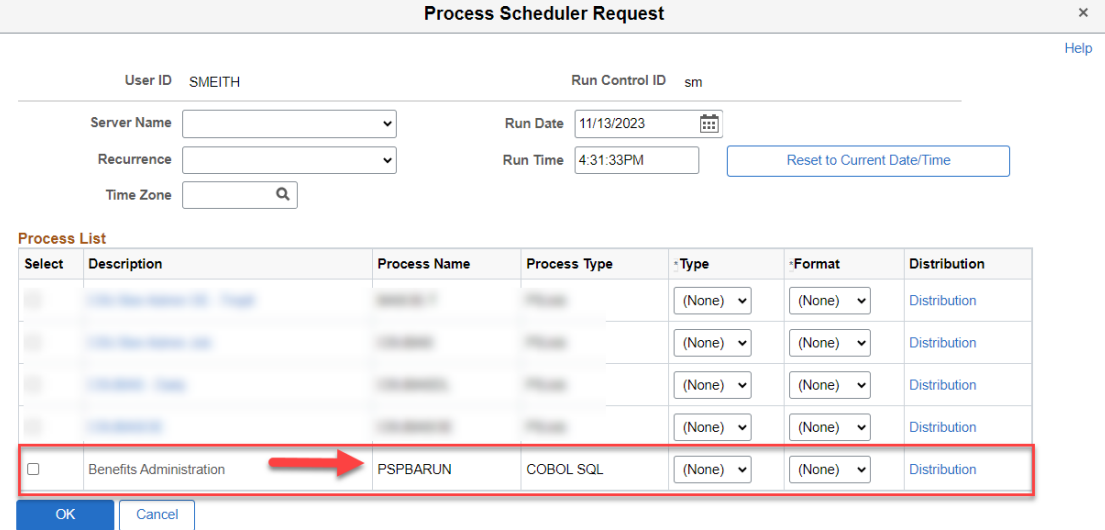
- Select Benefits Administration Job, where the Process Name is ‘PSPBARUN.’ and click “OK”
- Monitor process scheduler until Success
Audit Enrollment Changes
Once the finalize step is complete and open enrollment events have closed, auditing is strongly recommended. For OE, the Coverage Begin date is always January 1st so query can be used to find 1/1 rows:
- with terminated coverage (of any plan type)
- with a waive when coverage was previously enrolled
- that are missing a permitting event code
New rows will always be written for Flexible Spending plans in OE. The January 1st row will be:
- Waive, if employee chose to not enroll. Waive can continue from previous row.
- Term, if the employee was previously enrolled but took no action to re-enroll. Term can continue from previous row.
- Enroll, if the employee actively enrolled for a new year of deductions. Enroll cannot continue from previous row.
Close Open Enrollment Schedule
When a Schedule is no longer applicable to processing and should no longer be used; such as an old OE period – Check the field “No New Events” This will prevent anyone from processing Ben Admin with the outdated Schedule ID.
Closing the schedule does not prevent manual re-processing from taking place in On Demand.
End of Article