Overview
Background
[context information]
Before You Start
- You must have recruiter access in the system.
- Candidate Search is only available in production (not UAT).
- Talent pools are collections of candidates.
- Categories are used as filters to refine results.
- Access Candidate Search
- Click the menu (☰ hamburger icon).
- Select Candidate Search (top option).
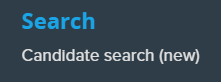
- Select a Talent Pool
- Click the Talent Pool menu.
- Click View all talent pools.

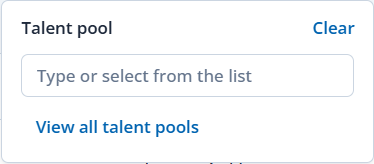
- Select a talent pool:
- A system-wide talent pool (prefix:
*CSU_) - Or a campus-specific talent pool
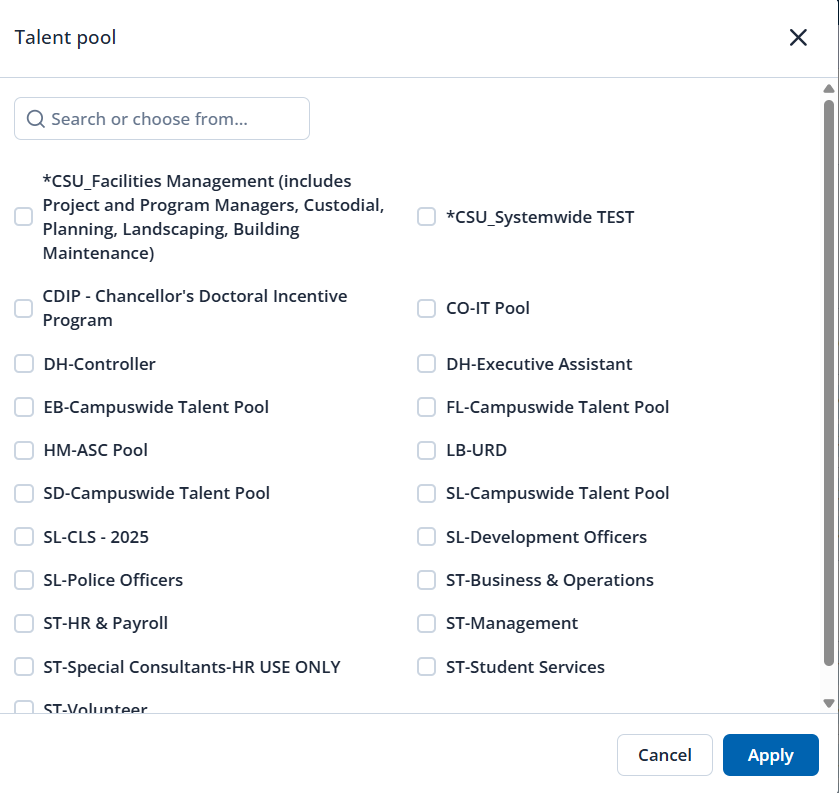
Click Apply.

- Apply Category Filters
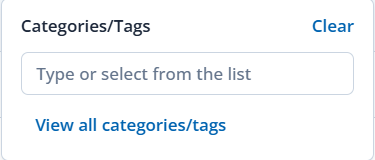
- Click the Categories menu.
- Click View all categories/tags.
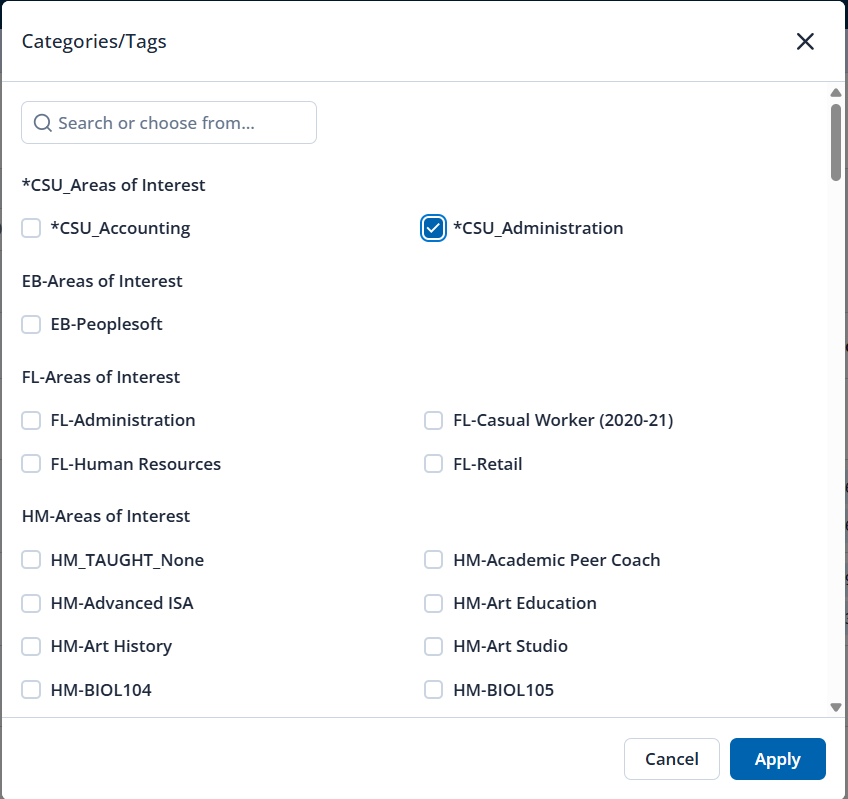
Select one or more categories (e.g., Accounting, Administration).
- Review Search Results
- The system displays a list of candidates.
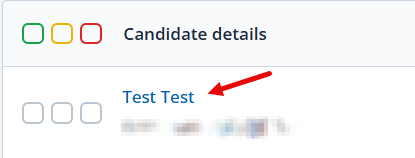
- For each candidate, you can click the candidate's name to:
- View profile details
- Check application history
See engagement with other campuses
- Evaluate Candidates
- Click the candidate's name to open the candidate profile.
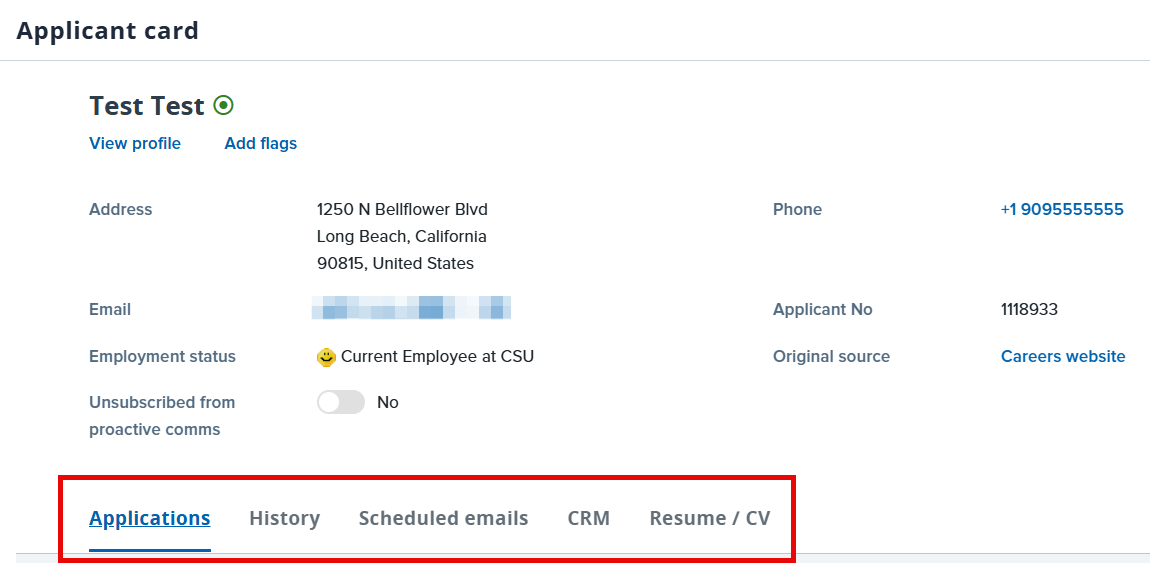
- View information from the following tabs:
- Applications
- History
- Scheduled emails
- CRM
- Resume/CV
Use the information to determine whether you should engage the candidate (based on rules of engagement).
End of Article