Overview
Background
In support of secure CHRS Query administration, CHRS administrators and staff need to be able to run various Peoplesoft delivered, CO delivered, and campus-created authorized queries. Because of the limitations of PeopleSoft’s delivered Query tool, a modification was needed to more finely tune what queries may be authorized to be run by a user or group of users.
As part of the Query Runner modification, access to Query Manager and Query Viewer will be removed from general users and replaced with the Query Runner execution page. Designated Query Administrators, and Query writers will retain access to Query Manager and Query Viewer. The Query Runner modification provides a method to enable controlled access and execution of authorized queries. Campus-authorized query administrators (or their designees) will provide the setup and mapping necessary for Query Runner.
This document reviews the setup and configuration of this module.
Review prerequisites
- The role CHR_PT_Query_Access_Control provides access to the Query Access Control Entry page. Limit this role to a maximum of two users per campus.
- Query Runner applies only to public queries.
- Designated Query Administrators must be identified and informed of changes.
- Queries available in Query Runner must be limited to campus datasets and include all required prompts, as users cannot modify criteria on the Query Runner page.
- Campuses should submit an Optimize ticket to request campus-specific security roles for grouping users by query access.
Add a new Query Access Control List
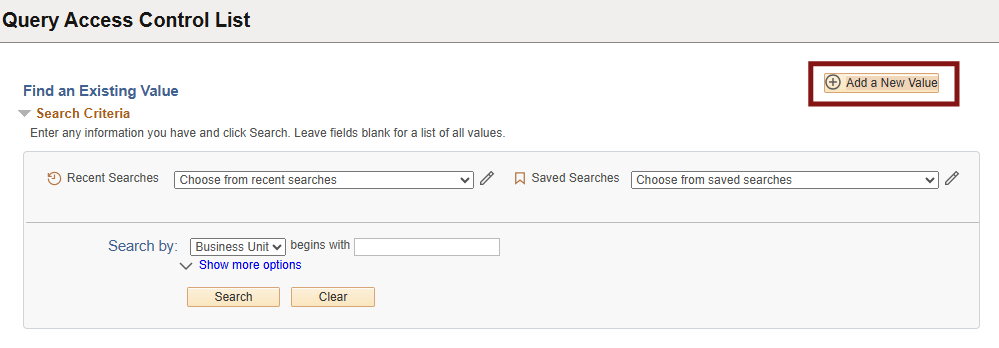
- Navigate to: Menu > Set Up HCM > CSU Product Related Setup > CSU Security > Query Runner Access List
- Click the Add a New Value button.
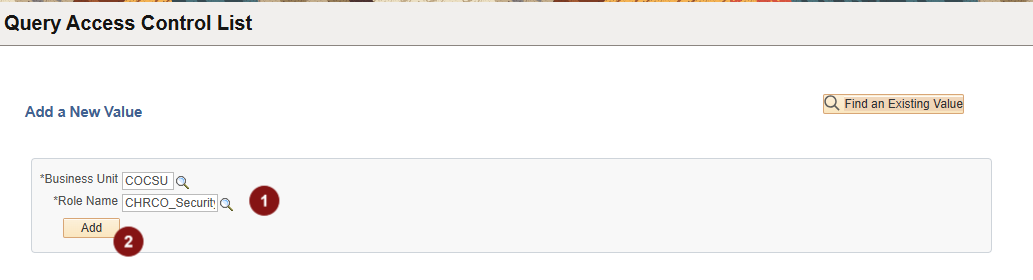
- Enter your campus Business Unit.
- Enter the Business Unit and Role Name to associate with queries.
- Click the Add button.
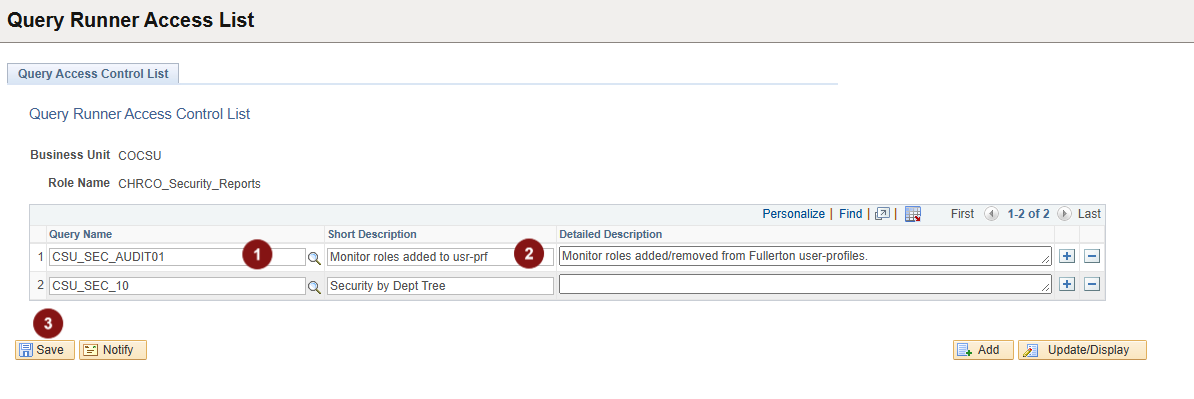
- Assign queries and descriptions
- Select queries from the “Query Name” dropdown list.
- The “Short Description” and “Detailed Description” fields are populated from the query properties. You may override these with custom text for display on the Query Runner page.
- Click the Save button to save your entry.
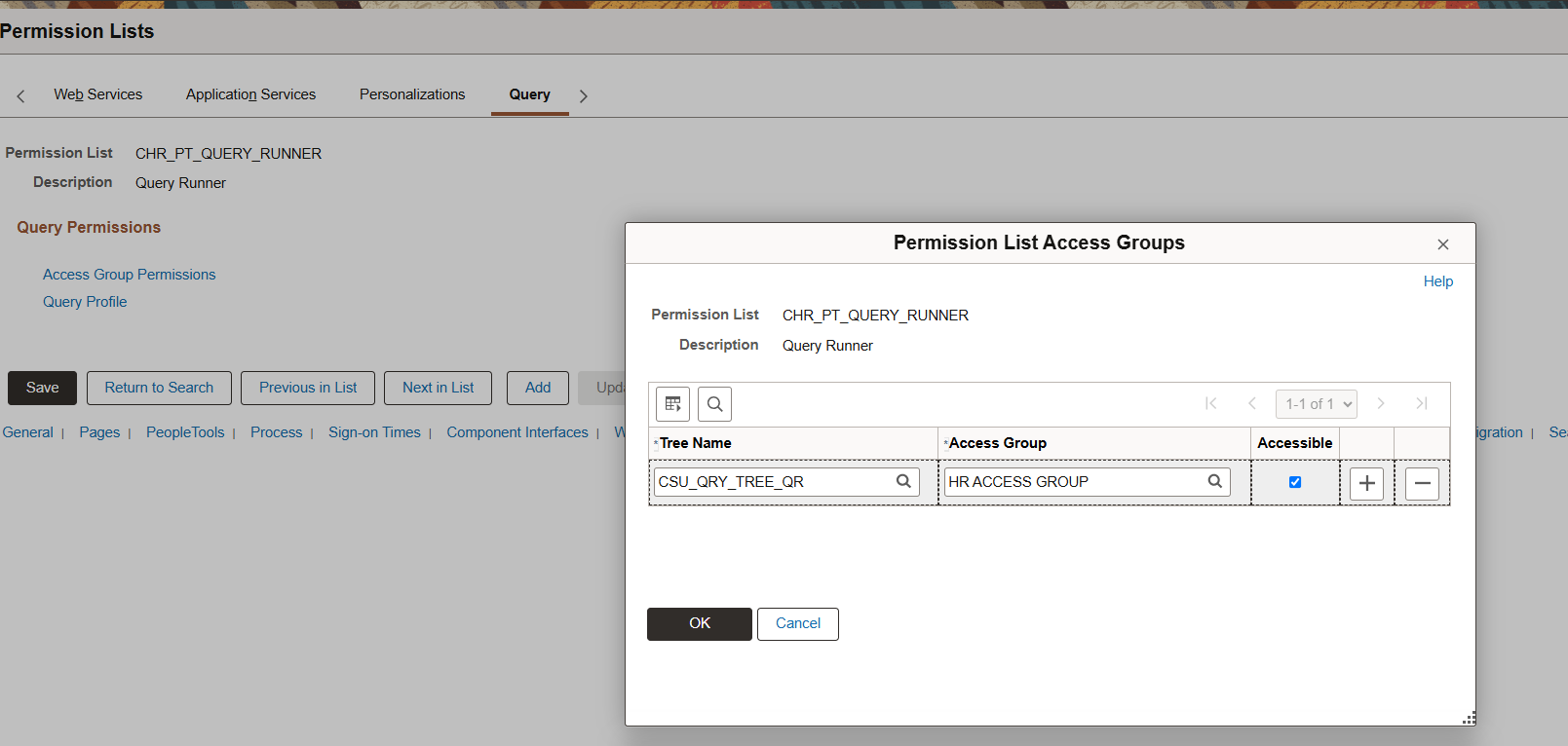
Query Tree and Access Group
Users with the CHR_PT_Query_Runner role are granted Access Group Permission under the CSU_QRY_TREE_QR tree.
Run the CSU_SEC_FIND_TREE_RECORDS_LST query to obtain a list of records.
End of article